Custom Data Variables
Custom Data Variables allow you to inject dynamic, user-defined data into your prompts at runtime. This feature enables you to create flexible, reusable prompts that can adapt to different contexts without modifying the prompt text itself.
Overview
Custom data variables use the syntax {{custom_data.key}} and support dot notation for accessing nested values. This feature is available in both:
- Prompt Studio (Sandbox): For testing and development with a visual JSON editor
- API Deployment: For production use where custom data is passed via the API request
Use Cases
Custom data variables are ideal for:
- Document context: Passing document-specific information like policy numbers, account IDs, or customer names
- Processing parameters: Injecting thresholds, date ranges, or configuration values
- Multi-tenant scenarios: Customizing extraction based on client-specific requirements
- Dynamic validation: Passing expected values to compare against extracted data
Syntax
Basic Access
{{custom_data.key}}
Nested Object Access
{{custom_data.user.name}}
{{custom_data.settings.threshold}}
{{custom_data.company.address.city}}
Using Custom Data in Prompt Studio
Prompt Studio provides a visual interface to define and test custom data variables before deploying to production.
Accessing Custom Data Settings
- Open your Prompt Studio project
- Click the Settings icon (gear) in the toolbar
- Select Custom Data from the menu
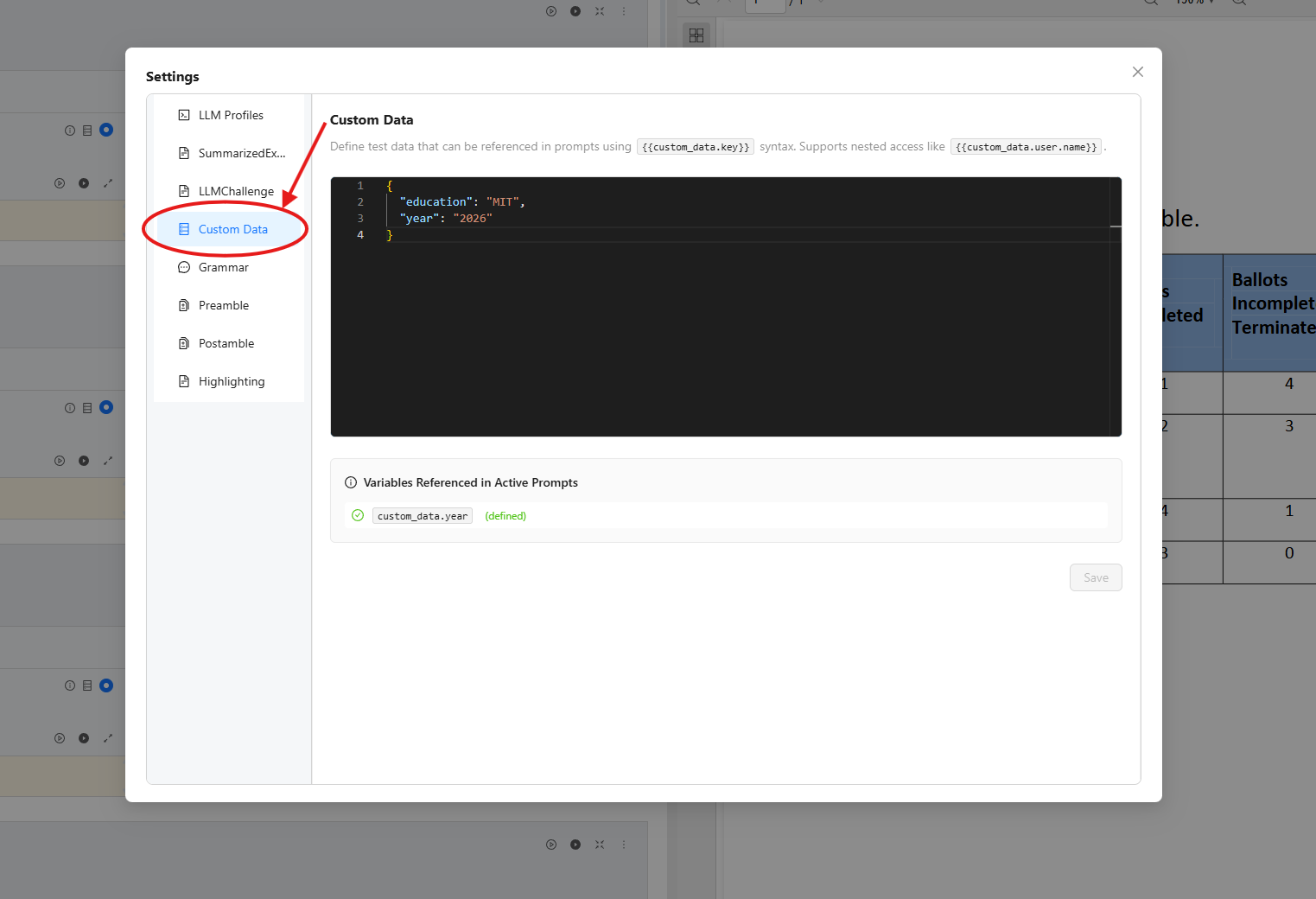
Defining Custom Data
The Custom Data settings page provides:
- JSON Editor: A Monaco-based editor for defining your custom data as JSON
- Variables Preview: Shows which
{{custom_data.xyz}}variables are used in your active prompts - Validation Warnings: Alerts you when referenced variables are not defined in your JSON
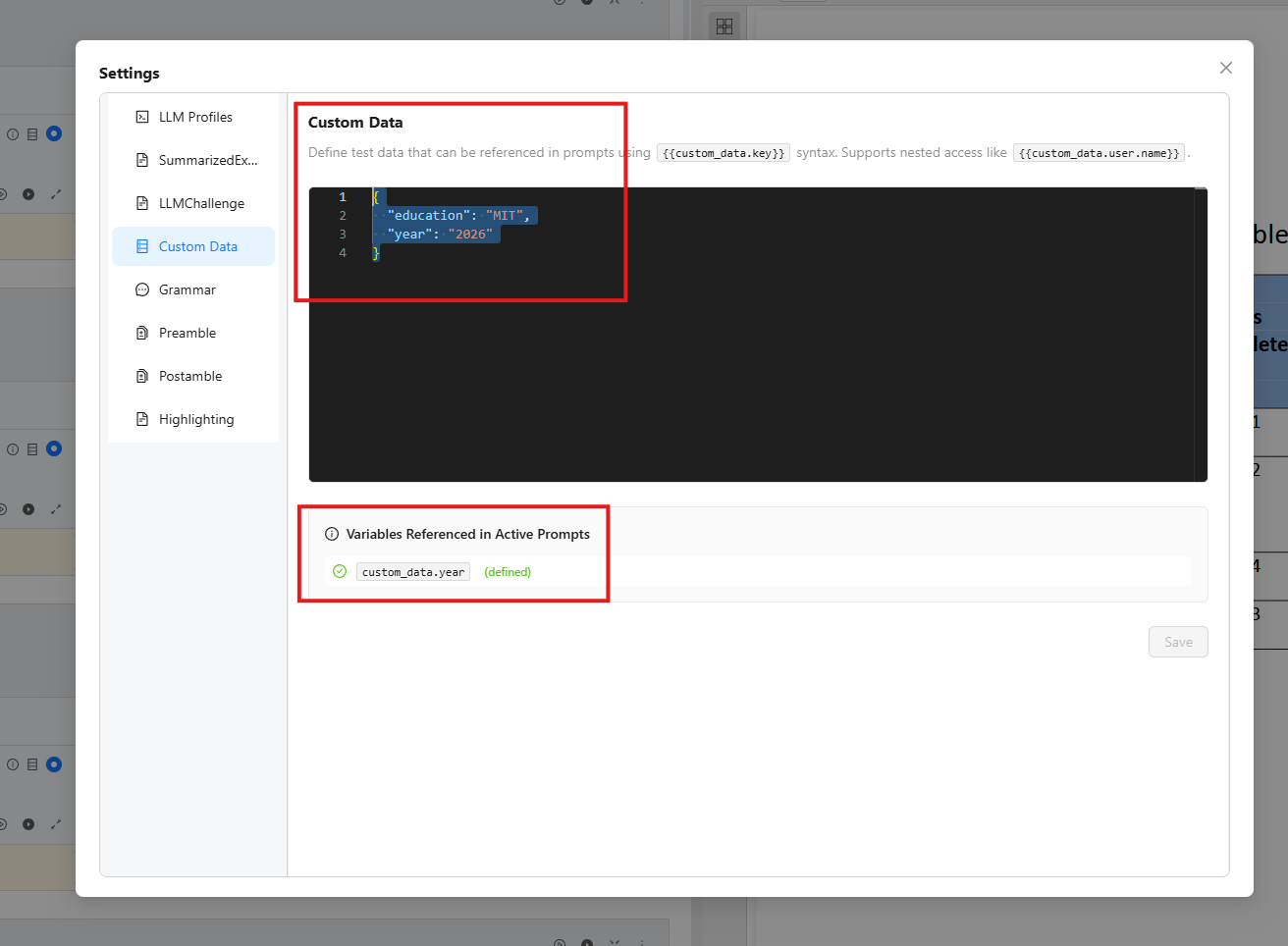
Example Configuration
Define your custom data as a JSON object:
{
  "customer_name": "Acme Corporation",
  "policy_number": "POL-2024-001234",
  "effective_date": "2024-01-01",
  "thresholds": {
    "min_amount": 1000,
    "max_amount": 50000
  },
  "contact": {
    "name": "John Smith",
    "email": "john@acme.com"
  }
}
Using Variables in Prompts
Once defined, reference your custom data in any prompt:
Extract the premium amount for customer {{custom_data.customer_name}}
with policy number {{custom_data.policy_number}}.

The amount should be between {{custom_data.thresholds.min_amount}}
and {{custom_data.thresholds.max_amount}}.
Testing Your Configuration
- Define your custom data JSON in the settings
- Create or edit a prompt using
{{custom_data.key}}syntax - Run the prompt to verify variable replacement
- Check the Variables Preview panel to ensure all variables are defined
The Variables Preview panel automatically detects all {{custom_data.xyz}} variables used in your active prompts. Variables shown with a warning icon indicate they are referenced but not defined in your JSON.
Using Custom Data in API Deployment
When you deploy your Prompt Studio project as an API, custom data is passed as a parameter in the API request.
API Request Parameter
Include the custom_data parameter in your API request:
| Parameter | Type | Required | Description |
|---|---|---|---|
| custom_data | object | No | JSON object for variable replacement in prompts |
Example API Request
curl -X POST "https://us-central.unstract.com/deployment/api/<org_id>/<api_name>/" \
  -H "Authorization: Bearer <YOUR_API_KEY>" \
  -H "Content-Type: multipart/form-data" \
  -F "files=@document.pdf" \
  -F 'custom_data={"customer_name": "Acme Corp", "policy_number": "POL-001"}'
Python Example
import requests

url = "https://us-central.unstract.com/deployment/api/<org_id>/<api_name>/"
headers = {"Authorization": "Bearer <YOUR_API_KEY>"}

files = {"files": open("document.pdf", "rb")}
data = {
    "custom_data": '{"customer_name": "Acme Corp", "policy_number": "POL-001"}'
}

response = requests.post(url, headers=headers, files=files, data=data)
print(response.json())
For complete API documentation, see Execution API.
Error Handling
If a prompt references a custom data variable that is not defined, you will receive a descriptive error message with guidance on how to fix it.
In Prompt Studio:
Custom data error for variable '{{custom_data.missing_key}}':
Key 'missing_key' not found in custom data.
Please define this key in Prompt Studio Settings > Custom Data.
In API Deployment:
Custom data error for variable '{{custom_data.missing_key}}':
Key 'missing_key' not found in custom data.
Please include this key in the 'custom_data' field of your API request.
Troubleshooting
| Issue | Solution |
|---|---|
| Variable not replaced | Ensure the variable name matches exactly (case-sensitive) |
| Nested value not found | Verify the full path exists in your JSON (e.g., user.name requires {"user": {"name": "..."}}) |
| Invalid JSON | Use the JSON editor's syntax highlighting to identify and fix JSON errors |
| Variable not detected | Ensure correct syntax: {{custom_data.key}} with double curly braces |
Best Practices
-
Test in Prompt Studio first: Always validate your custom data configuration in the Prompt Studio sandbox before deploying to production
-
Use descriptive key names: Choose clear, self-documenting key names like
customer_nameinstead ofcn -
Document your schema: Maintain documentation of expected custom data fields for API consumers
-
Handle missing data gracefully: Design prompts that work even if optional custom data fields are not provided
-
Validate in your application: Before calling the API, validate that required custom data fields are present
Relationship to Other Variable Types
Custom data variables work alongside other variable types in Unstract:
| Variable Type | Syntax | Description |
|---|---|---|
| Custom Data | {{custom_data.key}} | User-provided data from settings or API |
| Prompt Chaining | {{prompt_key}} | Output from another prompt in the same project |
| Dynamic Variables | {{[prompt_key] url}} | Post-processed prompt output via webhook |
For more information on prompt chaining, see Prompt Chaining.