LLMWhisperer Dashboard
The LLMWhisperer Dashboard is a lightweight web UI bundled with every On-Prem deployment. It provides a single place for administrators to verify the running version, inspect document processing activity, download usage reports, and manage the license file — without needing direct access to the Kubernetes cluster.
The dashboard is served by the llmwhisperer-dashboard service (port 3007) and is reachable via the ingress configured during deployment.
Login
Open the dashboard URL in a browser to reach the sign-in screen.
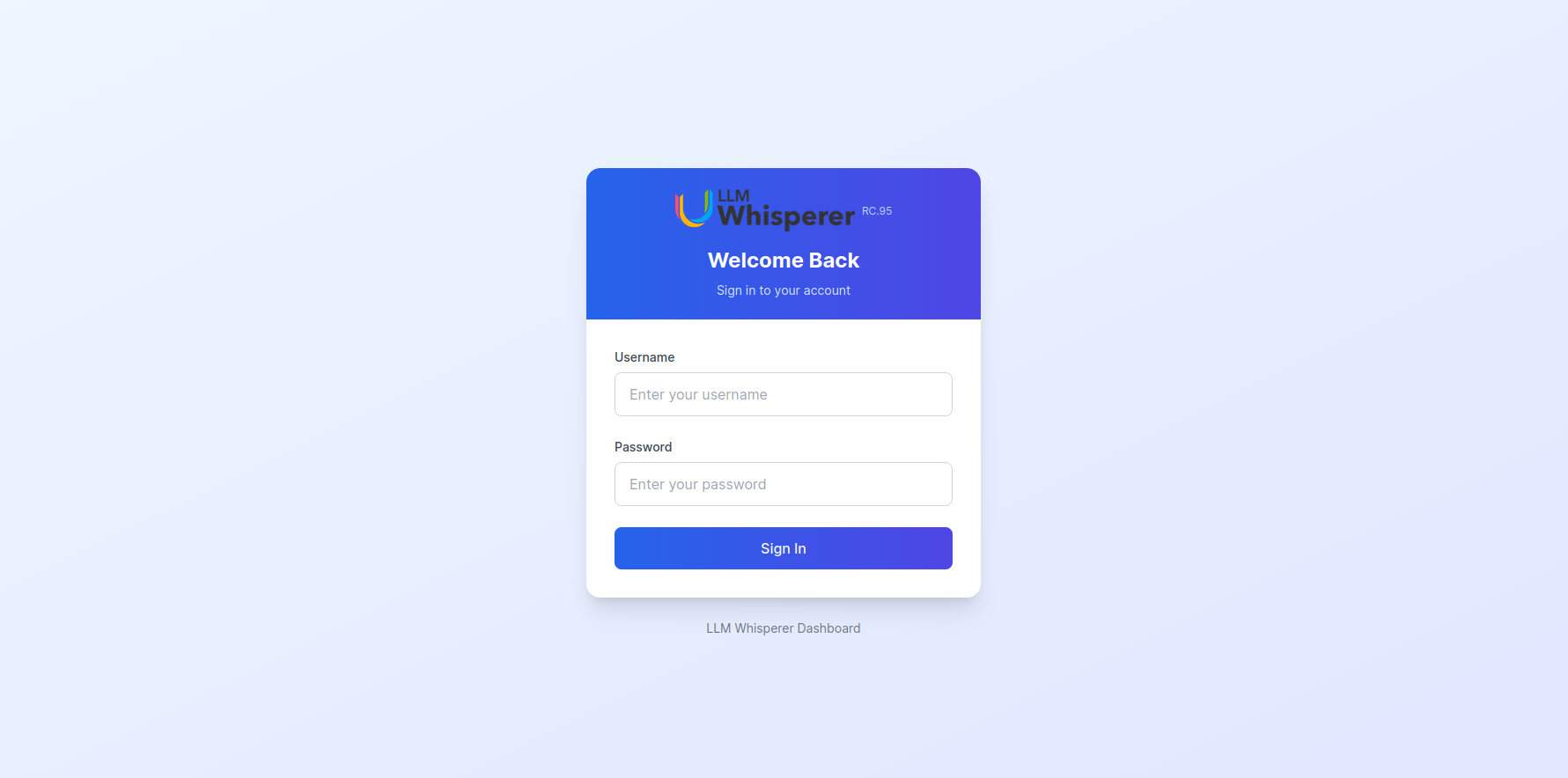
Use the credentials configured during deployment:
- Username — value of
INITIAL_USER_NAME - Password — value of
INITIAL_PASSWORD
Both values are set under global.sharedConfigs.dashboardCredentials in onprem.values.yaml. See Required Configuration Values for details.
Home
The Home screen is the default landing page after login. It surfaces deployment-level information and a searchable record of every document processed by this deployment.
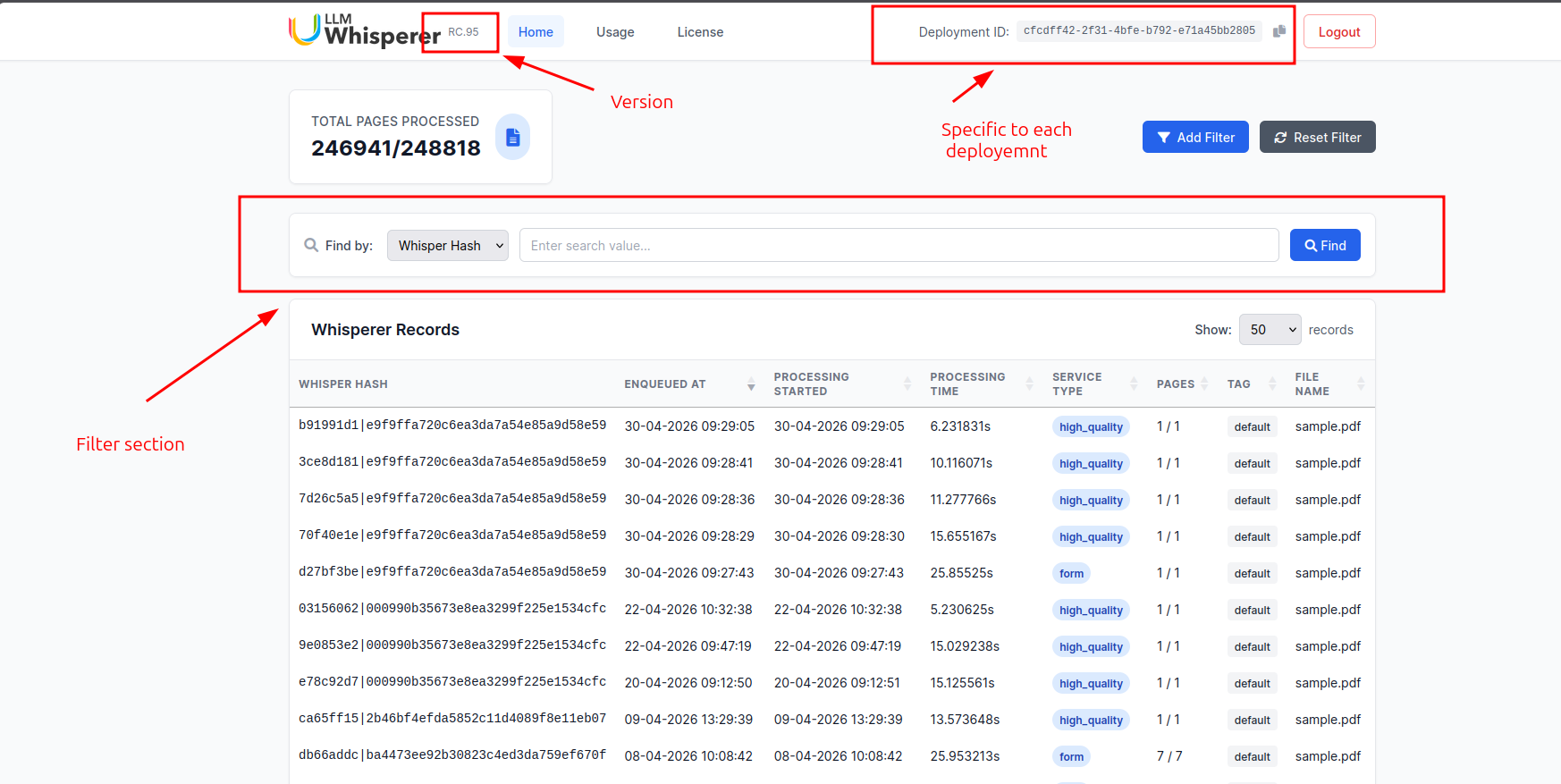
The page is organised into the following areas:
| Area | Description |
|---|---|
| Version | The currently deployed LLMWhisperer release (shown next to the logo). Useful when raising support requests. |
| Deployment ID | The unique identifier for this deployment. This same value appears in the billing payload and usage exports. Click the copy icon to copy it to the clipboard. |
| Total Pages Processed | Cumulative pages processed by this deployment against the total pages allowed by the active license. |
| Find by | Quick lookup of a single record by Whisper Hash or other supported fields. |
| Add Filter / Reset Filter | Refine the records table by date, service type, tag, or other attributes. |
| Whisperer Records | A paginated table of processed documents with the whisper hash, enqueue and processing timestamps, processing time, service type / mode, page count, tag, and source filename. Adjust the page size with the Show dropdown. |
Usage
The Usage screen lets administrators export aggregated processing volume for any date range as a signed JSON file. This is the same payload used for license metering and is suitable for sharing with the Unstract team during reconciliation.
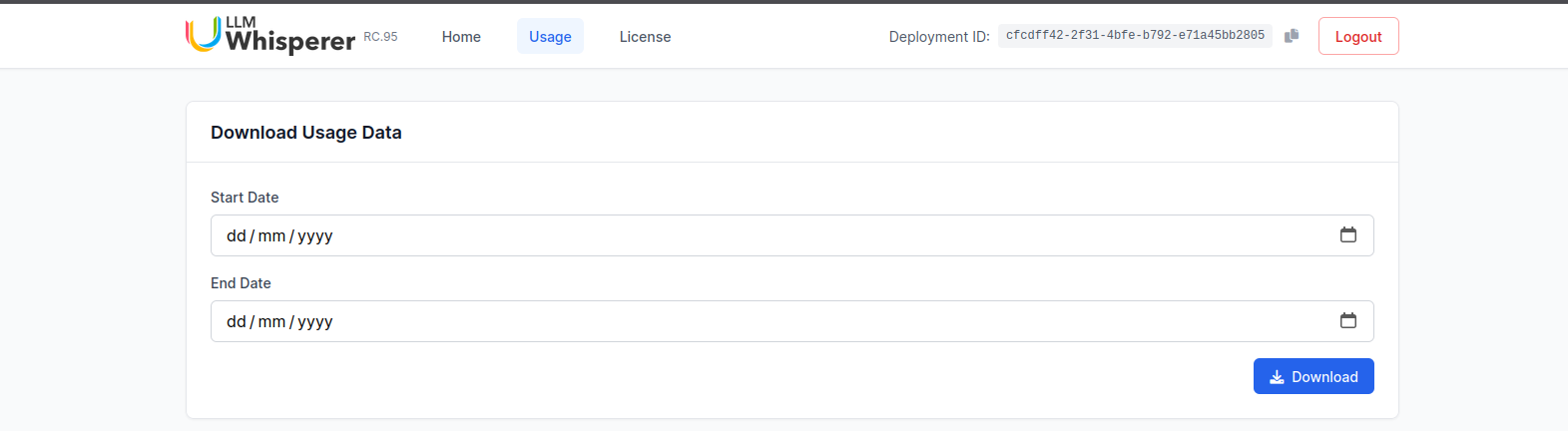
To download a usage report:
- Pick a Start Date and End Date.
- Click Download. The browser saves a JSON file with the aggregated counts and a cryptographic signature.
The downloaded file looks like this:
{
    "deployment_id": "cfcdff42-2f31-4bfe-b792-e71a45bb2805",
    "subscription_id": "ba0014c0-c9b7-4bbe-a63b-7e003062e075",
    "from_date": "2026-04-29",
    "to_date": "2026-05-01",
    "usage_total": 5,
    "usage_native_text": 0,
    "usage_low_cost": 0,
    "usage_high_quality": 4,
    "usage_form": 1,
    "signature": "jCi6KCStSG/LuAqKCii/FaGPKBpEaNOgSNH+oljz7usxM5IK5kUSqT8vOFSz9qjILdSlx7DcoBQ2dfcFHwFNAlVrRRLdDQN1hsjokIgBCJIjEuf0EBayNnr6fif/5Yxbvq0+D+cYjIeGF9q8yIMN4X+KMul1dfRaHbLPeDdkiftX7JkO9nJOoqKuPI+LpJDC3o3e5fGZBiOgl2cWjdMBkQU9BHMj8Seb6vKWjo3S+L0lxL0k2GL40kVO/NHgeZoIvuKem1QROagN1eF+fztIhCwzhvz09g8hnDEUIzx293IvZD53cMiaT25KSaJ1jVuodkzLxx5syPvPdLikNuj1y+7Y2BIsqms8PhEXv/KSekGfxY+PJ2kQrTihgQLpWKUFatPVBeWwKTlrT3Amnc9Rs+D7GUunrdcebQ7O48eG257e0kojjHgJVa+9pHo9ij6C241+QE6+fOIMDOfrvi4vTbfeTjyqkeEN1hel4s0AYtE8VOvvpu4/znolZe4/vKfqCPKxY+sJkY+C2j3pAfrB6m79Bh2f0iJpPXjOfoS9zOUF1pDQ89HSGtZaSJ+utCtTuQNWM352szCTmrujo5a5IptSkEAhZ+0/bblfzDuNk2UUwWHIkqc4tNBosNiXQCweXWHG0J0Iox2stgQfBcufQpcRnko1vce7v/IAJqbV8RU="
}
| Field | Description |
|---|---|
deployment_id | The deployment this report was generated for. |
subscription_id | The subscription tied to the active license. |
from_date / to_date | The date range selected on the screen. |
usage_total | Total pages processed during the range. |
usage_native_text | Pages processed using native text mode. |
usage_low_cost | Pages processed using low cost mode. |
usage_high_quality | Pages processed using high quality mode. |
usage_form | Pages processed using form mode. |
signature | Signature over the report, used by the Unstract team to verify authenticity. |
The signature is generated using the deployment's private key. Do not edit the JSON file before sharing — any modification will invalidate the signature.
License
The License screen is used to upload a new license file and review the details of the currently active license.
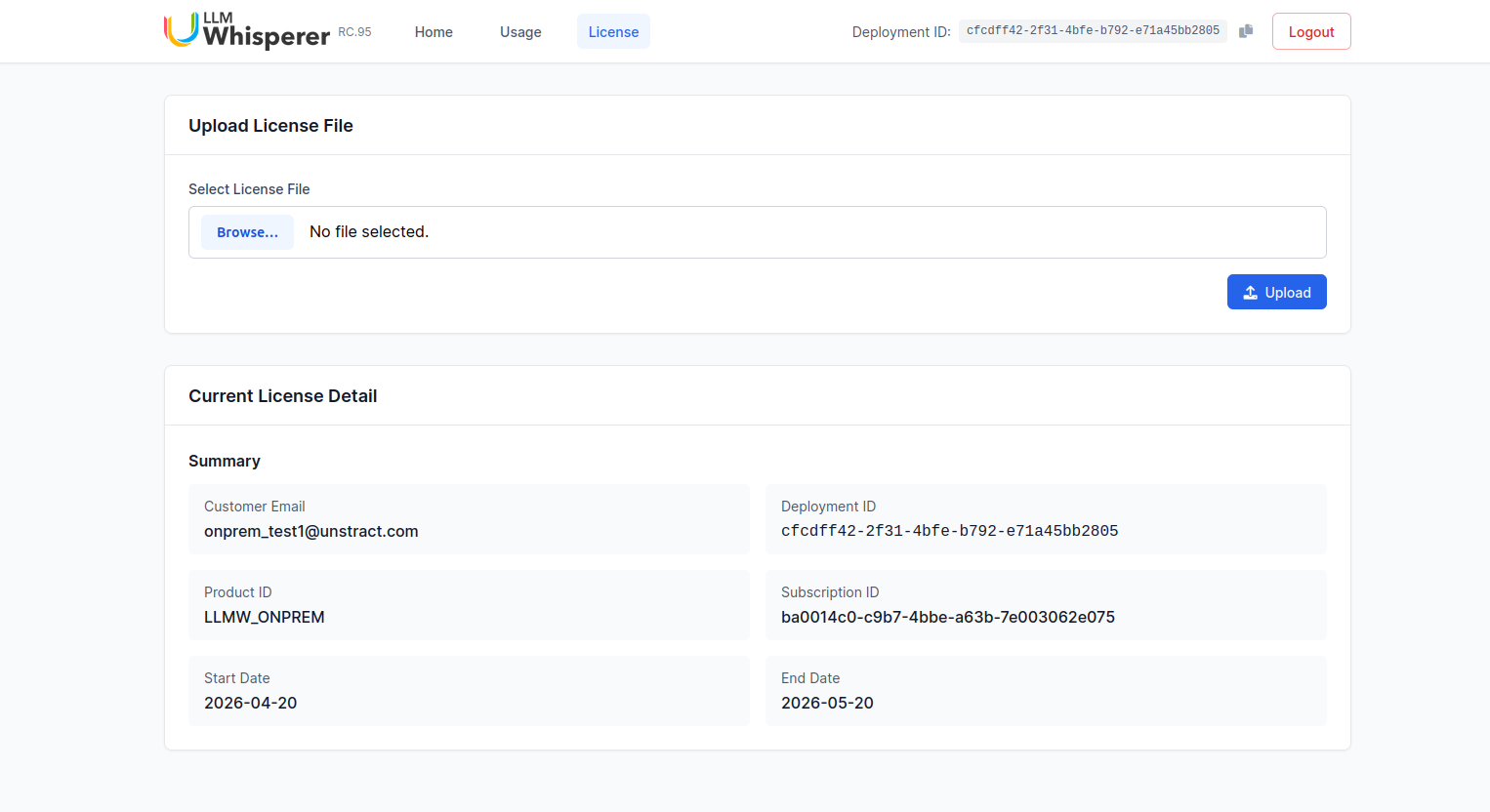
Upload License File
When a license is renewed or replaced, the Unstract team will share a new license file. Click Browse..., select the file, and click Upload. The new license becomes active immediately and the Current License Detail section refreshes.
Current License Detail
The Summary panel shows the metadata embedded in the active license:
| Field | Description |
|---|---|
| Customer Email | Primary contact registered for this license. |
| Deployment ID | Deployment this license is bound to. Must match the Deployment ID shown in the header. |
| Product ID | Internal product identifier (for example, LLMW_ONPREM). |
| Subscription ID | Subscription this license is issued under. |
| Start Date | First day on which the license is valid. |
| End Date | Last day on which the license is valid. Renew before this date to avoid service interruption. |