Enterprise SSO — Okta
This guide walks through configuring Okta as an identity provider for Unstract using either OpenID Connect (OIDC) or SAML 2.0. Unstract uses Auth0 as an identity broker, which connects to your Okta tenant for enterprise SSO.
Throughout this document, highlights are used to indicate items that need to be shared between parties:
- Green highlight — Items the Customer shares with Unstract (e.g., Client ID, Client Secret, Okta Domain Name, Sign in URL, Signing Certificate, Directory Groups)
- Yellow highlight — Items Unstract shares with Customer (e.g., Authentication Server Domain, Audience URI Domain, Redirect URI)
1. Unstract Configuration to be Used
The Unstract team will share the following configuration values specific to your deployment type:
| Deployment Type | Authentication Server Domain | Audience URI Domain |
|---|---|---|
| Enterprise Cloud | auth.unstract.com | dev-3xlzwou1raoituv0 |
| Enterprise On-prem | zipstack-on-prem.us.auth0.com | zipstack-on-prem |
The redirect URI follows this pattern:
- OIDC:
https://<unstract_authentication_server_domain>/login/callback - SAML:
https://<unstract_authentication_server_domain>/login/callback?connection=marsoktasaml
2. Steps to be Performed by the Customer
2.1 Create App in Okta
REF: Auth0 — Okta Identity Provider
A. OIDC Flow
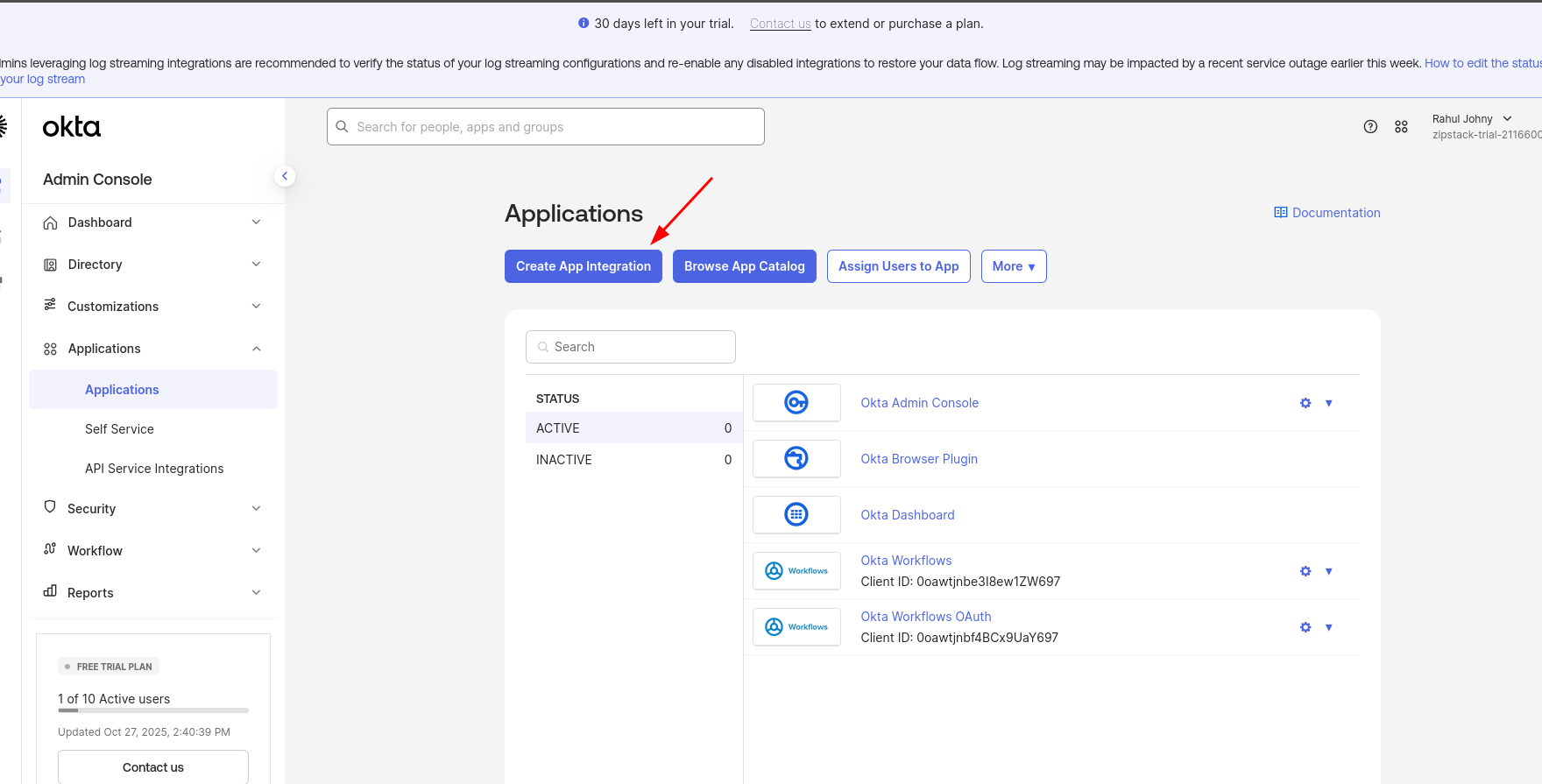
- Create an App Integration from the Okta Admin Console.
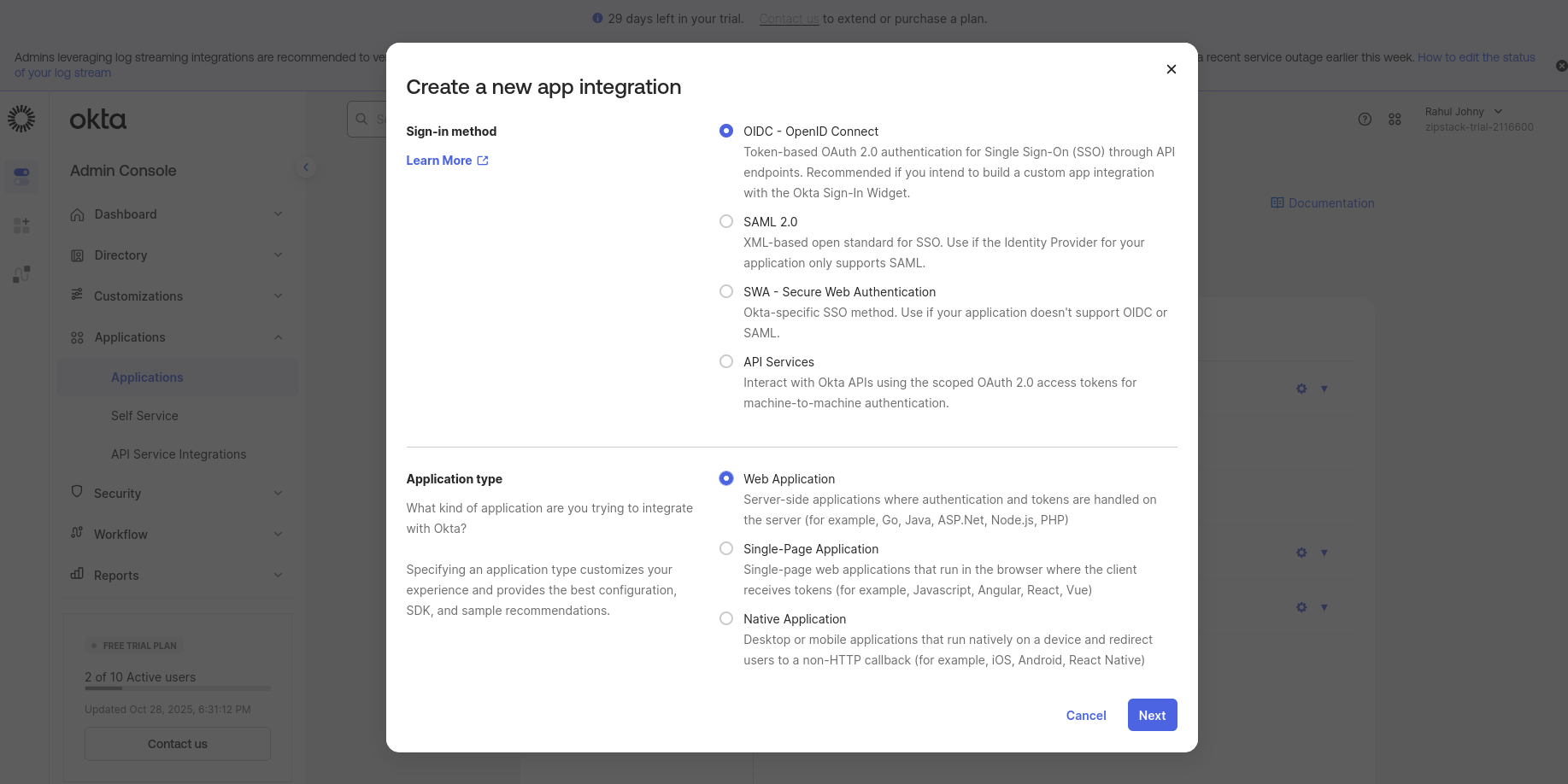
- Select Sign-in method as OIDC (OpenID Connect).
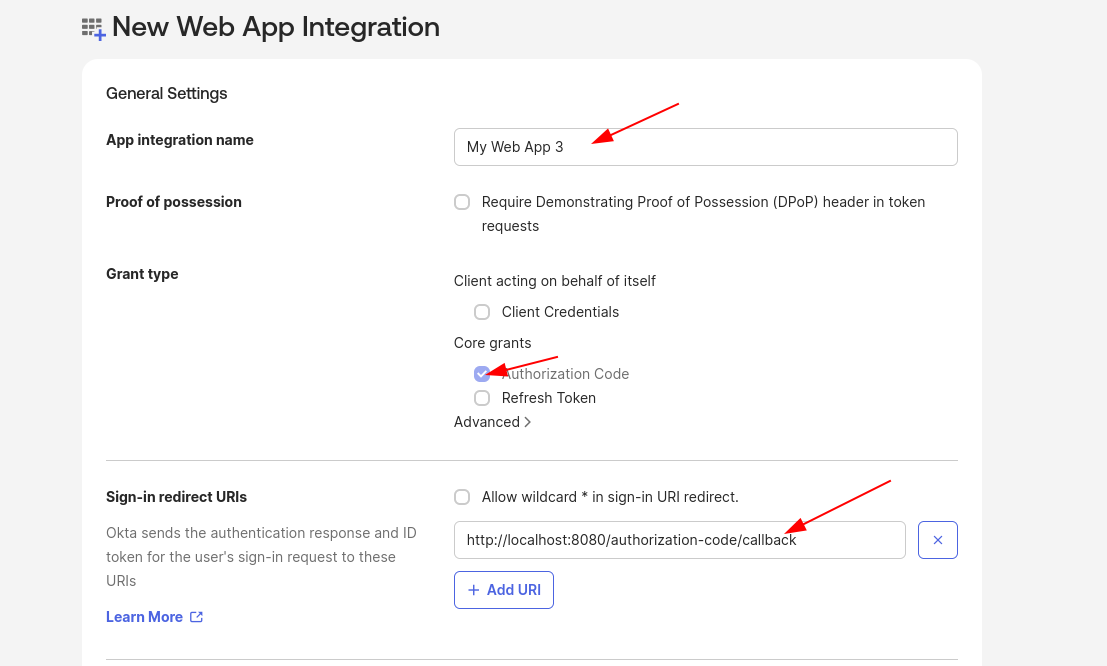
- Enter the App Integration Name following your organization's naming convention.
- Choose the Grant Type as Authorization Code (default).
- In the Sign-in redirect URI field, enter the URI shared by the Unstract team which is applicable to your deployment type (refer Section 1):
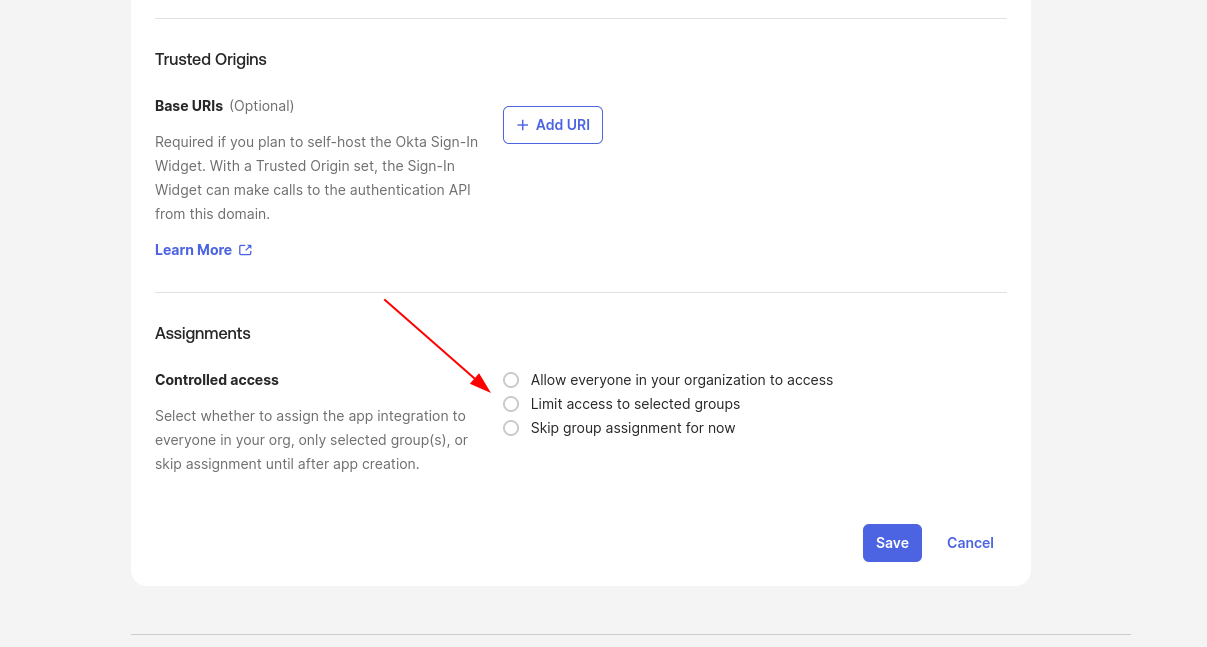
https://<unstract_authentication_server_domain>/login/callback - In the Assignment section:
- You can either limit access to specific groups or allow access to everyone in your organization.
- Even if access is granted to everyone, Unstract provides an option to restrict users based on predefined groups as agreed.
- Click Save to create the App Integration.
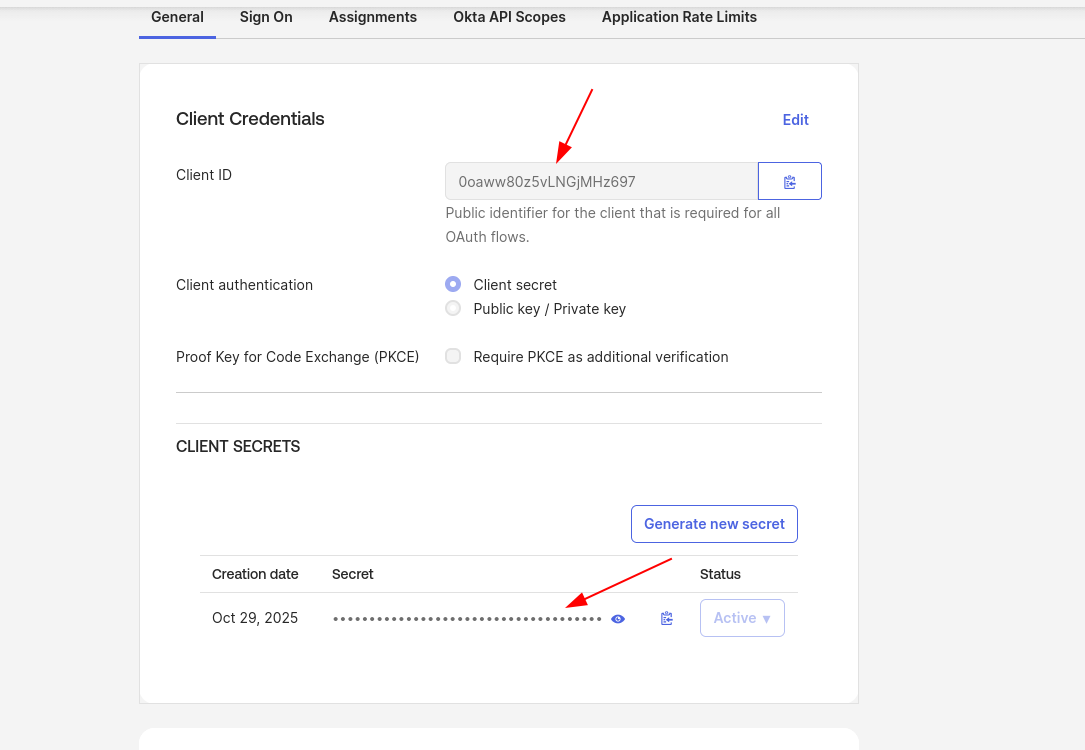
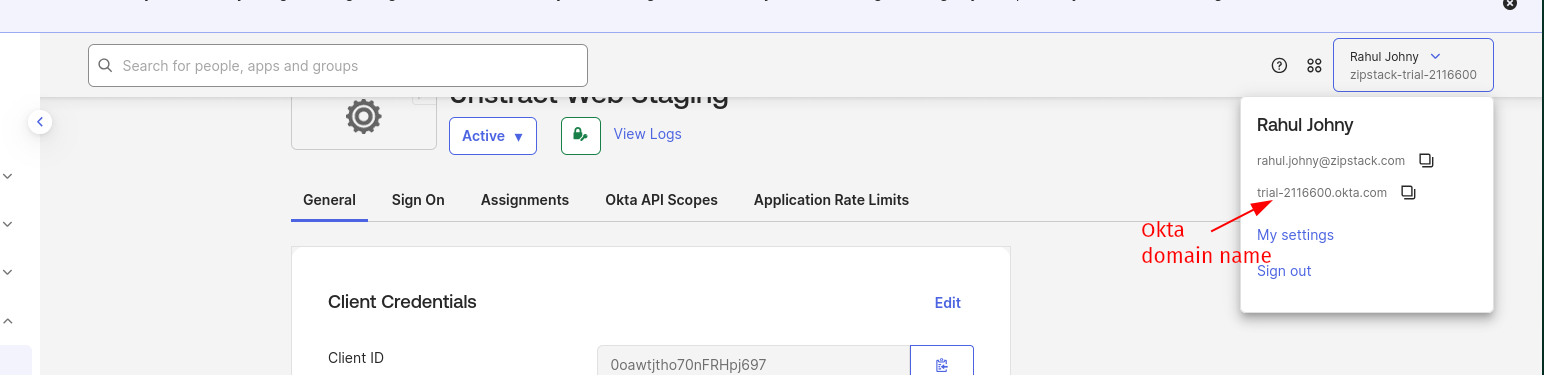
- After creation, share the following details with the Unstract team:
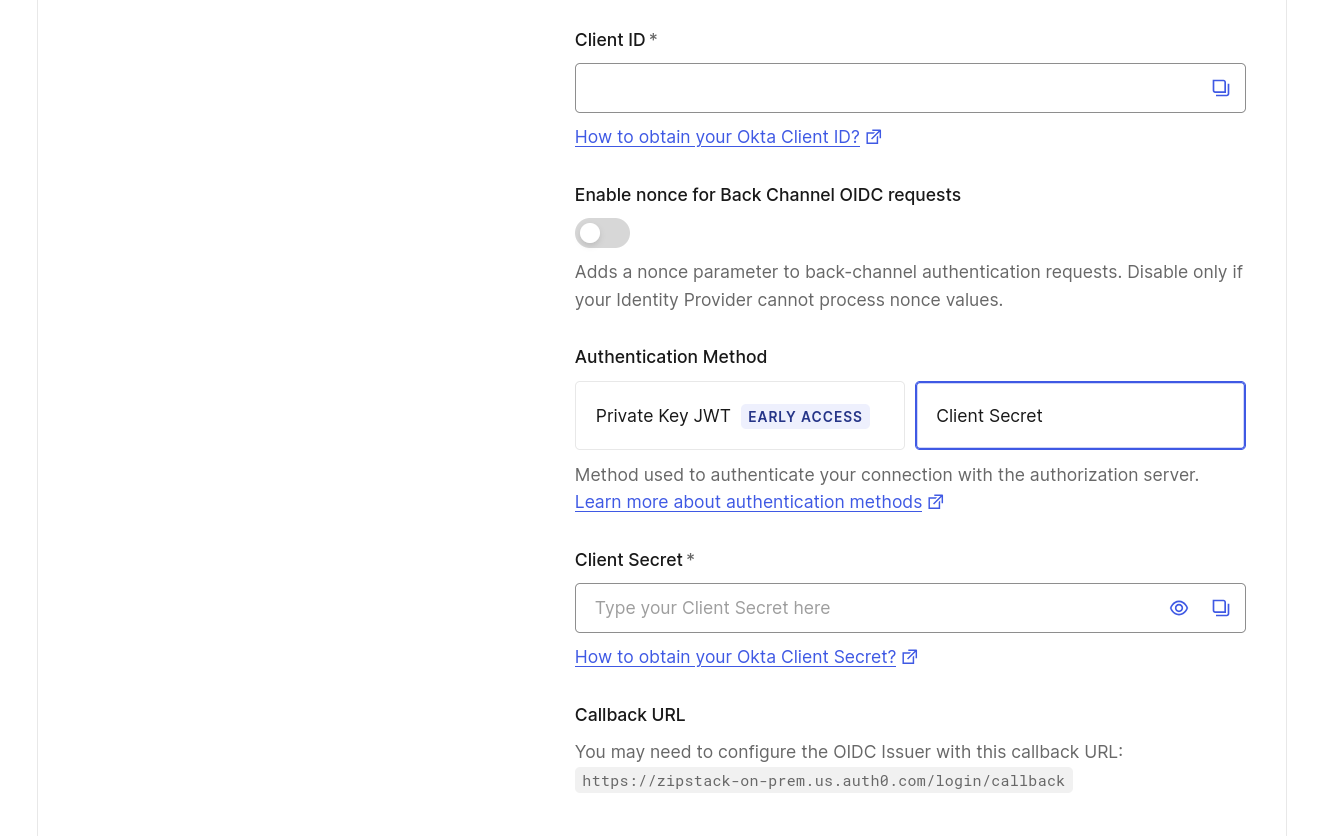
- Client ID
- Client Secret
- Okta Domain Name
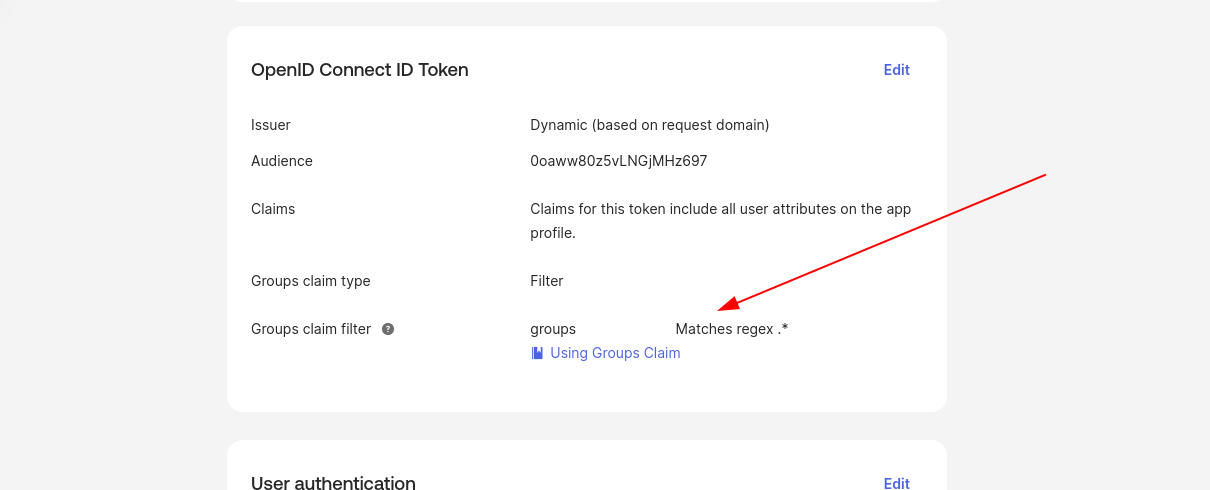
- Once the app is created, navigate to the Sign On tab of the application.
- Under OpenID Connect ID Token settings, edit the Group Claims configuration to add claims. This enables Unstract to sync user groups and map them to roles within the application (refer screenshots).
B. SAML Flow
- Create an App Integration from the Okta Admin Console.
- Select Sign-in method as SAML 2.0.
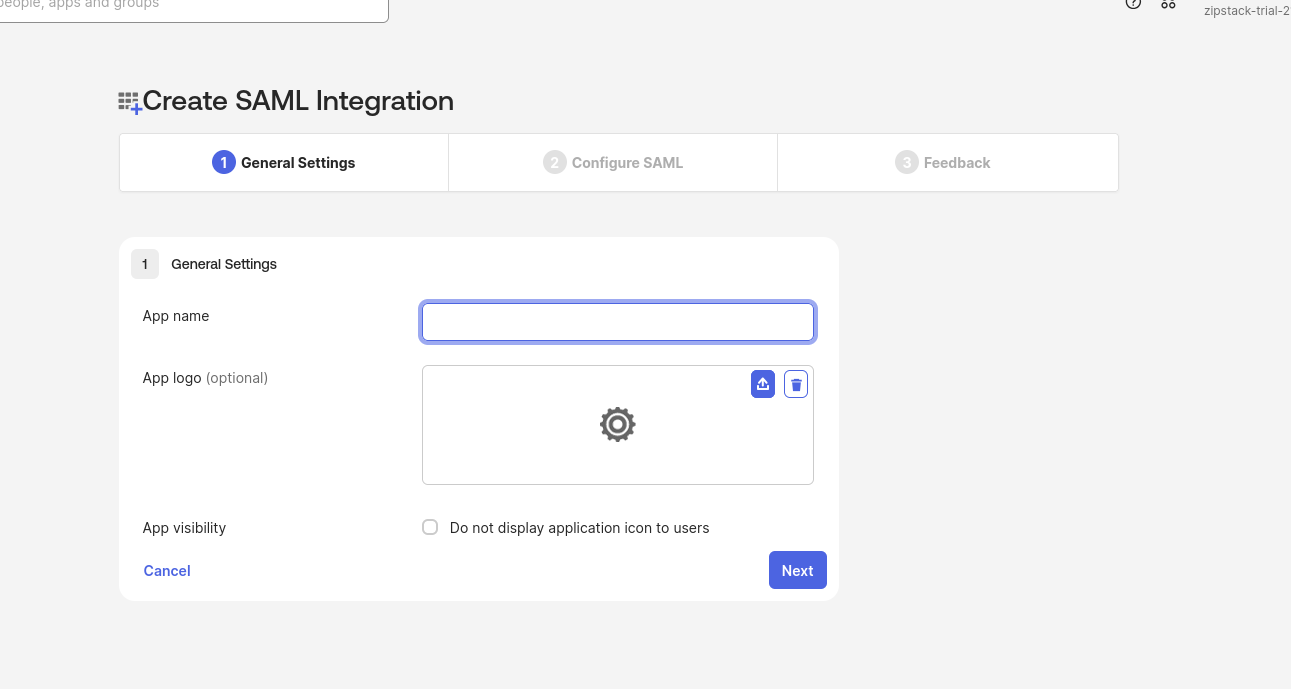
- Provide App Name following your naming convention.
- In the Configure SAML tab:
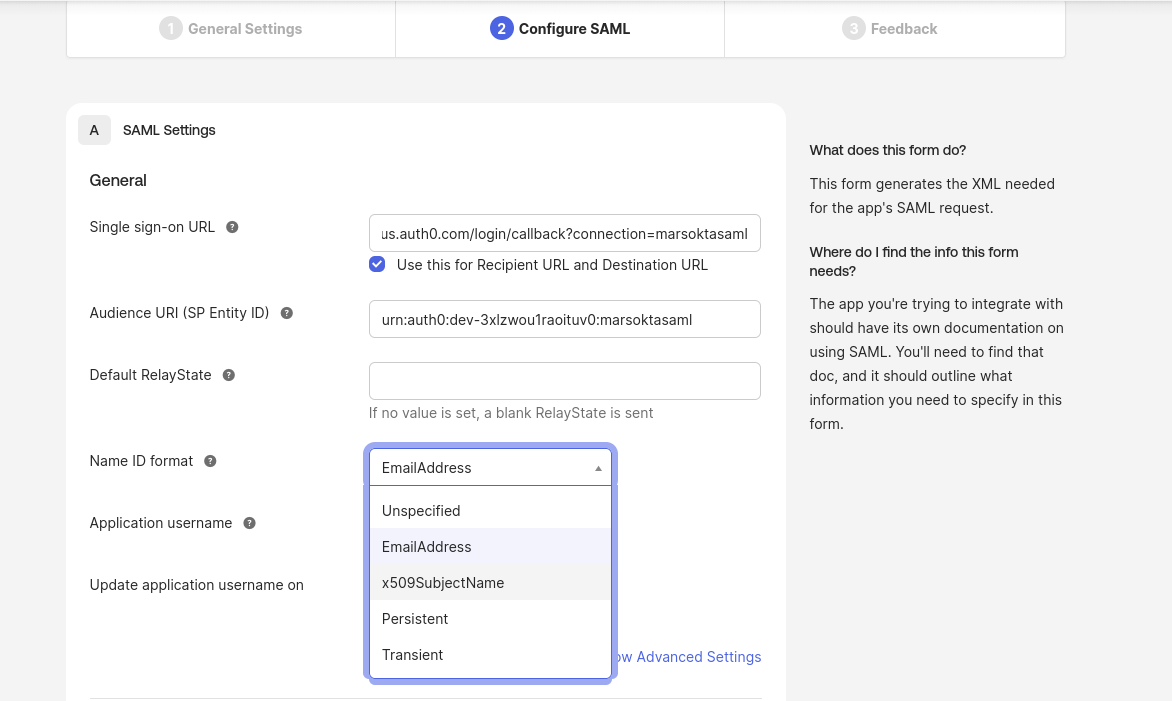
- Add the Single sign-on URL (refer Section 1):
https://<unstract_authentication_server_domain>/login/callback?connection=marsoktasaml - For Audience URI (SP Entity ID) fill as (refer Section 1):
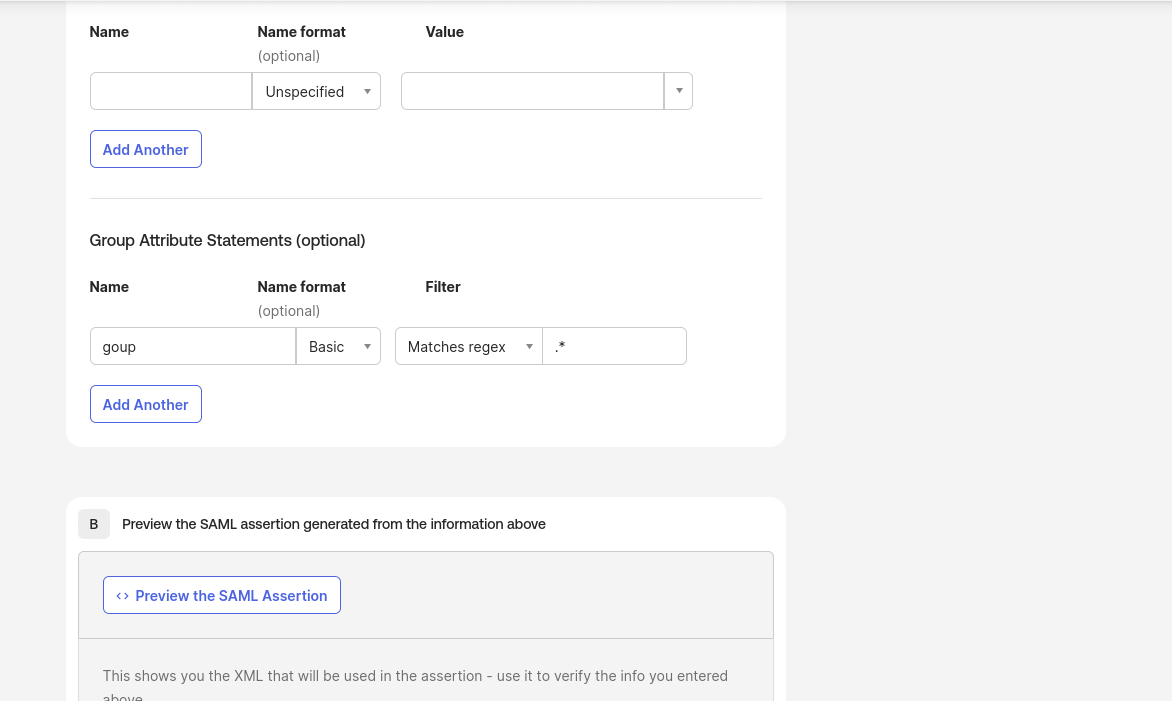
urn:auth0:<unstract_audience_uri_domain>:marsoktasaml - In Group Attribute Statements, give the name as group, format as basic, and filter to include the relevant groups. This enables Unstract to sync user groups and map them to roles within the application.
- Add the Single sign-on URL (refer Section 1):
- Click next and finish the App creation.
- After creation, share the following details with the Unstract team:
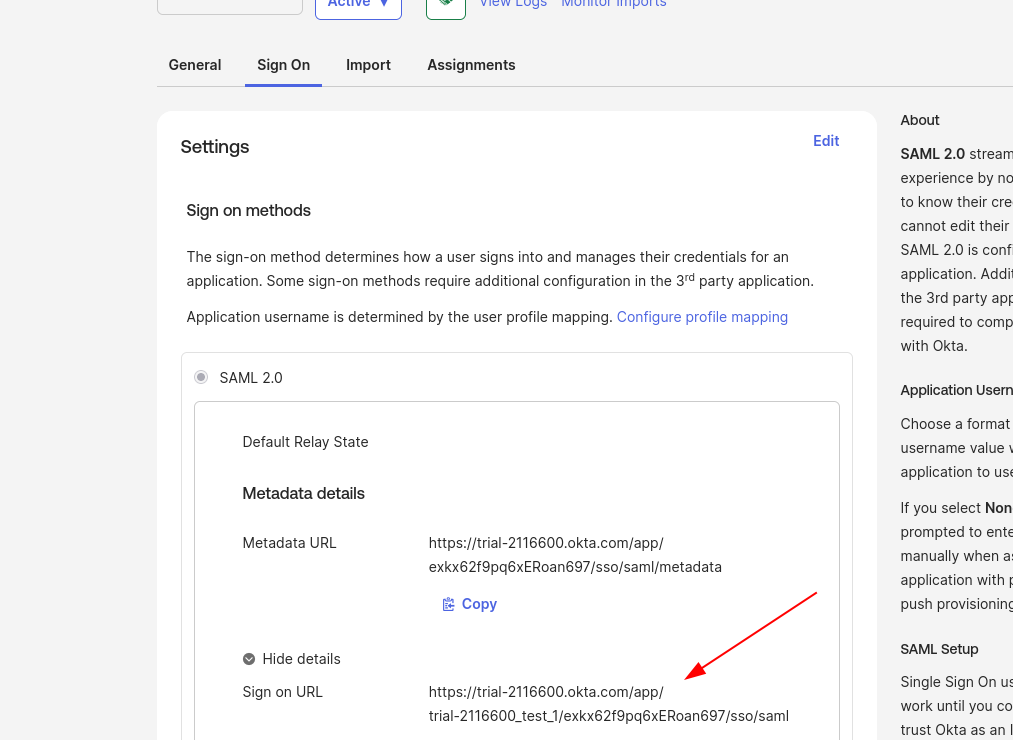
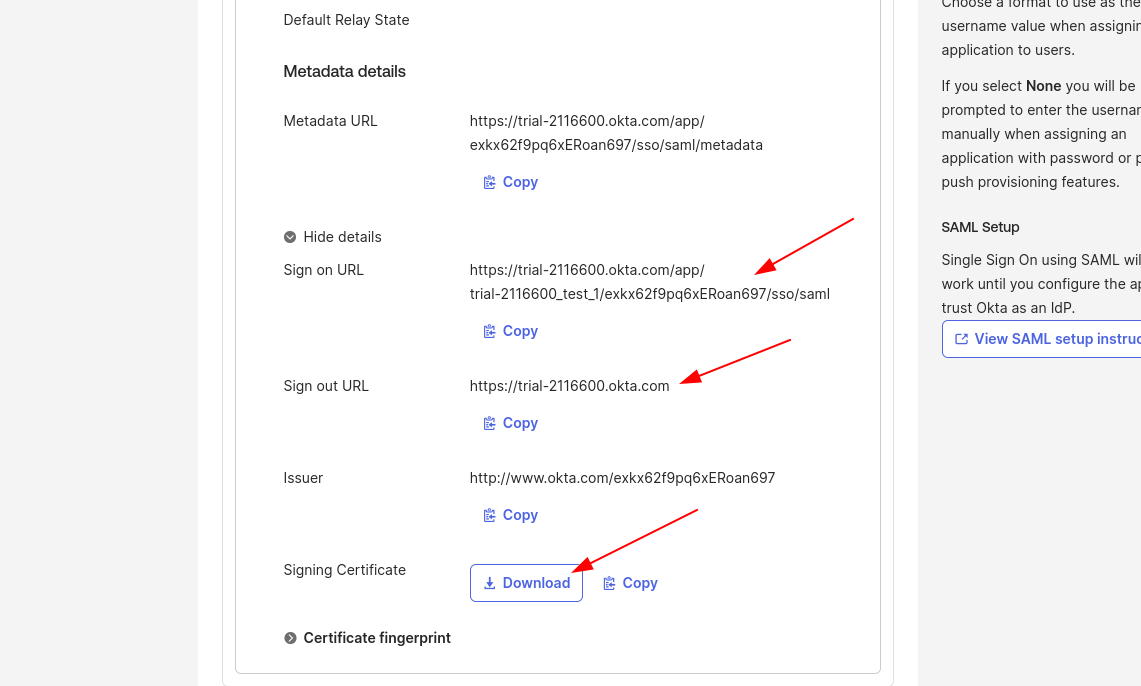
- Sign in URL (IdP Single Sign-On URL, refer screenshot)
- Okta tenant public key signing certificate (refer screenshot)
2.2 Configure User Directory Groups
Existing or new user directory groups need to be configured and shared with Unstract. These user directory groups are then mapped to Unstract-defined roles in the application.
The following roles are defined in the Unstract application:
unstract_userunstract_adminunstract_supervisorunstract_reviewer
Example mapping of customer Directory Groups to Unstract Roles:
| Unstract Roles | Customer Directory Groups |
|---|---|
unstract_user | customer_unstract_user_dev |
unstract_admin | customer_unstract_admin_dev |
unstract_supervisor | customer_unstract_supervisor_dev |
unstract_reviewer | customer_unstract_reviewer_dev |
- The customer directory groups to Unstract roles mapping needs to be done for each of the development, test and production environments.
- If either there are no directory groups associated with a user in a customer environment or the associated directory group is not mapped to an Unstract-side application role, then the user will be forbidden to access the application.
- Unstract uses Auth0 for handling authentication at our end. Auth0 — Okta Identity Provider
2.3 Configuration to be Shared with Unstract
| Config | Okta App Flow | Where to Obtain |
|---|---|---|
| Client ID, Client Secret, Okta Domain Name | OIDC Flow | See 2.1.A step 8 |
| Sign in URL, Okta tenant public key signing certificate | SAML Flow | See 2.1.B step 6 |
| User directory groups | OIDC Flow | See 2.1.A step 10 |
| User directory groups | SAML Flow | See 2.1.B step 4 (Group Attribute Statements) |
3. Screenshots for Reference
3.1 Okta IdP
The Okta Admin Console Applications page where you create a new App Integration.
3.2 For Okta IdP using OIDC
Select sign-in method as OIDC — OpenID Connect:
Configure the new Web App Integration — General Settings, Sign-in redirect URIs, and Assignments:
Locate the Client ID, Client Secret, and Okta Domain Name from the General tab:
Configure Group Claims under the Sign On tab — OpenID Connect ID Token settings:
3.3 For Okta IdP using SAML
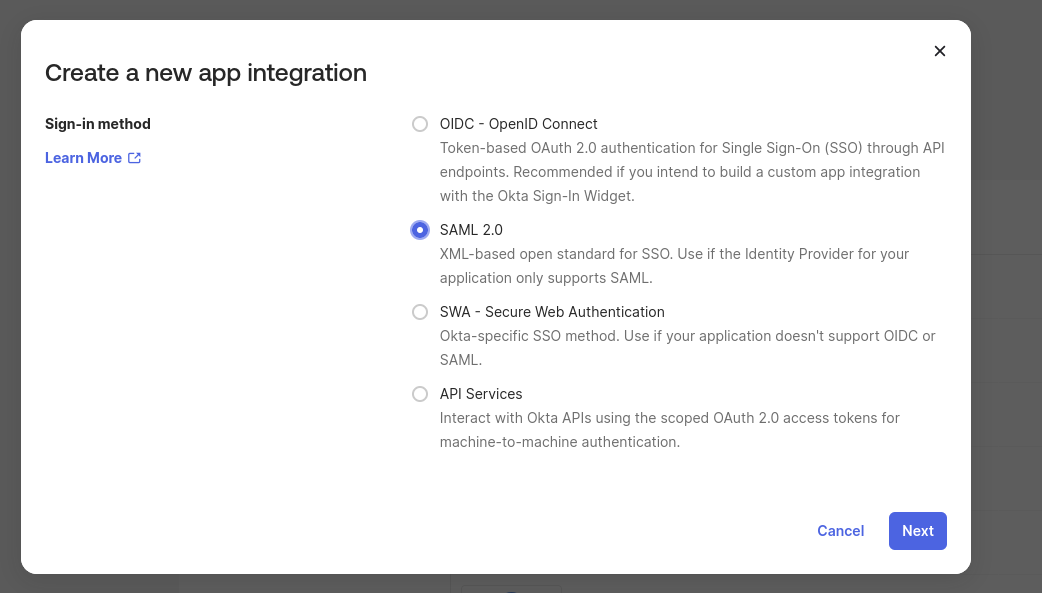
Select sign-in method as SAML 2.0:
General Settings — provide an App name:
Configure SAML — Single sign-on URL, Audience URI, Name ID format, and Group Attribute Statements:
Sign On tab — locate the Sign on URL and Signing Certificate to share with the Unstract team:
3.4 Auth0 Okta Workforce Enterprise Connection
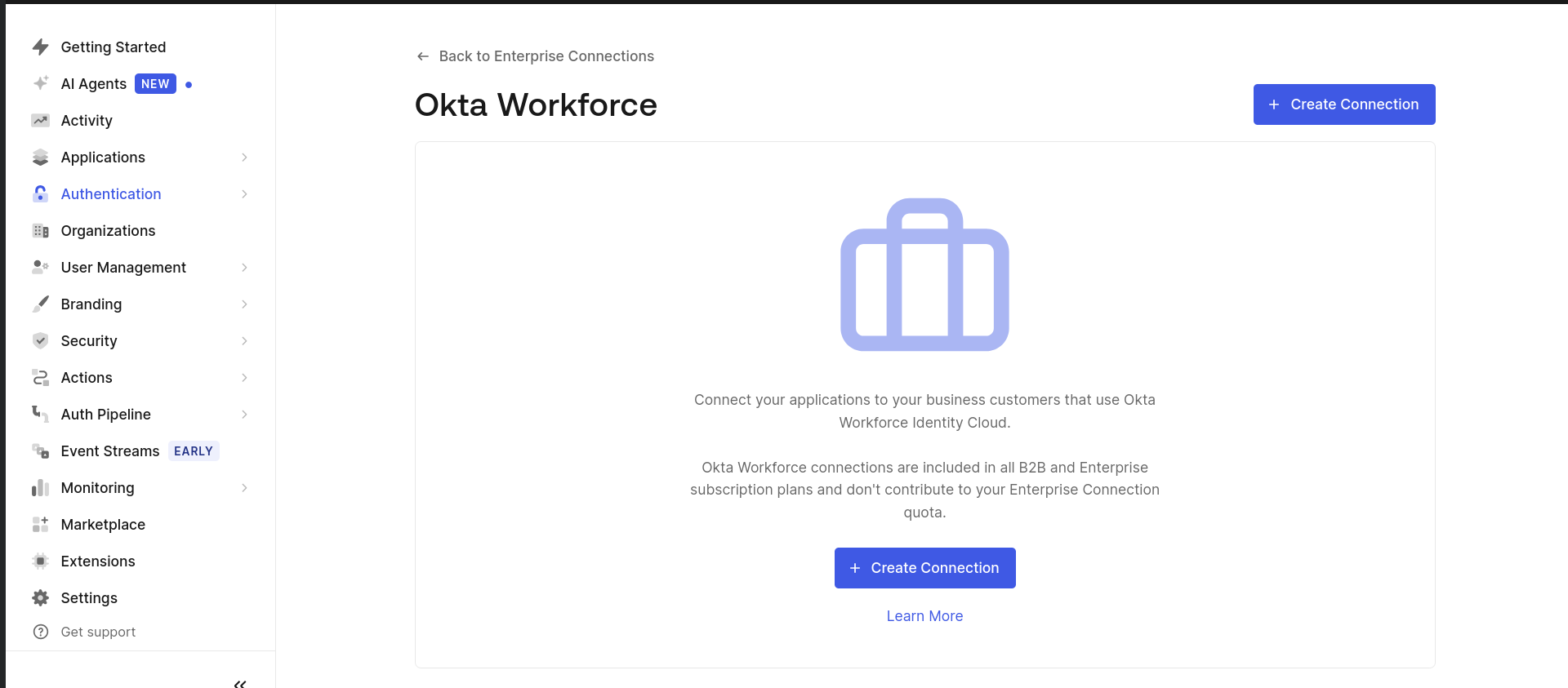
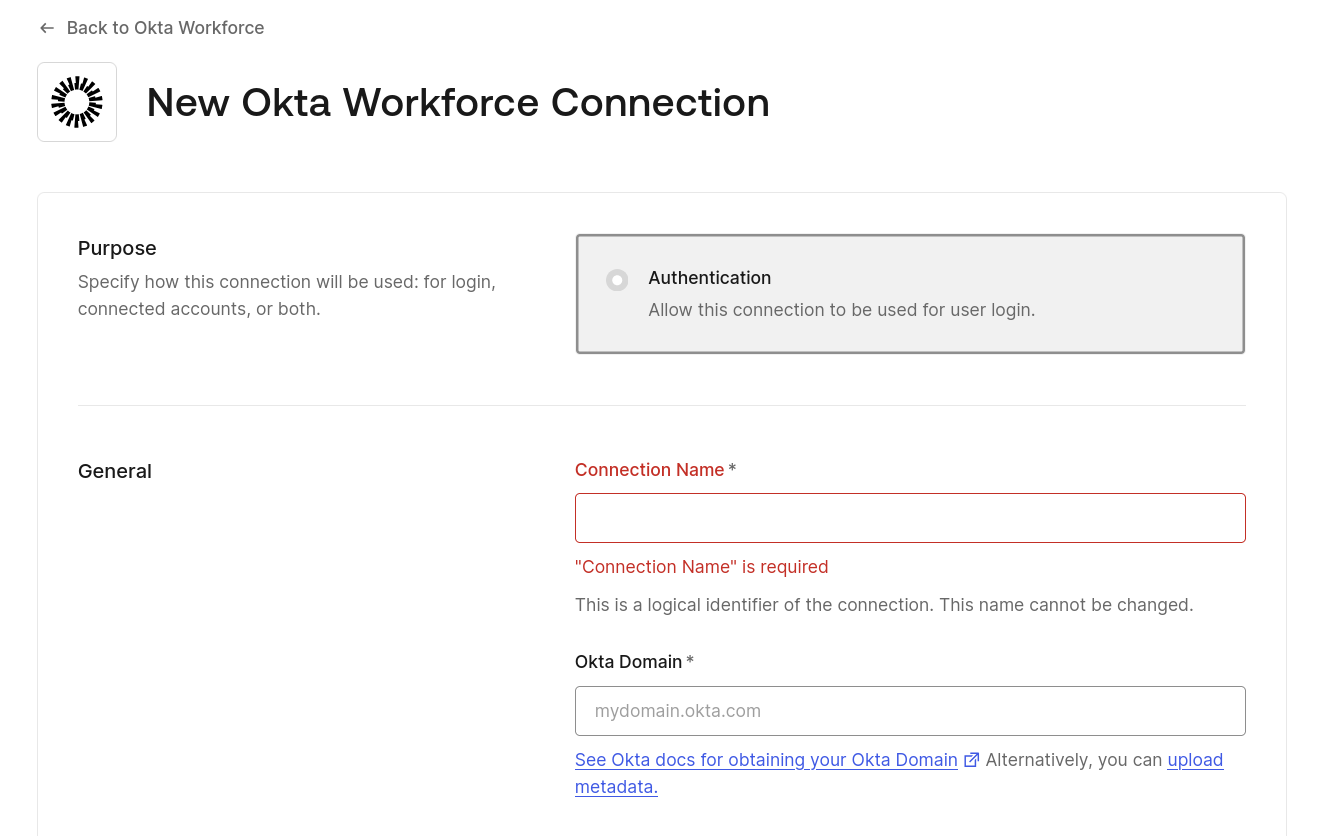
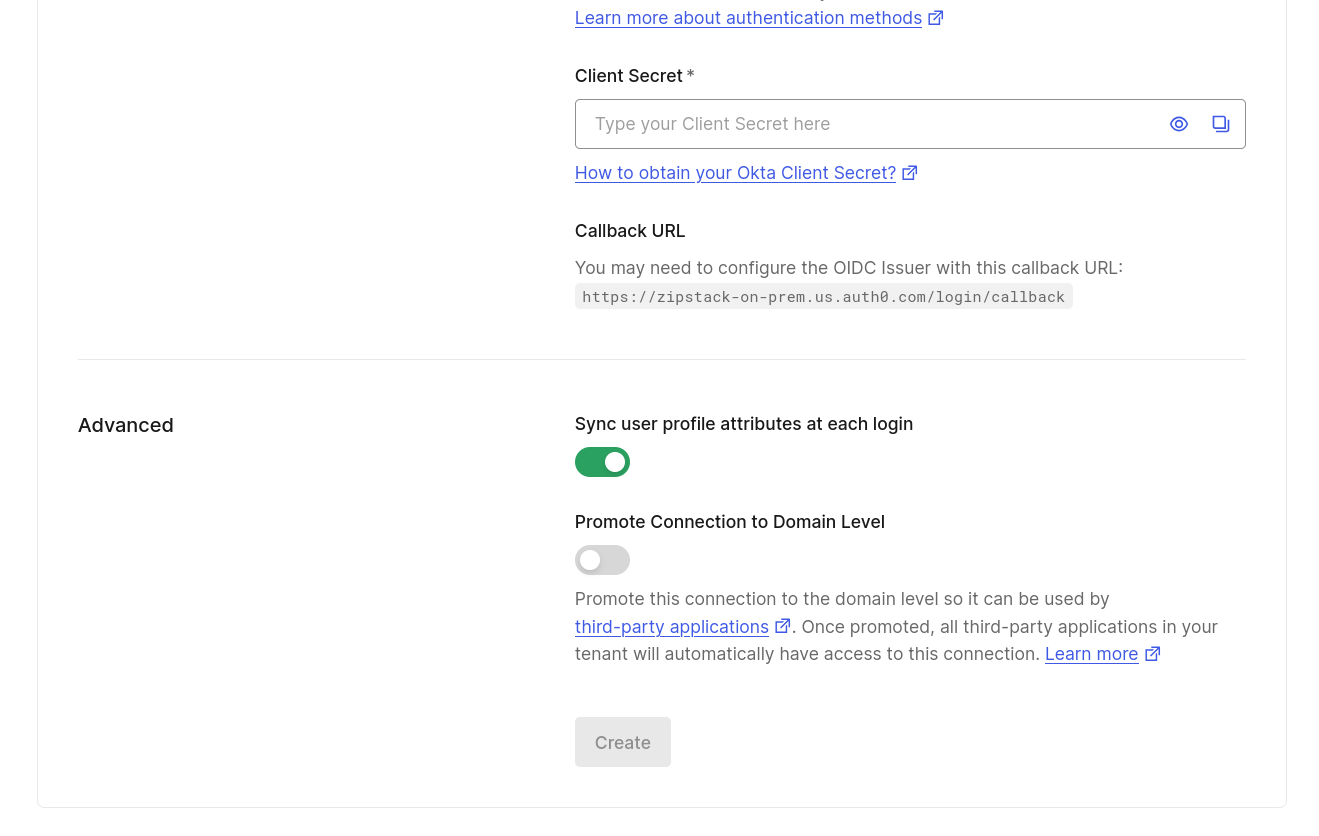
This section shows how the Unstract team configures the Auth0 Okta Workforce Enterprise Connection using the details shared by the customer.
4. Auth Architecture
4.1 Auth0 as Identity Broker
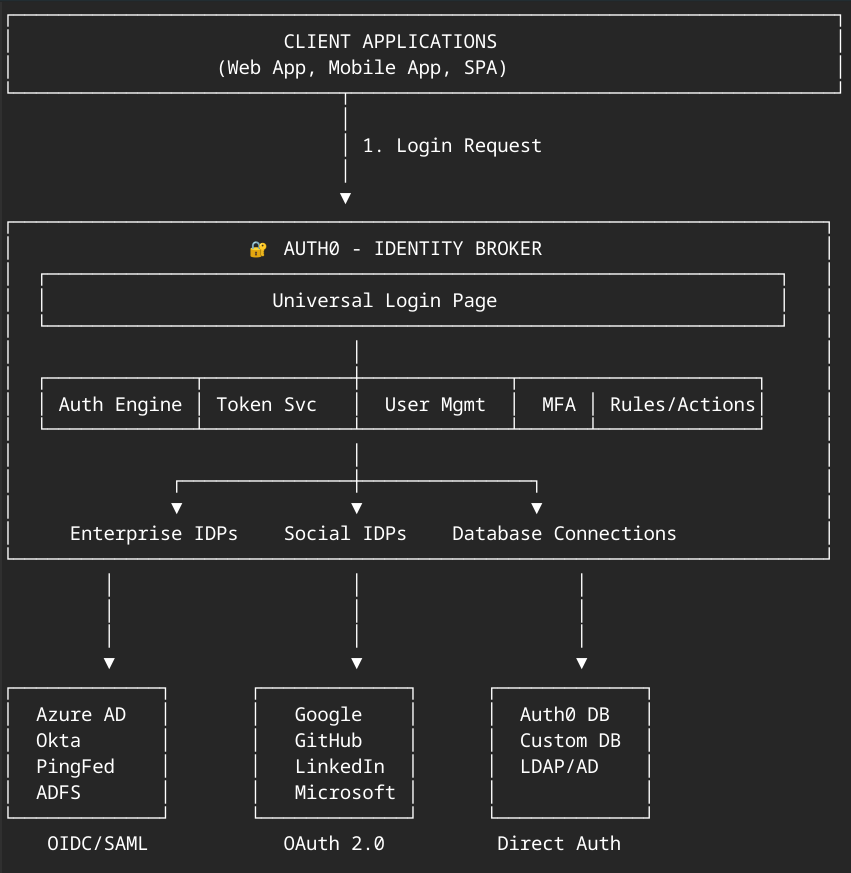
Unstract uses Auth0 as an identity broker that sits between the application and your identity provider. Auth0 handles:
- Universal Login Page — Centralized authentication experience
- Auth Engine & Token Service — Token issuance and validation
- User Management — User profile and session management
- MFA — Multi-factor authentication support
- Rules/Actions — Custom authentication logic
Auth0 connects to multiple identity provider types:
| Connection Type | Protocol | Supported Providers |
|---|---|---|
| Enterprise IDPs | OIDC/SAML | Azure AD, Okta, PingFed, ADFS |
| Social IDPs | OAuth 2.0 | Google, GitHub, LinkedIn, Microsoft |
| Database Connections | Direct Auth | Auth0 DB, Custom DB, LDAP/AD |
4.2 Enterprise Connection Flow
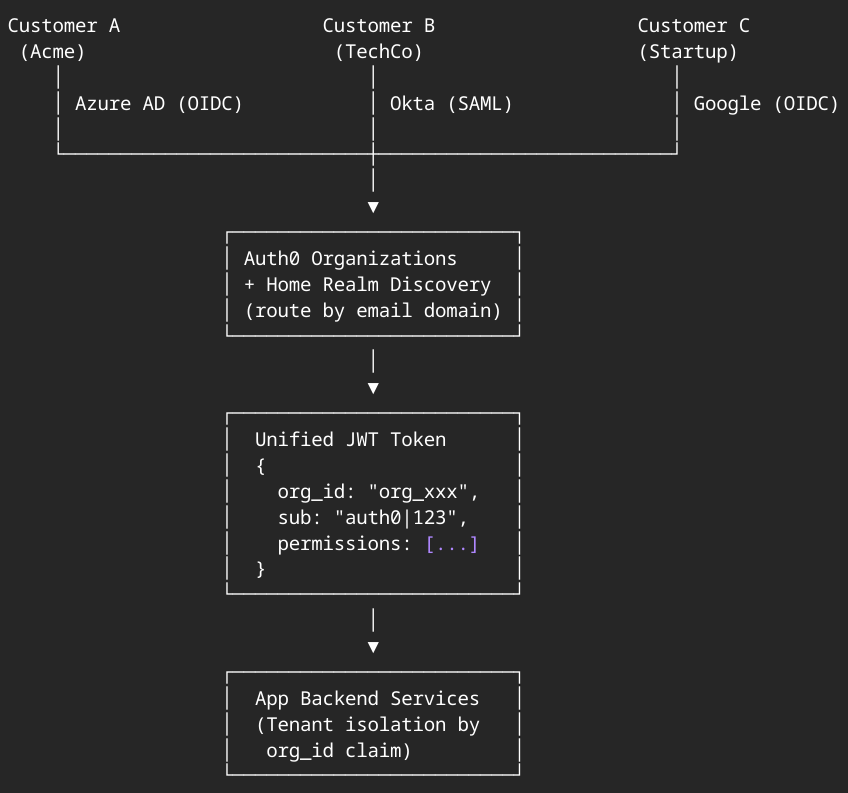
In a multi-tenant setup, Auth0 Organizations with Home Realm Discovery routes users to their correct identity provider based on their email domain. The flow produces a unified JWT token containing:
{
  "org_id": "org_xxx",
  "sub": "auth0|123",
  "permissions": [...]
}
The application backend services use the org_id claim for tenant isolation.