Generate Extraction Prompt
A schema must be available before you can generate a prompt.
Once you have a schema (generated or manually defined), prompt generation uses a separate three-agent pipeline to create a complete extraction prompt tailored to your documents.
How It Works
Prompt generation uses a separate three-agent pipeline:
Agent 1: PatternMinerAgent. Examines your sample documents to discover extraction-relevant patterns. It identifies field anchors and labels (e.g., "Account No:", "Invoice Date:", "Total Amount"), formatting conventions (date formats, currency symbols, number separators), and layout patterns (where fields tend to appear in the document).
Agent 2: PromptArchitectAgent. Uses the mined patterns along with the schema and document summaries to construct a comprehensive extraction prompt. The generated prompt follows a structured format that includes a task overview, the output schema, field-specific guidance, disambiguation rules, edge case handling, and output format specifications.
Agent 3: CriticDryRunner. Stress-tests the draft prompt by simulating an extraction. It checks whether the output would be valid JSON, whether it conforms to the schema, and whether the instructions are unambiguous. It identifies potential failure modes and suggests revisions. The final prompt has been vetted for common issues.
Generating a Prompt
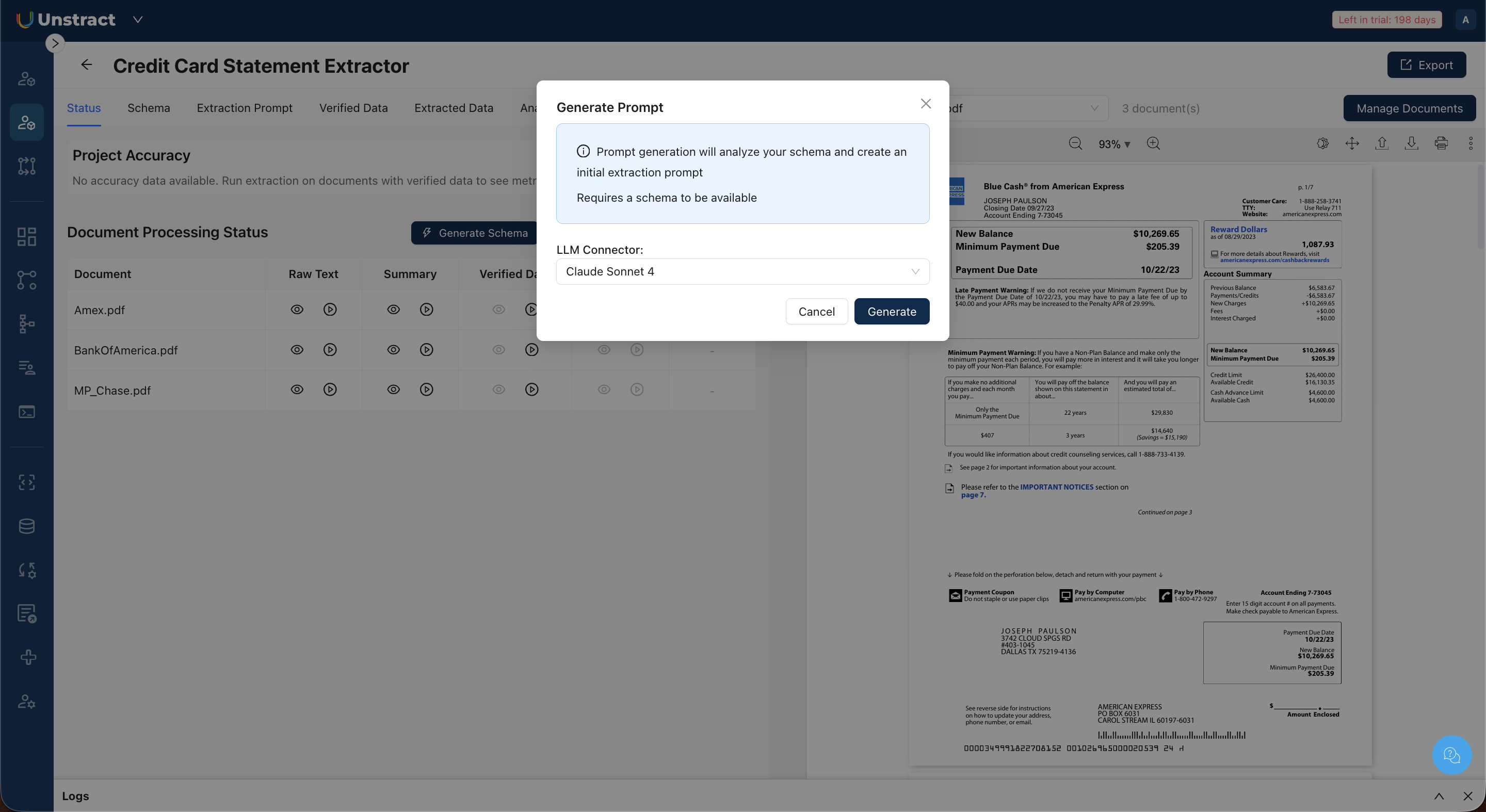
- From the Status tab, click Create Prompt.
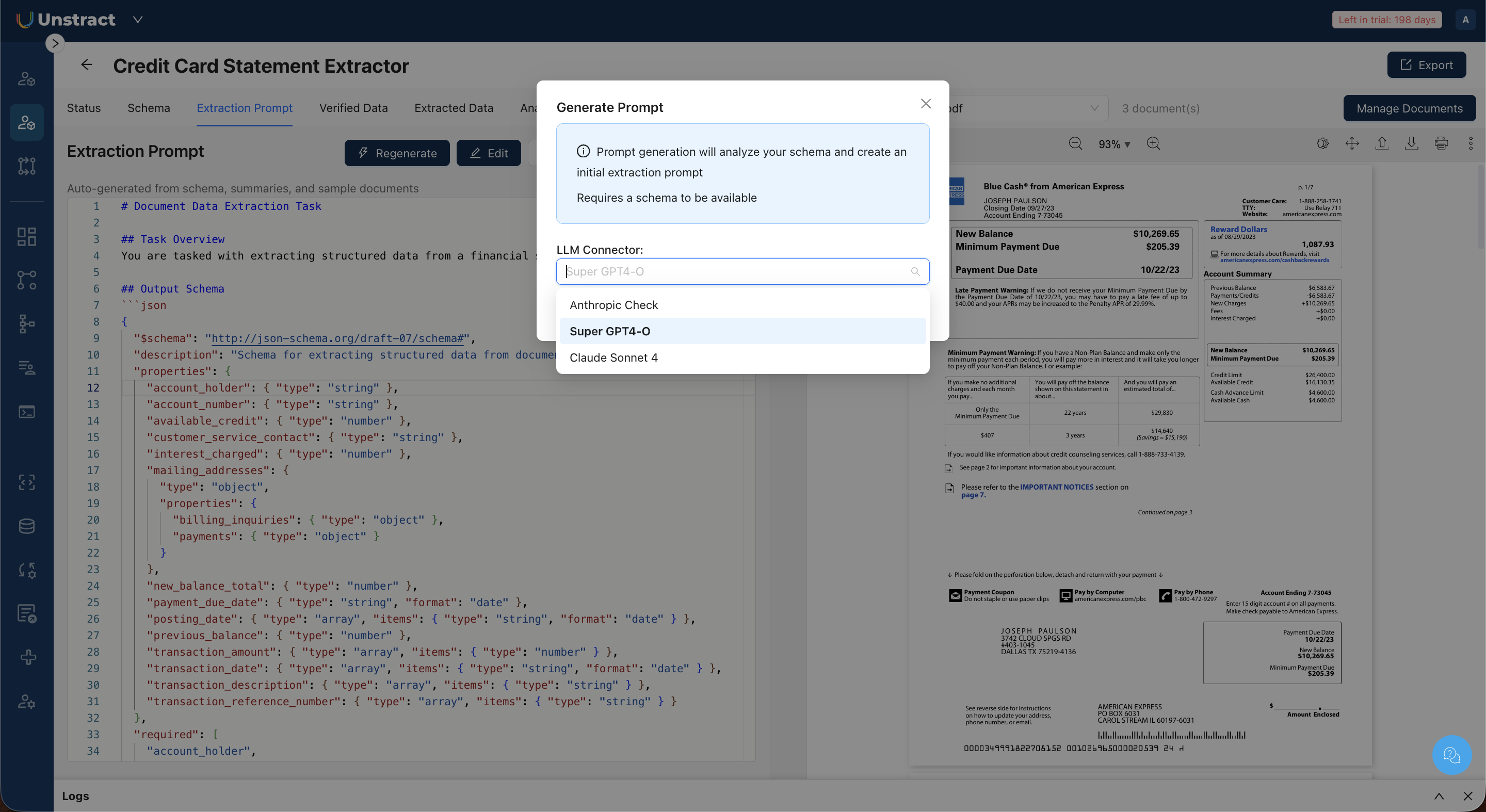
- In the dialog, select an LLM Connector to run the agent pipeline.
- Click Generate.
The system generates the prompt and saves it as a new version. The prompt appears in the Extraction Prompt tab.
Viewing the Prompt
The Extraction Prompt tab displays the generated prompt in a code editor. The prompt includes the complete extraction instructions: task overview, schema, field-specific guidance, edge cases, and output format specifications.
The toolbar shows the current version number (e.g., "v1") and provides access to Regenerate, Edit, History, and Compare actions.
To generate a prompt from scratch, click Regenerate. The Regenerate dialog allows you to select a different LLM connector when regenerating.
Editing a Prompt
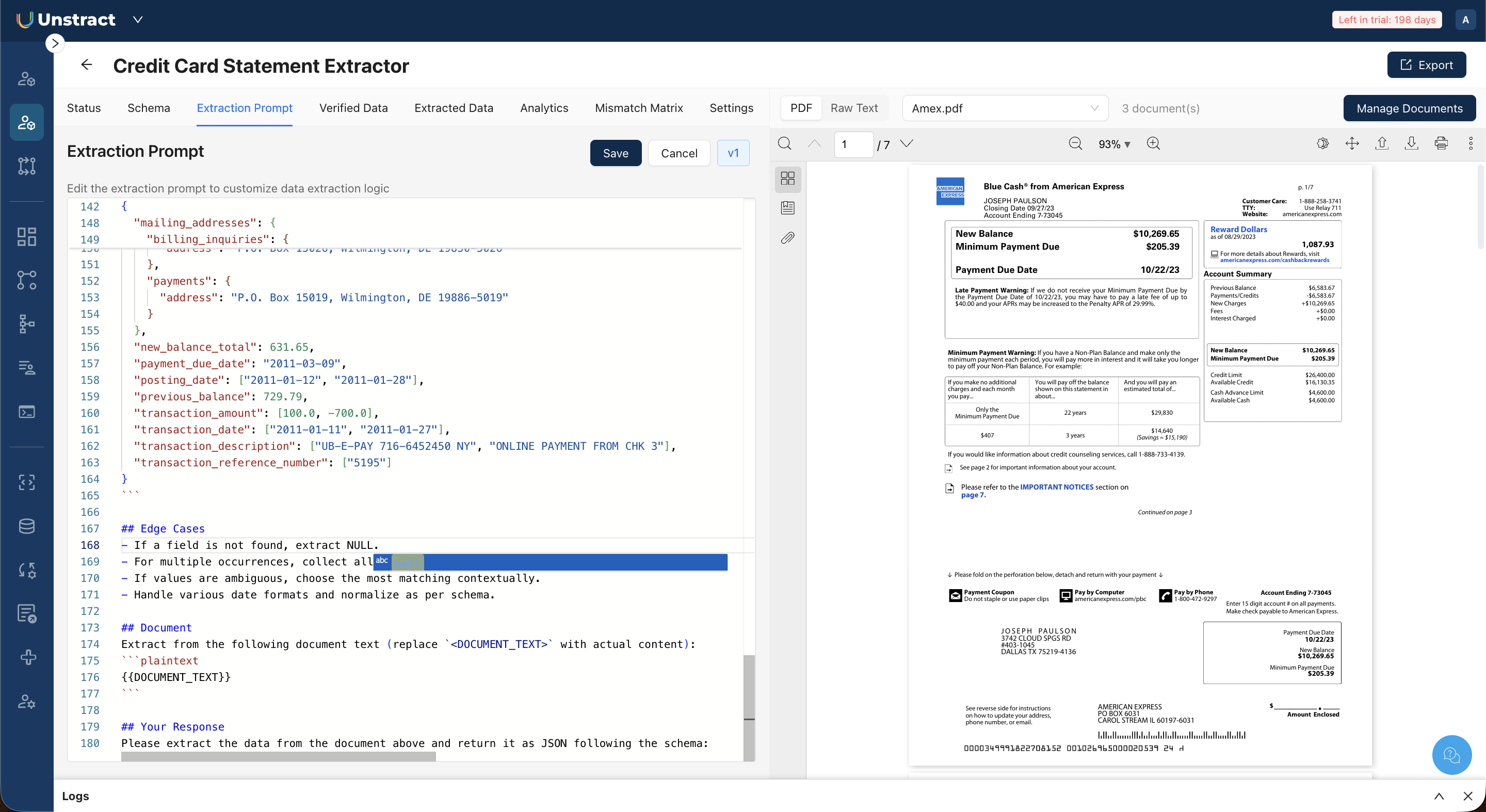
- Click Edit in the Extraction Prompt toolbar.
- Modify the prompt text in the code editor. You can adjust extraction instructions, add field-specific guidance, change edge case rules, or modify formatting requirements.
- Click Save to save your changes.
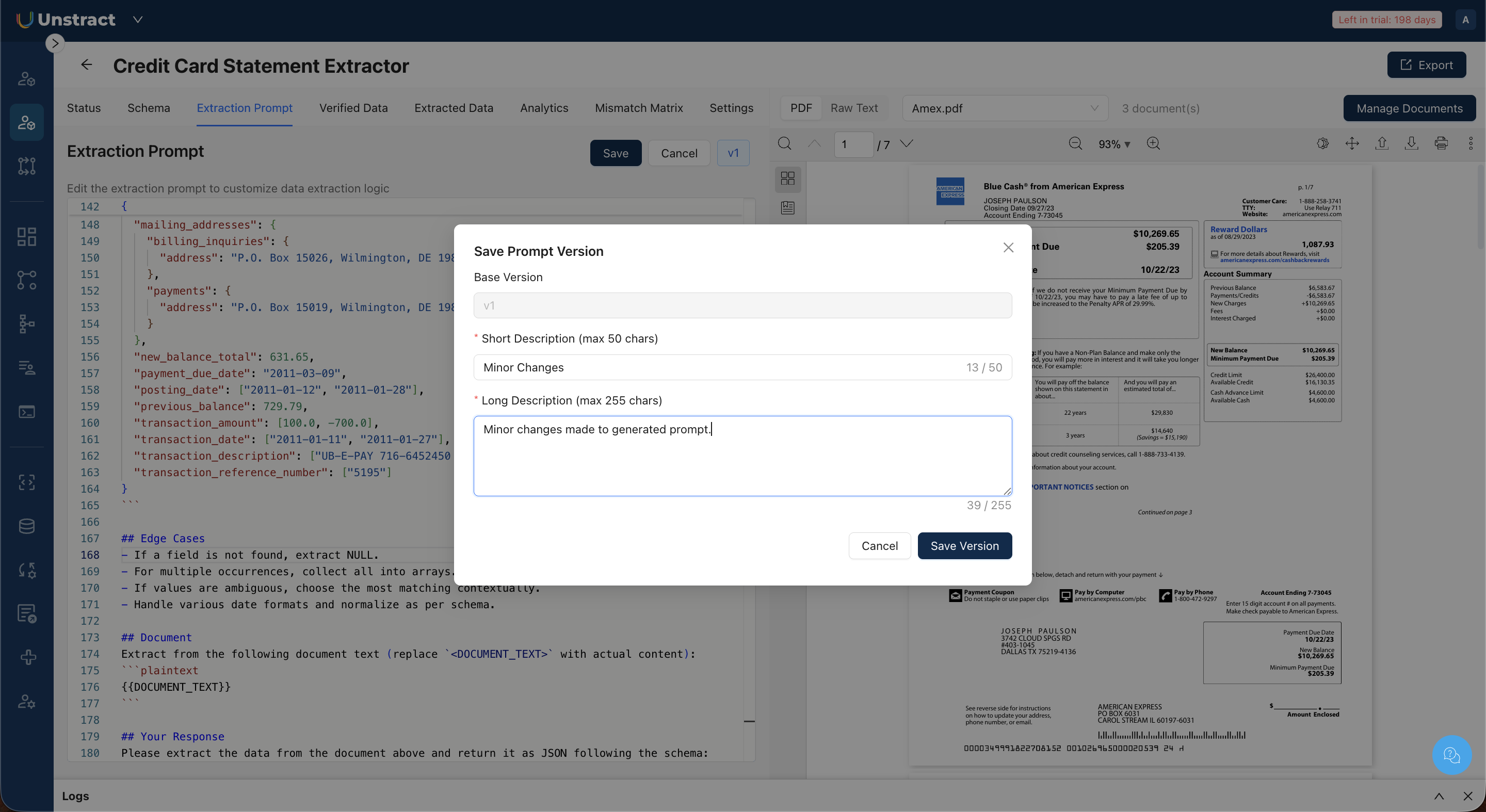
- In the Save Prompt Version dialog, enter a Short Description (max 50 chars), a brief label for this version (e.g., "Minor Changes"), and a Long Description (max 255 chars) explaining what changed.
- Click Save Version.
Prompt Version History
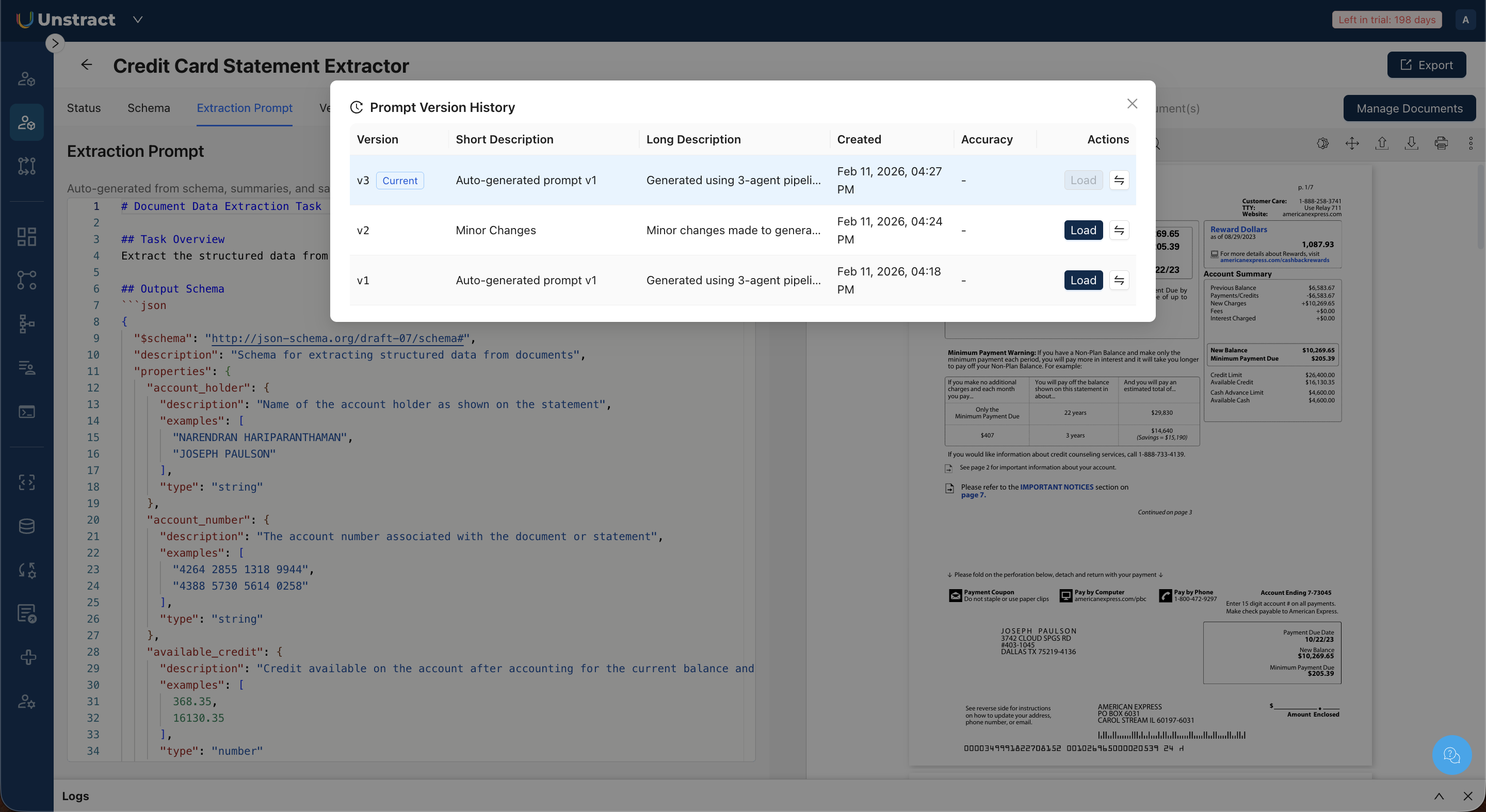
Every generated or manually saved prompt is stored as a version. Click History in the Extraction Prompt toolbar to open the Prompt Version History dialog.
The history table shows:
| Column | Description |
|---|---|
| Version | The version number (v1, v2, v3, etc.). The current active version is labeled "Current". |
| Short Description | The label given when the version was saved. |
| Long Description | The detailed description of changes. |
| Created | The timestamp when the version was created. |
| Accuracy | The accuracy score for this version (populated after running extraction and calculating accuracy). |
| Actions | Load to switch to a different version, or the compare icon to open version comparison. |
Comparing Prompt Versions
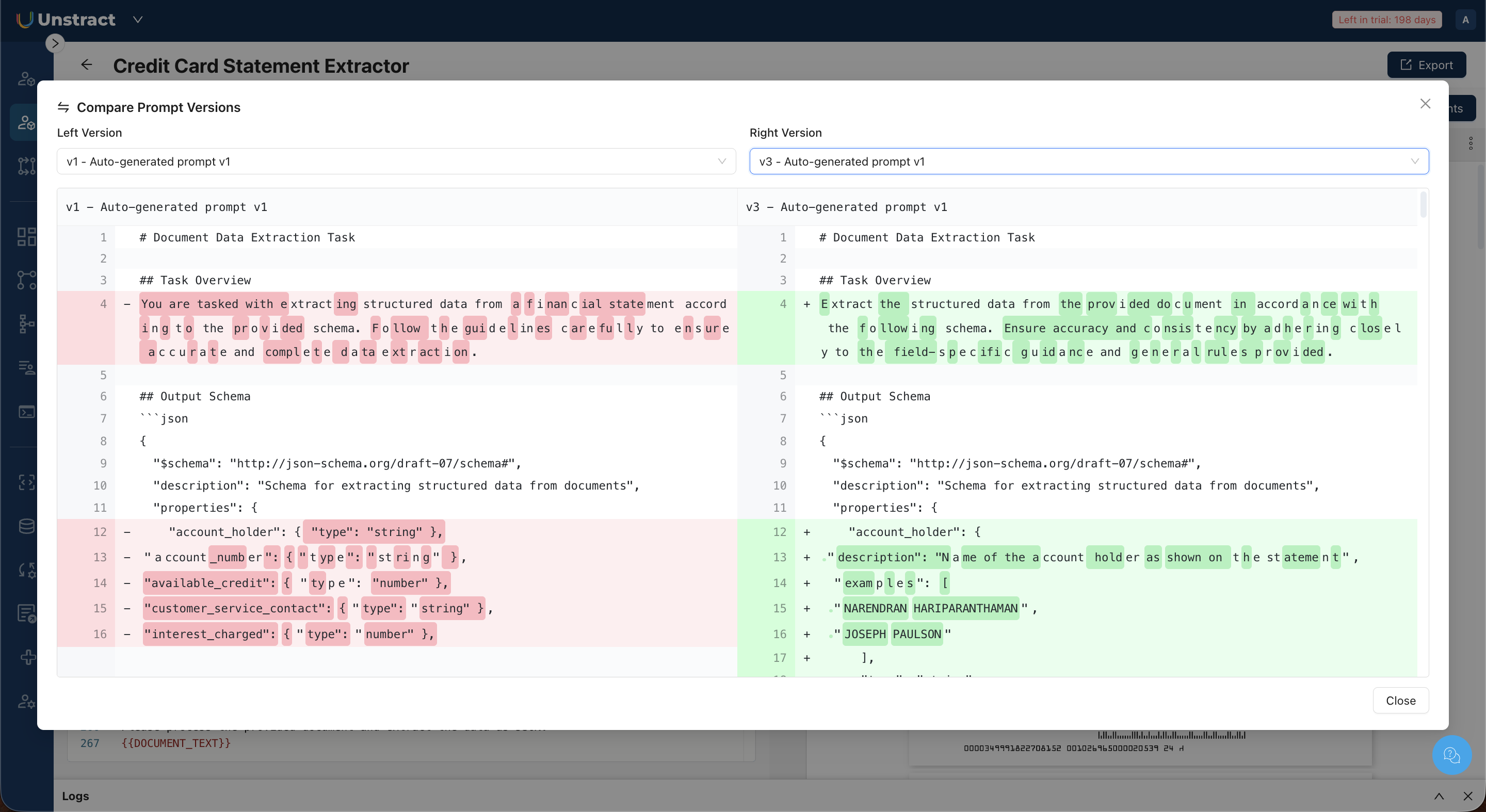
Click Compare in the Extraction Prompt toolbar (or the compare icon in Version History) to open the Compare Prompt Versions dialog.
This side-by-side diff view highlights differences between any two prompt versions:
- Select a Left Version and Right Version from the dropdowns.
- Lines removed from the left version are highlighted in red.
- Lines added in the right version are highlighted in green.
- Unchanged lines appear without highlighting.
This is useful for understanding exactly what changed between an auto-generated prompt and a manually edited version, or between two regenerated versions.