Run Extraction
With a schema and prompt in place, you can extract structured data from your documents.Open the Extracted Data tab to review extraction results.
Processing Individual Documents
From the Status tab, click the play icon in the Extraction column for a specific document. The status changes to "Processing..." while the extraction runs.
Processing All Documents
Click Process All on the Status tab to run extraction on every uploaded document at once. This is equivalent to clicking the play icon for each document individually. It triggers extraction across all documents in a single action.
Viewing Extracted Data
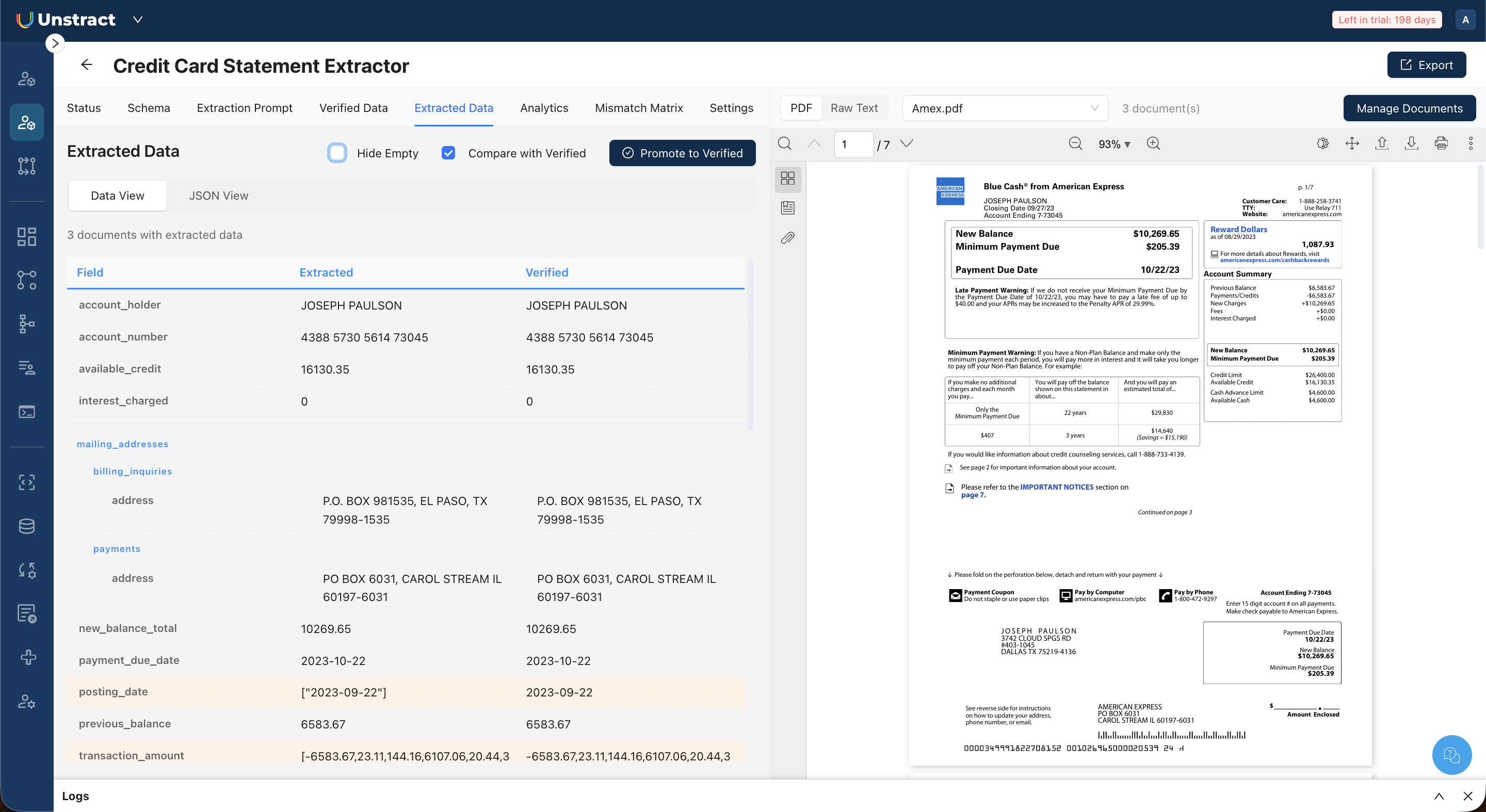
Open the Extracted Data tab to review extraction results. The tab offers two viewing modes:
Data View: Displays extracted fields in a structured, human-readable format. Fields are listed with their names and values, with nested structures (such as mailing addresses) shown indented. Clicking a field value highlights the corresponding location in the PDF preview.
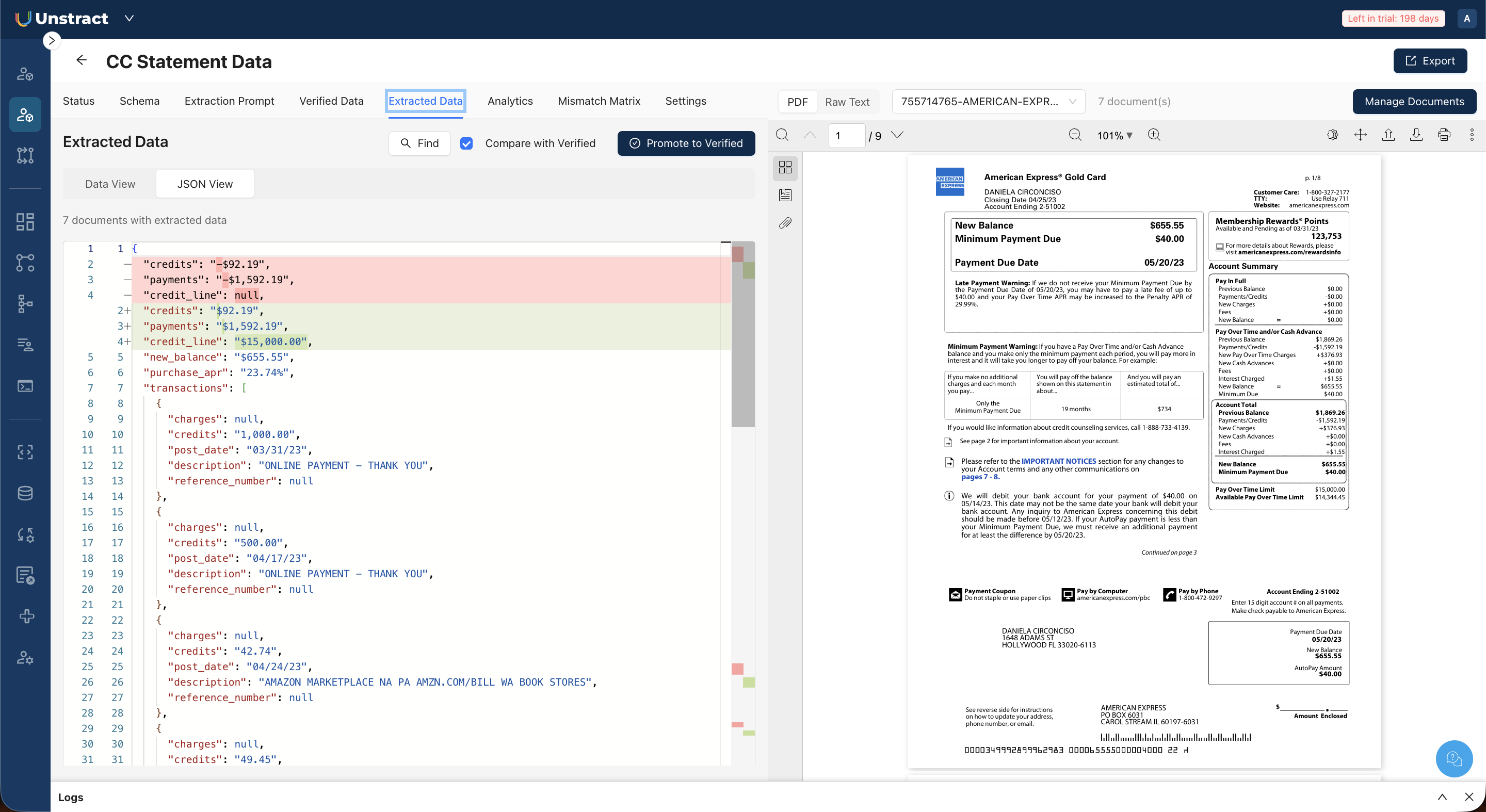
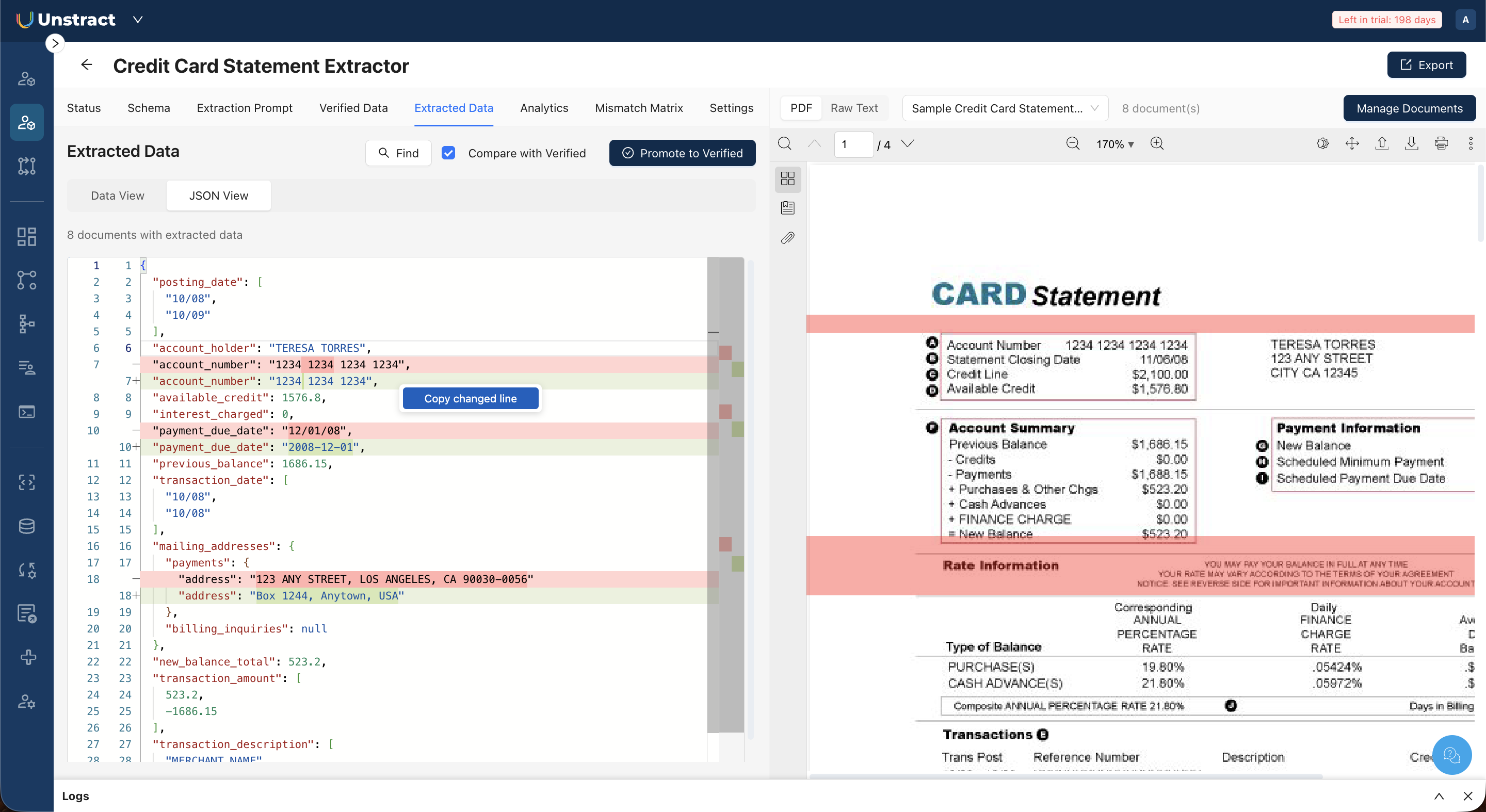
JSON View: Displays the raw extracted JSON with line numbers. When comparison with verified data is enabled (see below), a "diff mode" highlights differences. Lines in red indicate extracted values that diverge from verified data, and lines in green show the expected verified values.
Use the document selector dropdown in the top bar to switch between documents.
Comparing Extracted Data with Verified Data
Check the Compare with Verified checkbox in the Extracted Data toolbar to see how the extraction output stacks up against the verified baseline.
In Data View, this adds a "Verified" column alongside the extracted values for each field. In JSON View, this enables the color-coded diff highlighting described above.
Promoting Extracted Data to Verified
When extraction results are correct for a document, you can promote them to become the accuracy baseline instead of entering verified data manually. Click Promote to Verified in the Extracted Data toolbar. This copies the current extraction output into the Verified Data store for that document.