Upload Documents
Upload Documents
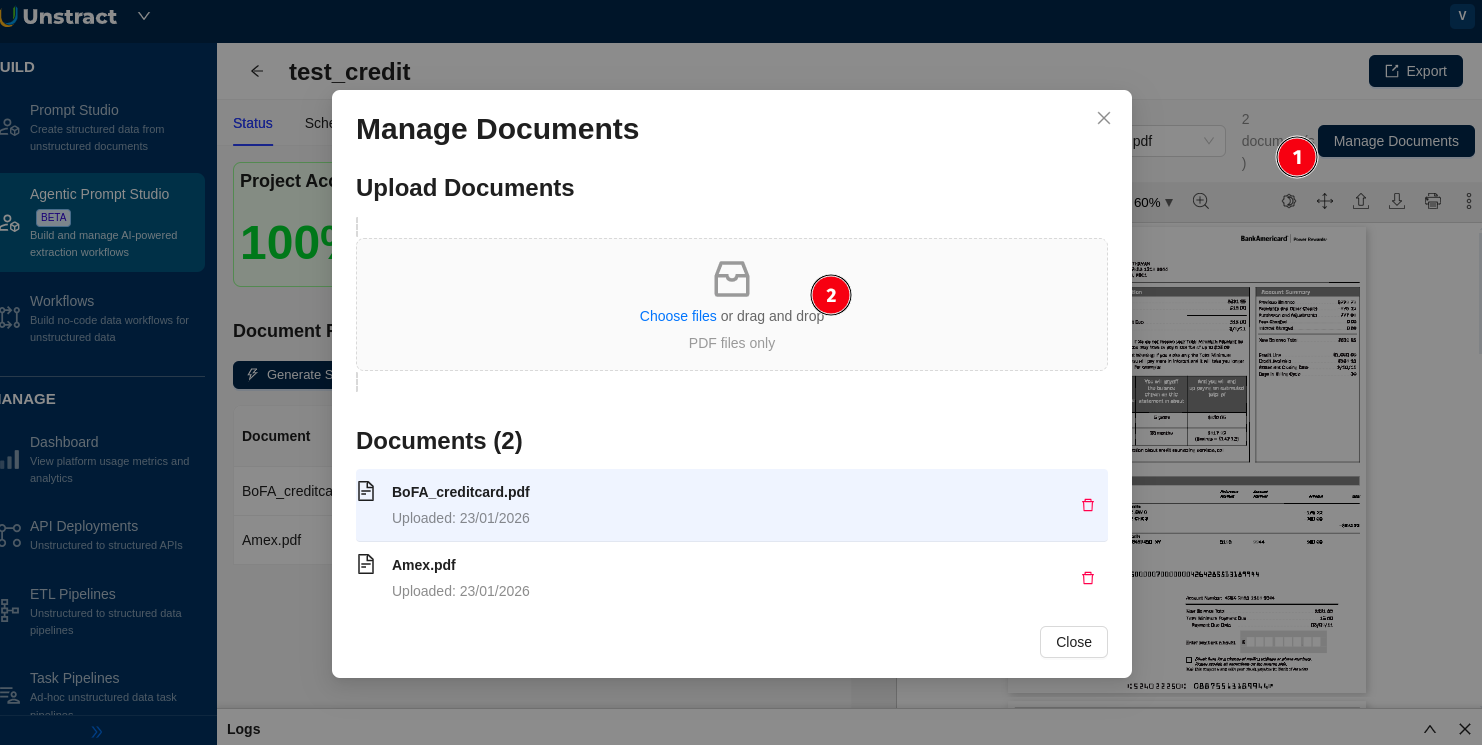
Click Manage Documents in the top-right corner to upload your sample documents. Include multiple variants of the same document type if they exist. For example, credit card statements from different issuers, or invoices from different vendors. Agentic Prompt Studio's agents analyze across all uploaded samples to build a comprehensive understanding of field variations.
Once uploaded, documents appear in the processing table on the Status tab. Each document shows status indicators for every pipeline stage, which update as you work through the steps below.
Generate Raw Text
Raw text extraction is the first processing step.
LLMWhisperer reads your PDF documents and produces structured text with line identifiers (hex offsets). This is the text that the LLM receives as input during schema generation, prompt generation, and extraction.
Raw text is generated when needed by downstream steps. For example, when you run schema generation in Lazy mode (described in Generate Schema). You can also trigger it manually by clicking the play icon in the Raw Text column for a specific document on the Status tab.
Previewing raw text: From the Status tab, click the eye icon in the Raw Text column to preview the extracted text for a document. For a full-screen view, toggle Raw Text in the top bar (next to the PDF toggle). This shows the complete extracted text with line identifiers, which is useful for debugging extraction issues. You can verify that the source text contains the values you expect.
- Generate the Raw Text for each of the documents you upload and if you want, you can preview it by clicking on the “eye” icon.
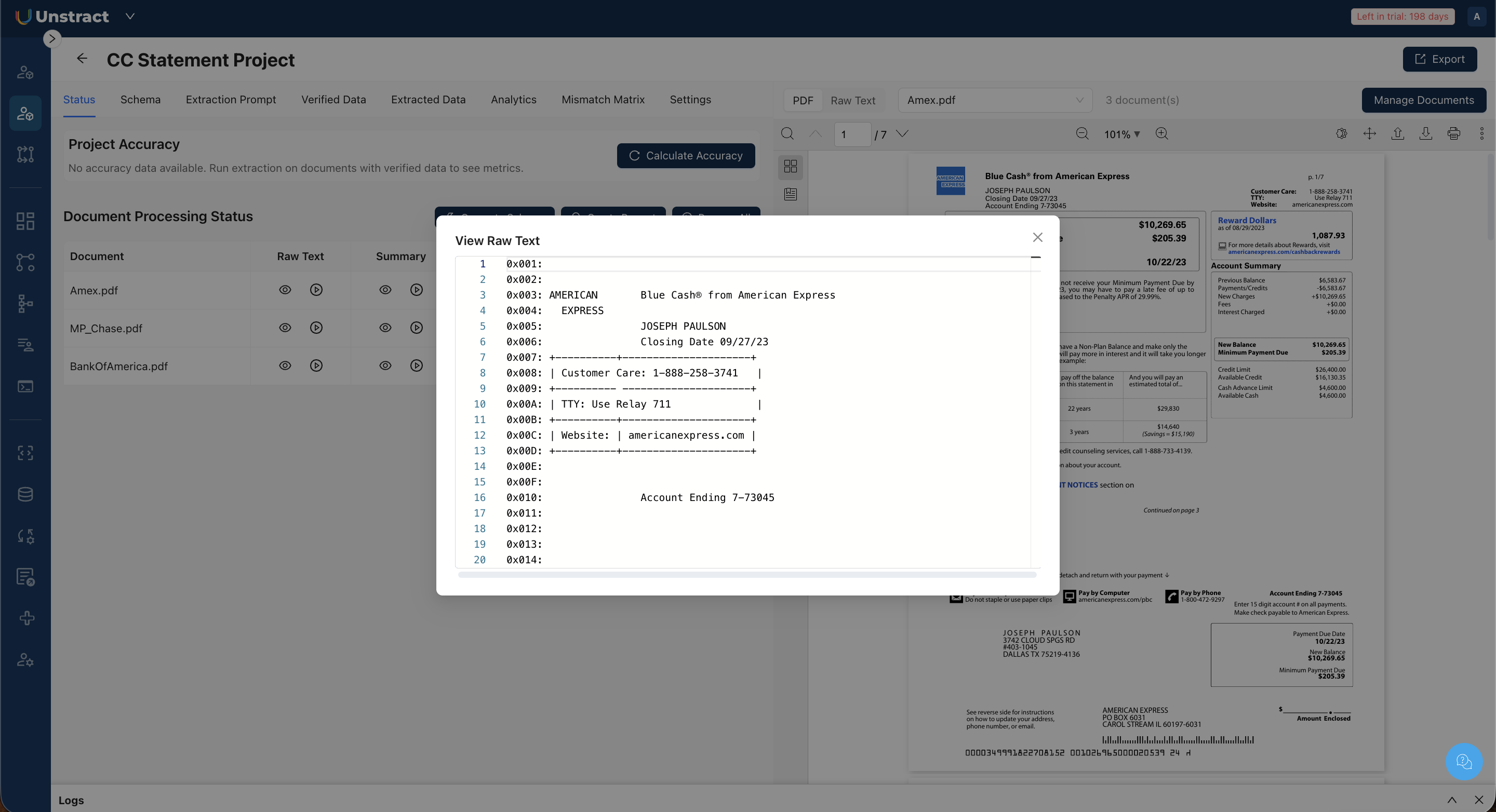
Alternatively, you can toggle the Raw Text view in the top bar to see the text extracted by LLMWhisperer. This shows the document content as the LLM receives it, with line identifiers (hex offsets) for each line.
Generate Document Summaries
Document summaries are produced by the SummarizerAgent as the first stage of the schema generation pipeline. Each document is analyzed independently, and the agent identifies the fields present: their names, descriptions, data types, and example values.
Summaries are generated when you run schema generation. You do not need to trigger them separately.
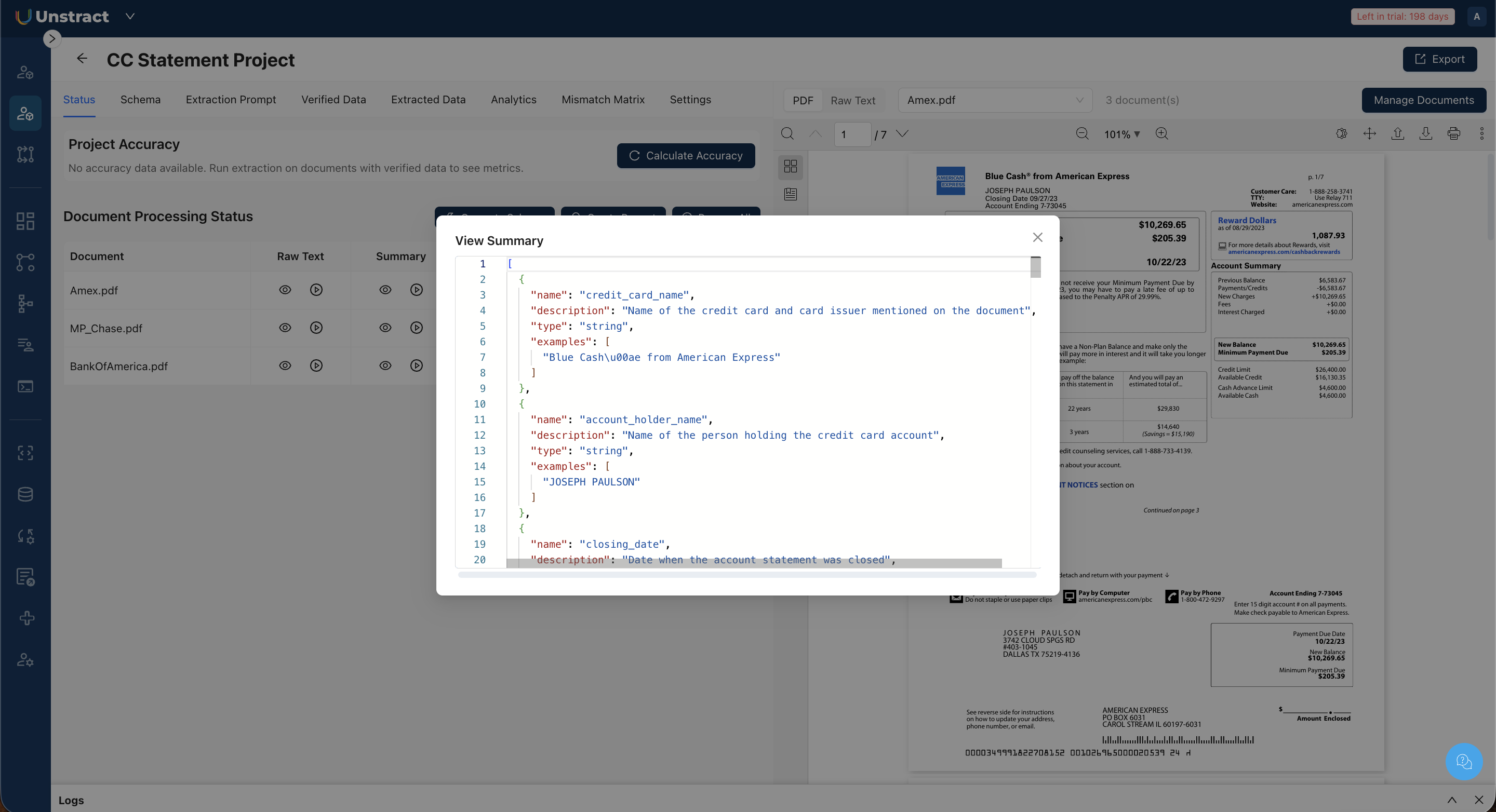
Previewing summaries: From the Status tab, click the eye icon in the Summary column to view a document's summary. The summary is a structured JSON array listing each identified field with its name, description, type, and example values drawn from that specific document.
Generating the Raw Text and Summaries for your documents are important before proceeding to Generate Schema & Prompts!