Human in the Loop (HITL) Rule Configuration
Overview
Human in the Loop (HITL) allows you to introduce manual review steps into your workflow. This ensures data accuracy by routing specific files to human reviewers based on configurable rules.
Accessing HITL Configuration
- After setting up tools in Step 3 of your workflow
- Click on "Configure" in Step 2 (Destination Connector)
- Navigate to the "Human in the Loop" tab
HITL Rule Configuration
Rules Tab
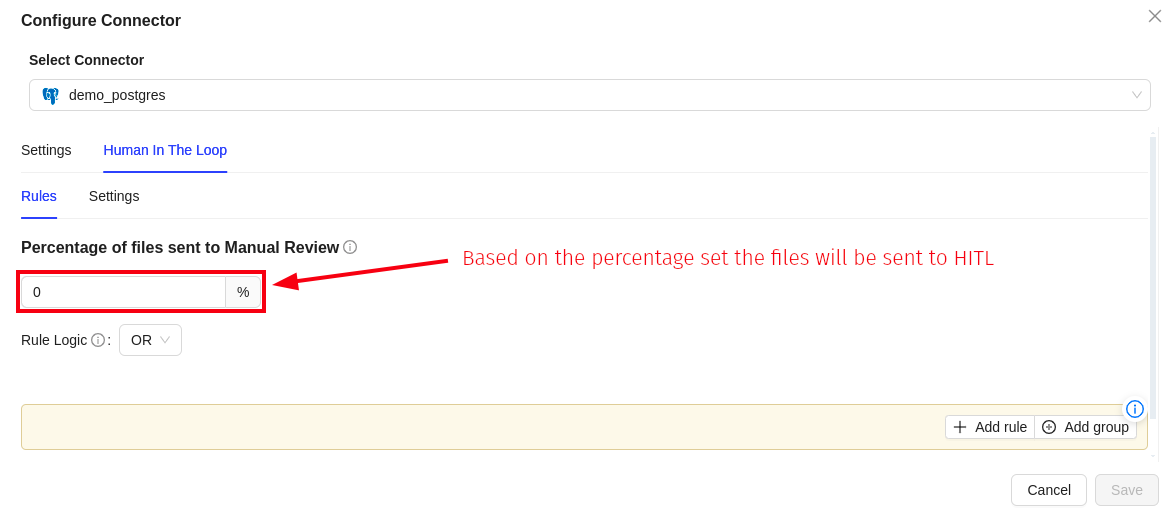
1. Percentage of Files Sent to Manual Review
Control what portion of your processed files should be routed to manual review:
- Set a percentage value (0-100%)
- Example: If you set 50% and process 2 files:
- 1 file will be sent to HITL for manual review
- 1 file will be sent directly to the database
2. Add Rules
Create custom rules to determine which files require manual review. All prompt keys created in the Prompt Studio will be available in the Field dropdown.
Rule Types
You can configure rules using four different filter methods:
-
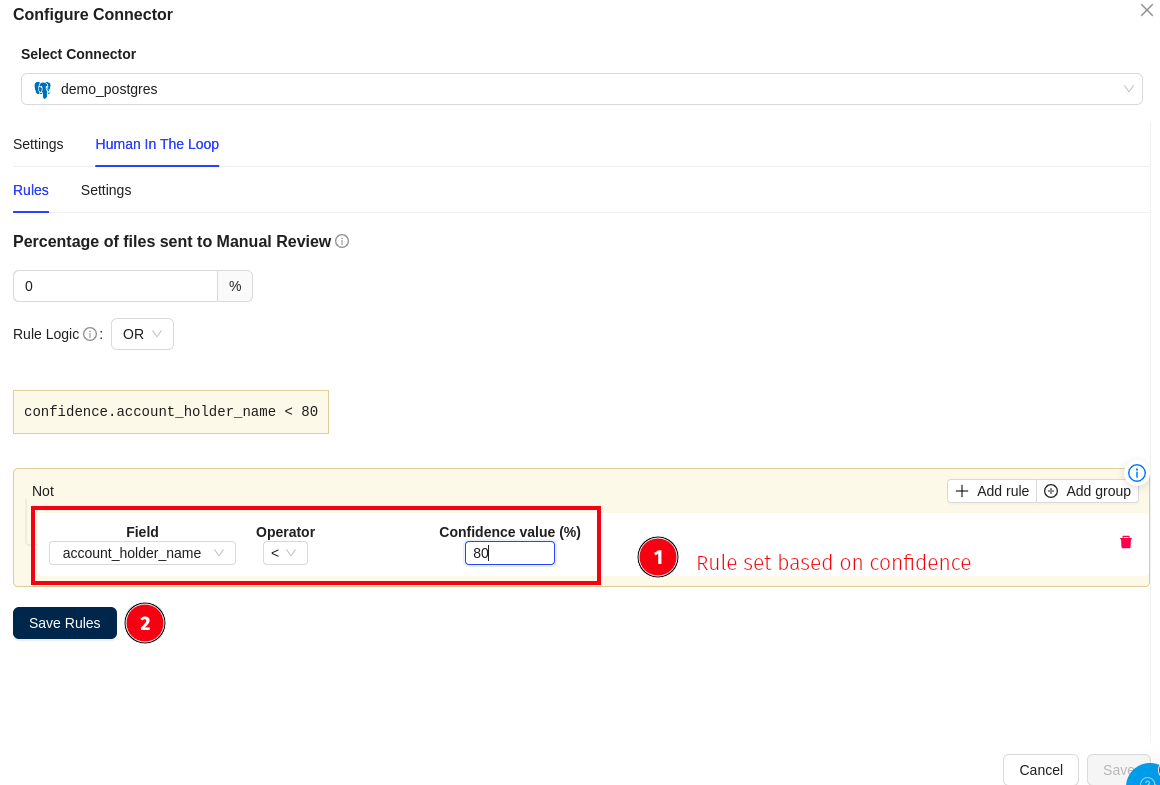
Filter by Confidence
- Route files based on confidence scores
- Enter percentage threshold (0-100)
- Example:
80(for 80% confidence threshold)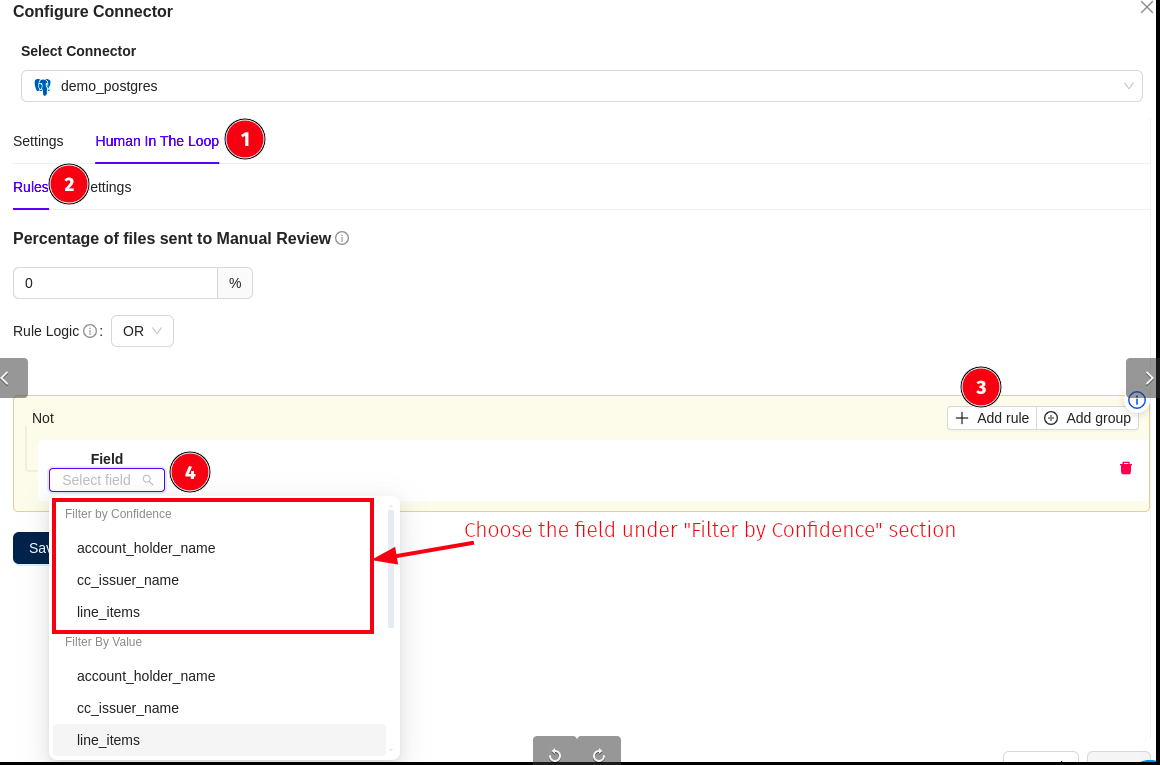
-
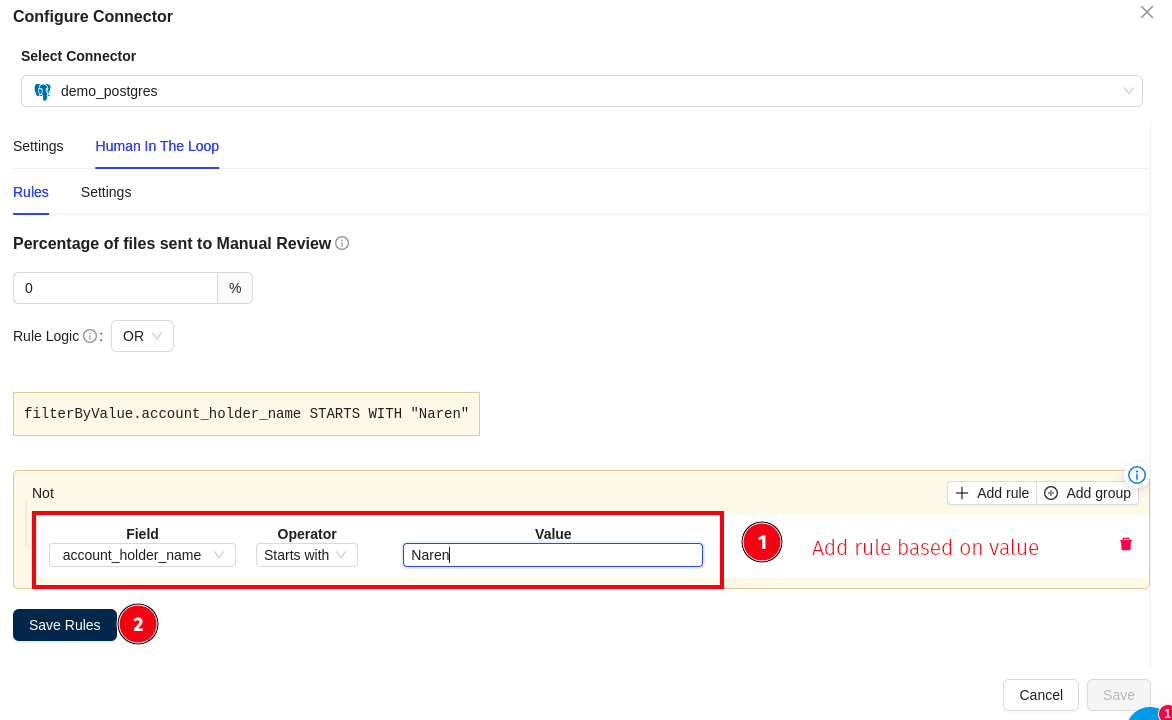
Filter by Value
- Route files based on specific field values
- Supports text, numbers, booleans, and dates
- Examples:
- Text:
approved,NAREN - Numbers:
1900,100.50 - Booleans:
true,false - Dates:
2020-01-01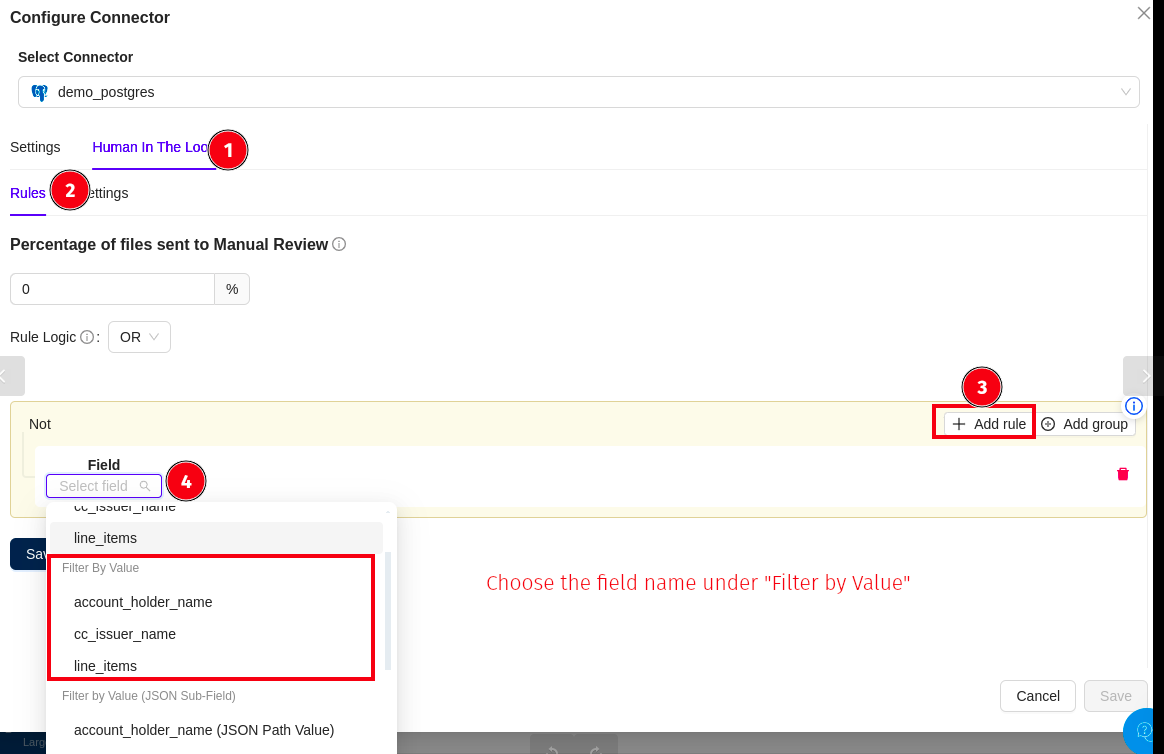
- Text:
-
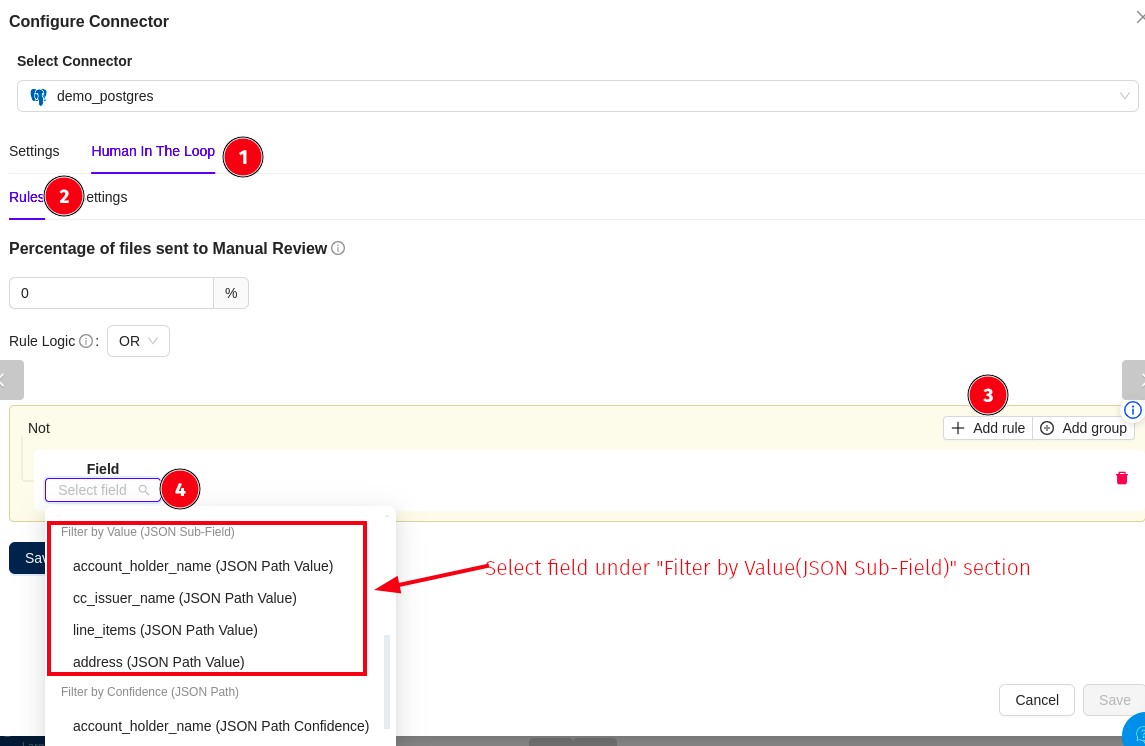
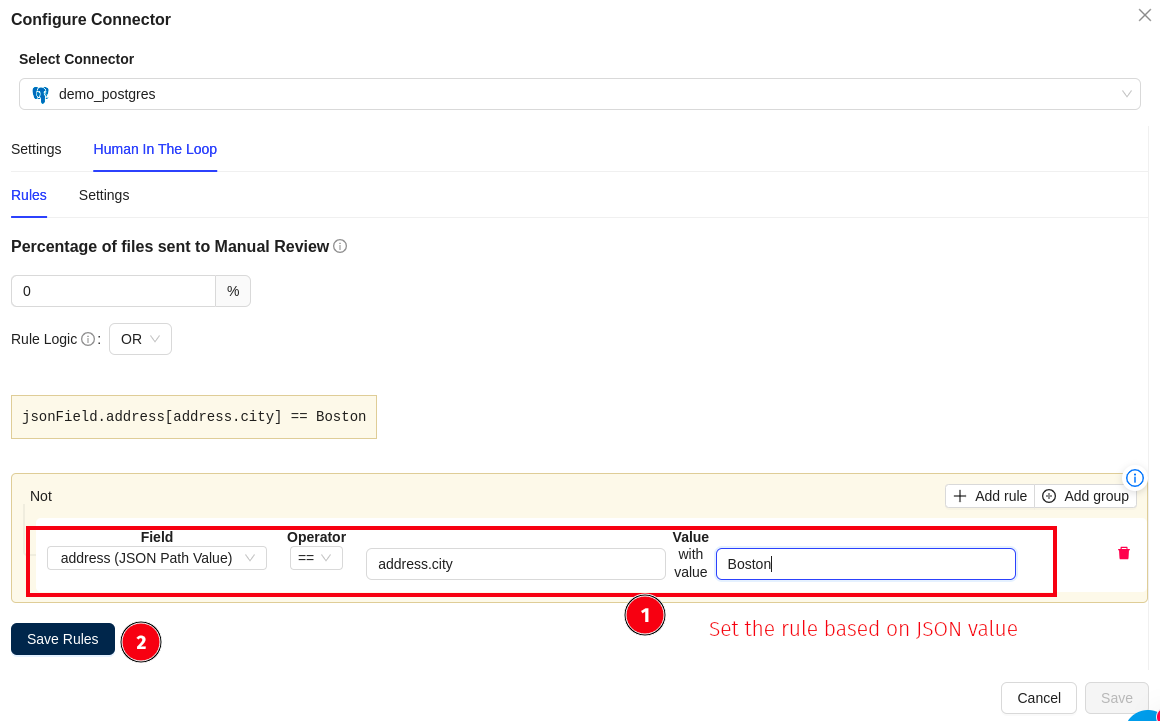
Filter by Value JSON Sub Field
- Route files based on nested JSON field values
- Two input fields: path and value
- Supports text, numbers, booleans, and dates
Examples:
Path Value Data Type Description address.cityBostonText Checks city field value customer.age35Number Checks age field value account.activetrueBoolean Checks boolean status transaction.date2020-01-01Date Checks transaction date statusapprovedText Checks status field value
When working with nested JSON fields, select the parent field from the Field dropdown first (e.g., due_details), then specify only the nested path in the value field (e.g., due_date). Do not include the parent field name in the path value.
Example: If checking city_name within address:
- Field dropdown: Select
address - Value field: Enter
city_name(NOTaddress.city_name)
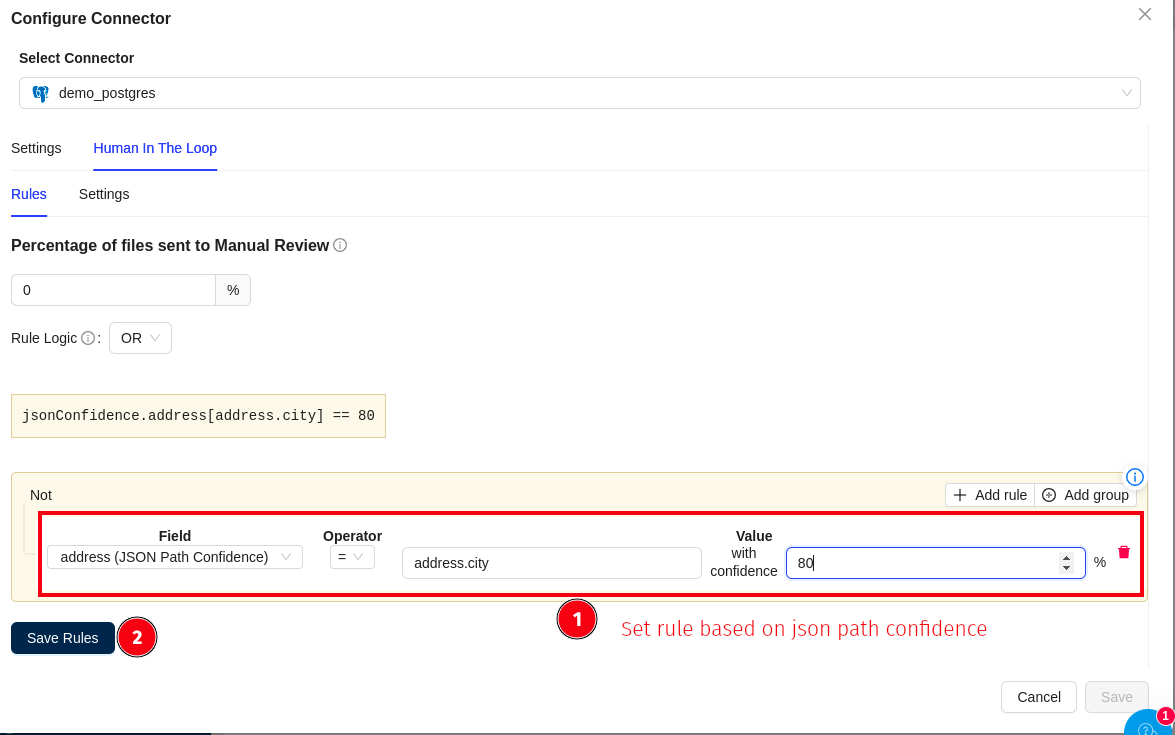
4. Filter by Confidence JSON Path
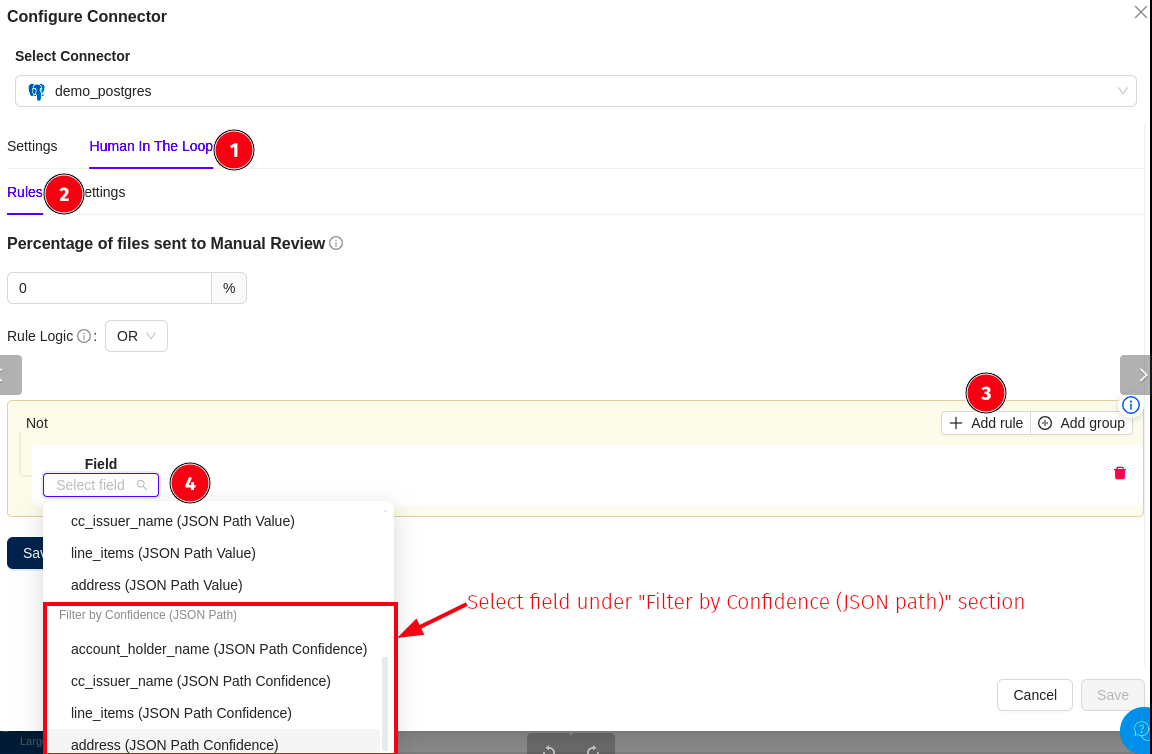
- Route files based on confidence at specific JSON paths
- Enter as path:threshold
- Threshold should be a number (0-100)
Simple Object Examples:
| JSON Path | Threshold | Description |
|---|---|---|
address.city:80 | 80 | Checks if confidence for address.city is 80% or below |
status:75 | 75 | Checks if confidence for status field is 75% or below |
customer.name:85 | 85 | Checks if confidence for customer.name is 85% or below |
key1.key2:75 | 75 | Checks confidence at nested key path |
invoice.total_amount:90 | 90 | Checks if confidence for invoice total is 90% or below |
When specifying JSON paths for confidence checks, select the parent field from the Field dropdown first (e.g., due_details), then specify only the nested path with threshold in the format path:threshold (e.g., due_date:80). Do not include the parent field name in the path.
Example: If checking confidence of city_name within address:
- Field dropdown: Select
address - Path:Threshold: Enter
city_name:80(NOTdue_details.city_name:80)
Setting Up a Rule
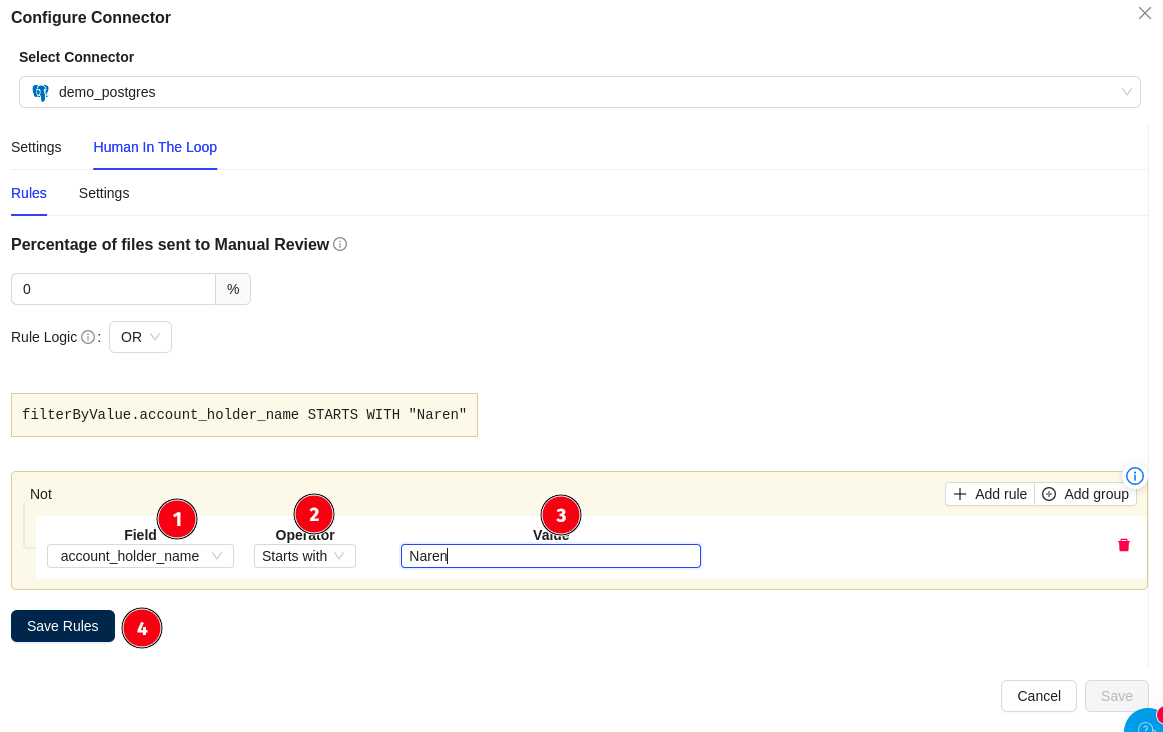
-
Select Field: Choose from the dropdown (all Prompt Studio fields available)
- Examples:
account_holder_name,cc_issuer_name,line_items
- Examples:
-
Choose Operator: Select comparison method
==(equals)!=(not equals)<(less than)<=(less than or equal)>(greater than)>=(greater than or equal)Starts withEnds with
Important: Choose operators appropriate to your value type. For text values, use text-based operators like Starts with, Ends with, or Contains. For numbers and dates, use comparison operators like <, >, <=, >=.
- Set Value: Enter the comparison value as a string (including numbers and booleans)
Example Rules
filterByValue.account_holder_name STARTS WITH "NAREN"
filterByValue.line_items[0].quantity == "5"
filterByValue.account.active == "true"
These rules send files to manual review based on the specified conditions.
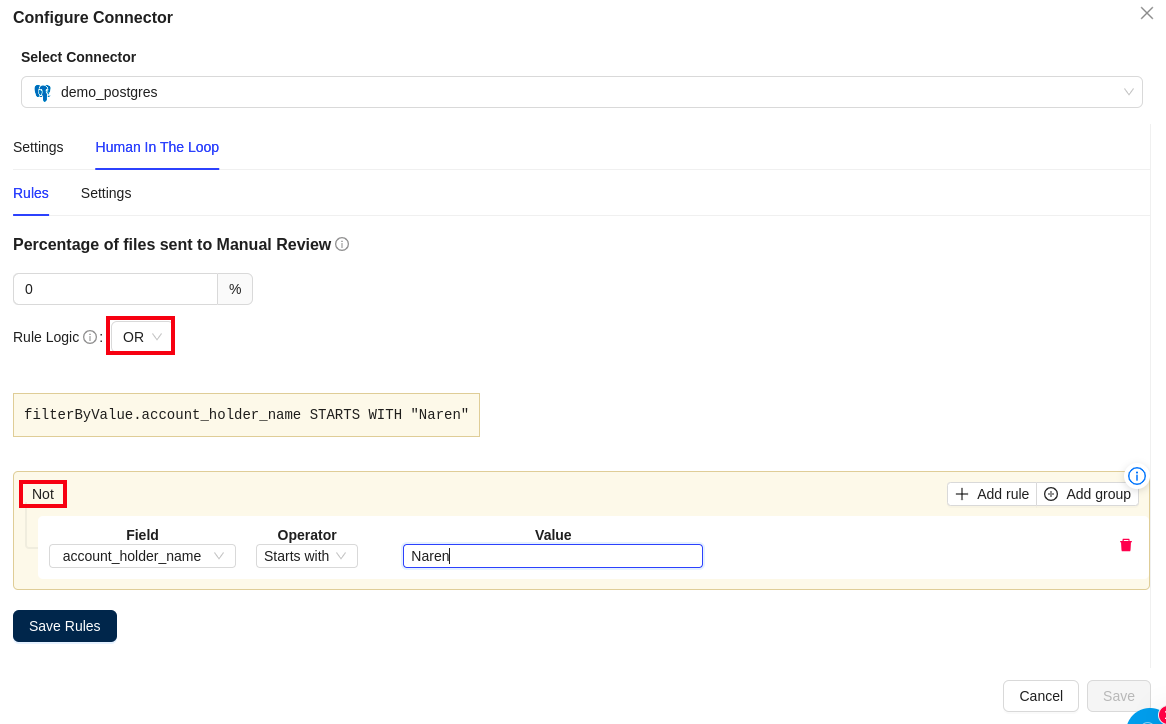
Rule Logic
- Rule Logic: Choose between
ORandANDlogic to combine multiple rules - Not: Toggle to negate a rule condition
Managing Rules
- Add rule: Click the
+ Add rulebutton to create additional rules - Delete: Click the red trash icon to remove a rule
- Save Rules: Click the
Save Rulesbutton to apply your configuration
Settings Tab
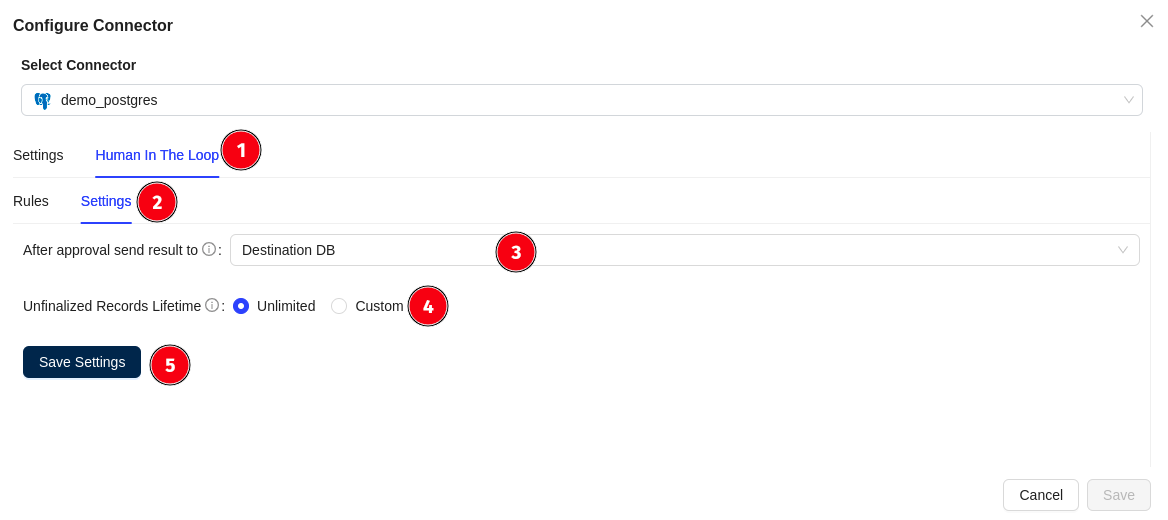
Configure what happens after manual review approval:
After Approval Send Result To
Choose where approved data should be sent:
-
Destination DB
- Approved results are sent directly to the configured destination database
-
Queue
- Approved results are sent to a queue
- Extract values using API calls
Unfinalized Records Lifetime
Control how long unreviewed records are retained:
- Unlimited: Keep unreviewed records forever (default)
- Custom: Auto-delete unreviewed records after a specified number of hours
- Maximum: 8,640 hours (1 year)
- Helps manage storage and compliance requirements
Note: Click Save Settings to apply changes.