BigQuery Database Connector
BigQuery is a cloud-based data warehouse designed for massive-scale analytics with SQL querying capabilities.
info
For the common steps on adding connectors in Unstract, see Working with Connectors.
Getting started with BigQuery
- Create BigQuery account
- Create project
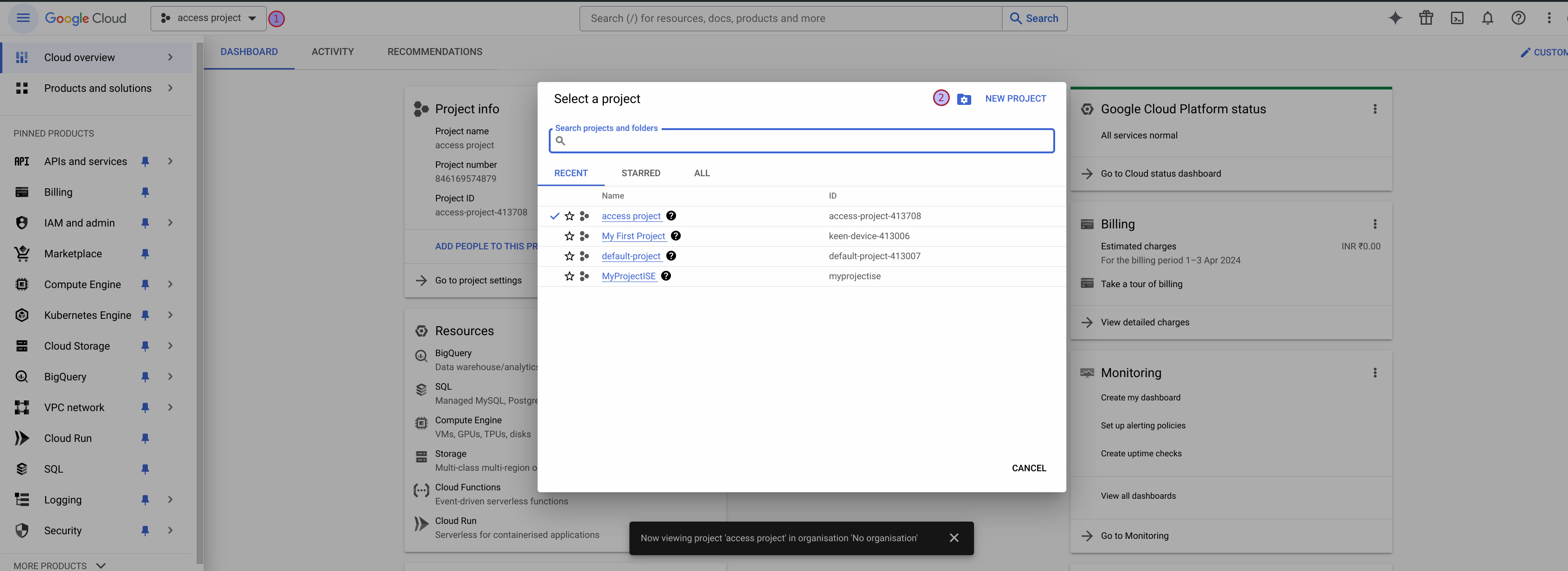
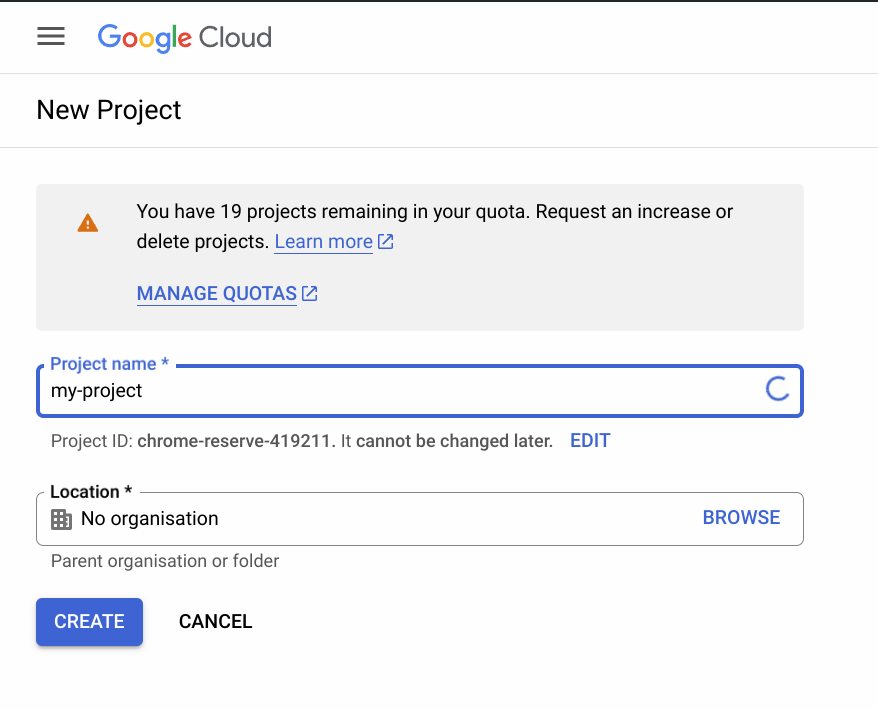
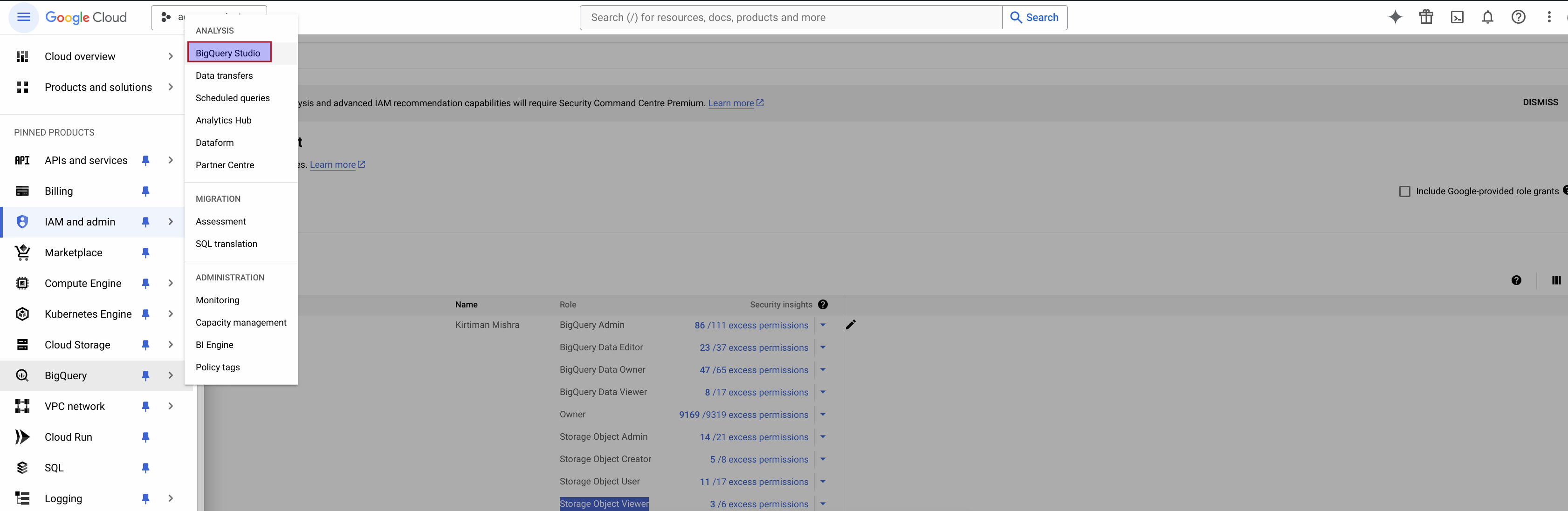
- Create studio
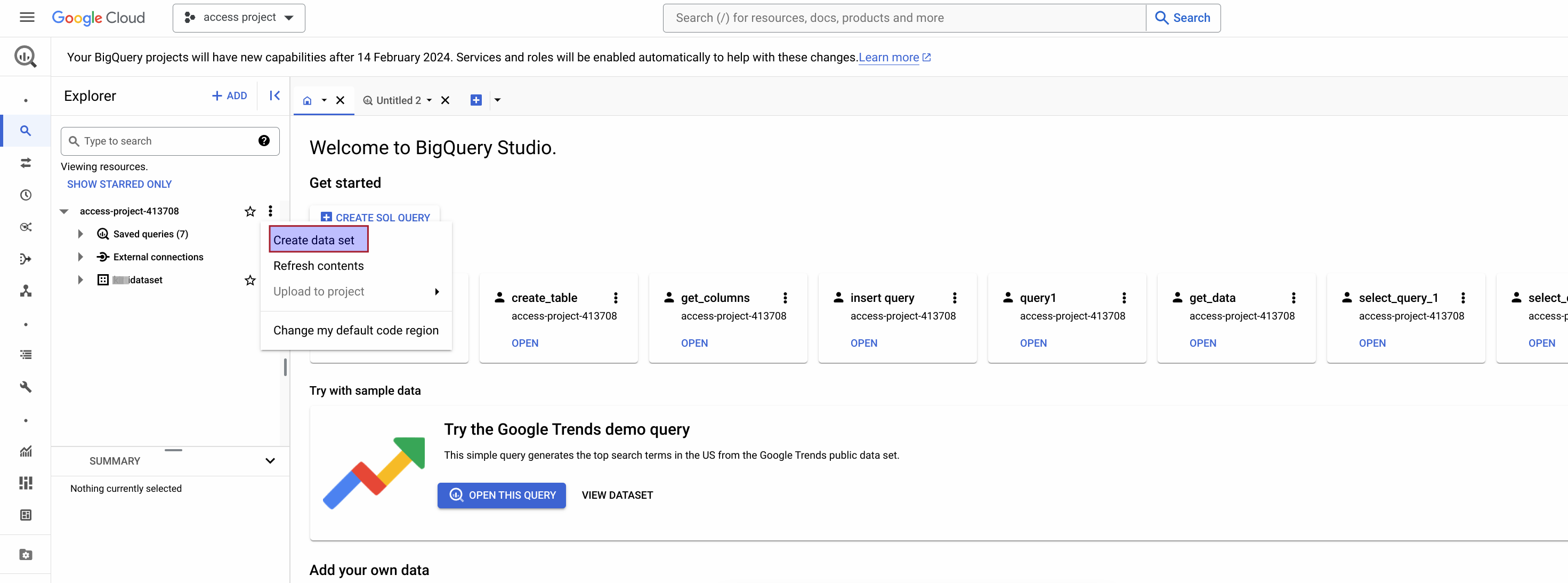
- Create Dataset
- Set neccessary permissions if required
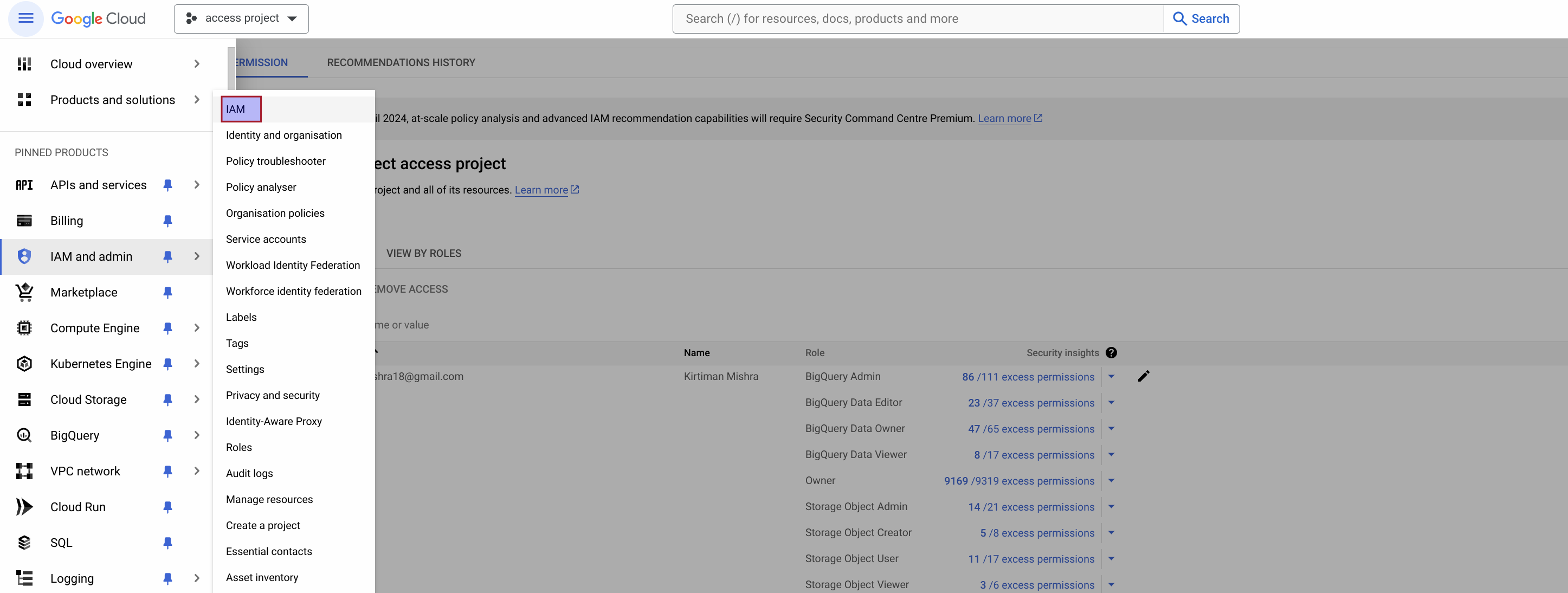
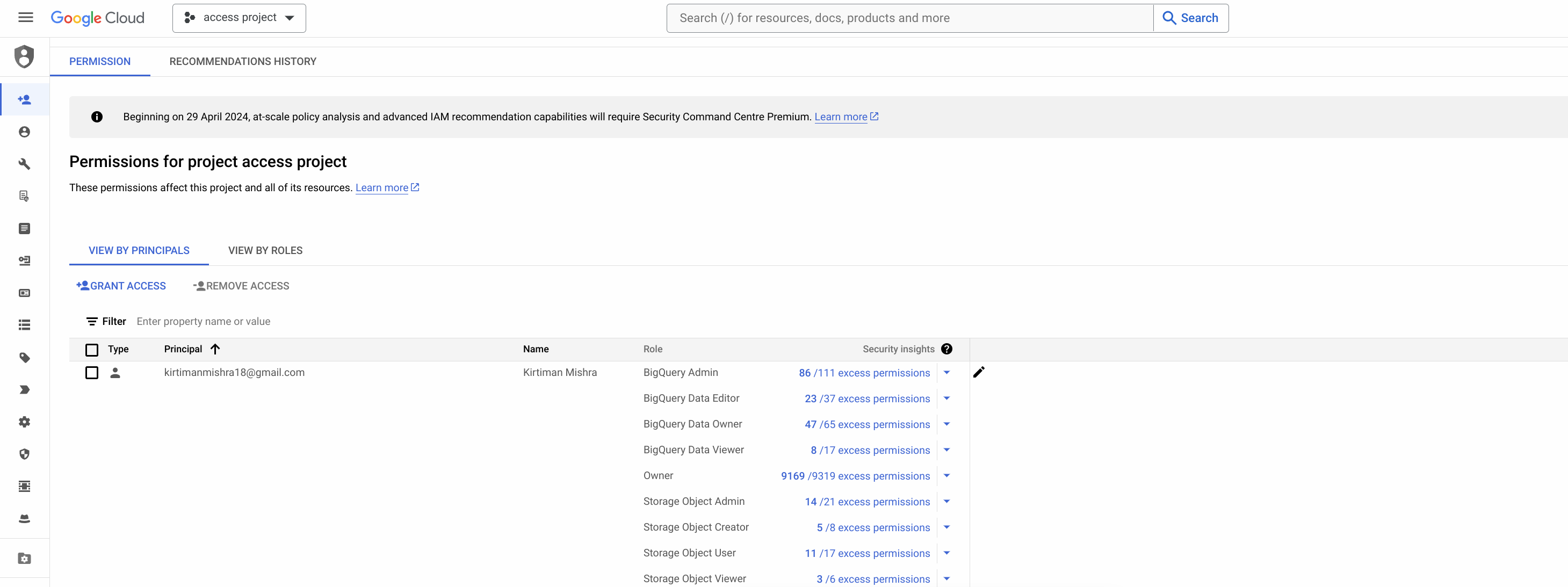
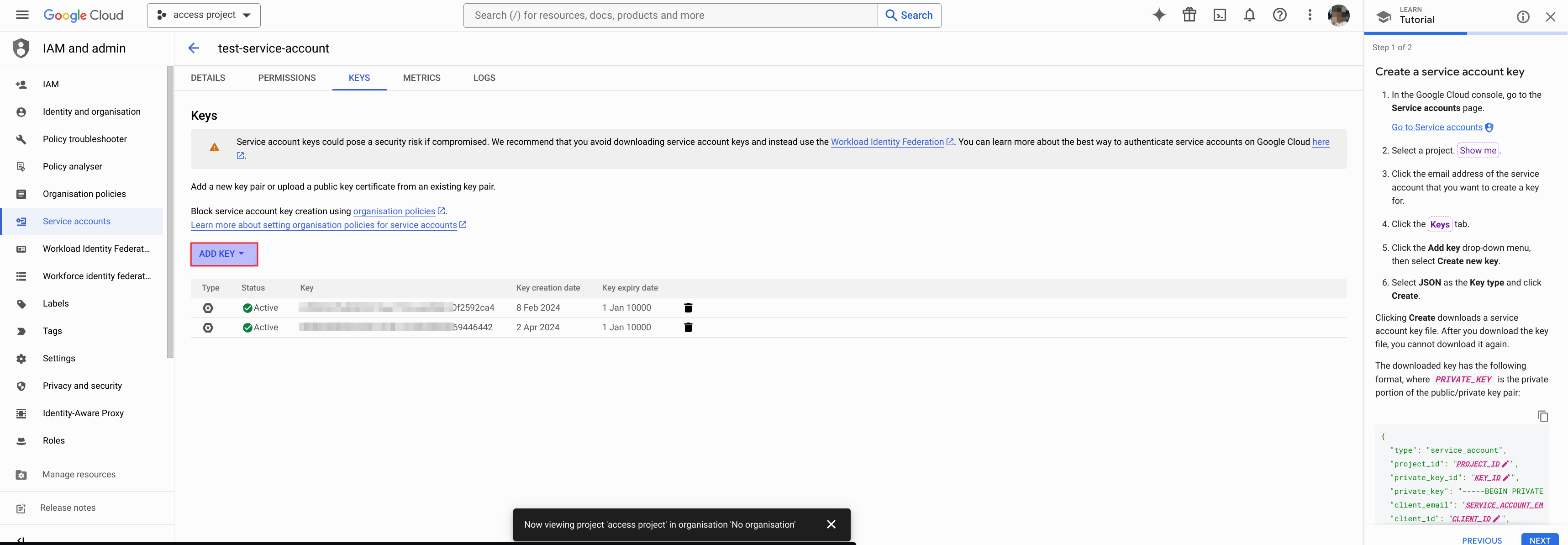
- Create Keys and download Credentials json
Adding BigQuery Connector in Unstract
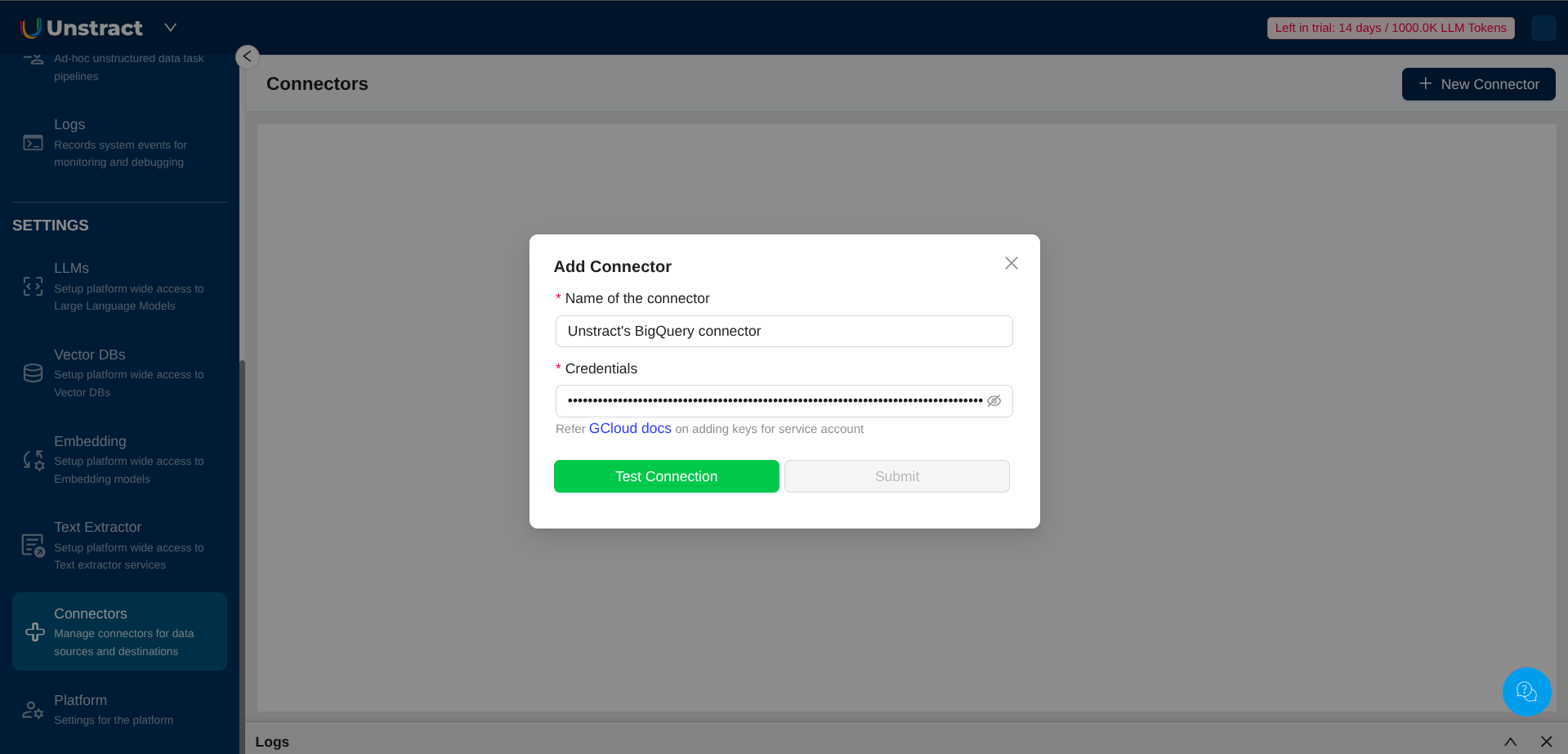
When configuring the BigQuery connector, you'll need to provide the following connection details:
Required Configuration Fields
- Name of the connector: Enter a descriptive name for your BigQuery connector
- Credentials: Paste the service account JSON credentials created in Google Cloud
Credentials Format
The BigQuery connector requires a service account JSON key file with the following structure:
{
  "type": "service_account",
  "project_id": "your-project-id",
  "private_key_id": "key-id",
  "private_key": "-----BEGIN PRIVATE KEY-----\n...\n-----END PRIVATE KEY-----\n",
  "client_email": "service-account@your-project.iam.gserviceaccount.com",
  "client_id": "123456789",
  "auth_uri": "https://accounts.google.com/o/oauth2/auth",
  "token_uri": "https://oauth2.googleapis.com/token"
}
Refer to the Google Cloud documentation for detailed instructions on creating service account credentials.