On-Prem Deployment Guide
This guide provides comprehensive instructions for deploying Unstract in an on-premises environment. Unstract is deployed inside a Kubernetes cluster, packaged as a Helm chart.
LLMWhisperer is a required dependency for Unstract and must be deployed before deploying Unstract. Refer to the LLMWhisperer On-Prem Deployment Guide for its deployment details.
Before proceeding, ensure all infrastructure has been provisioned per the Infrastructure Requirements page.
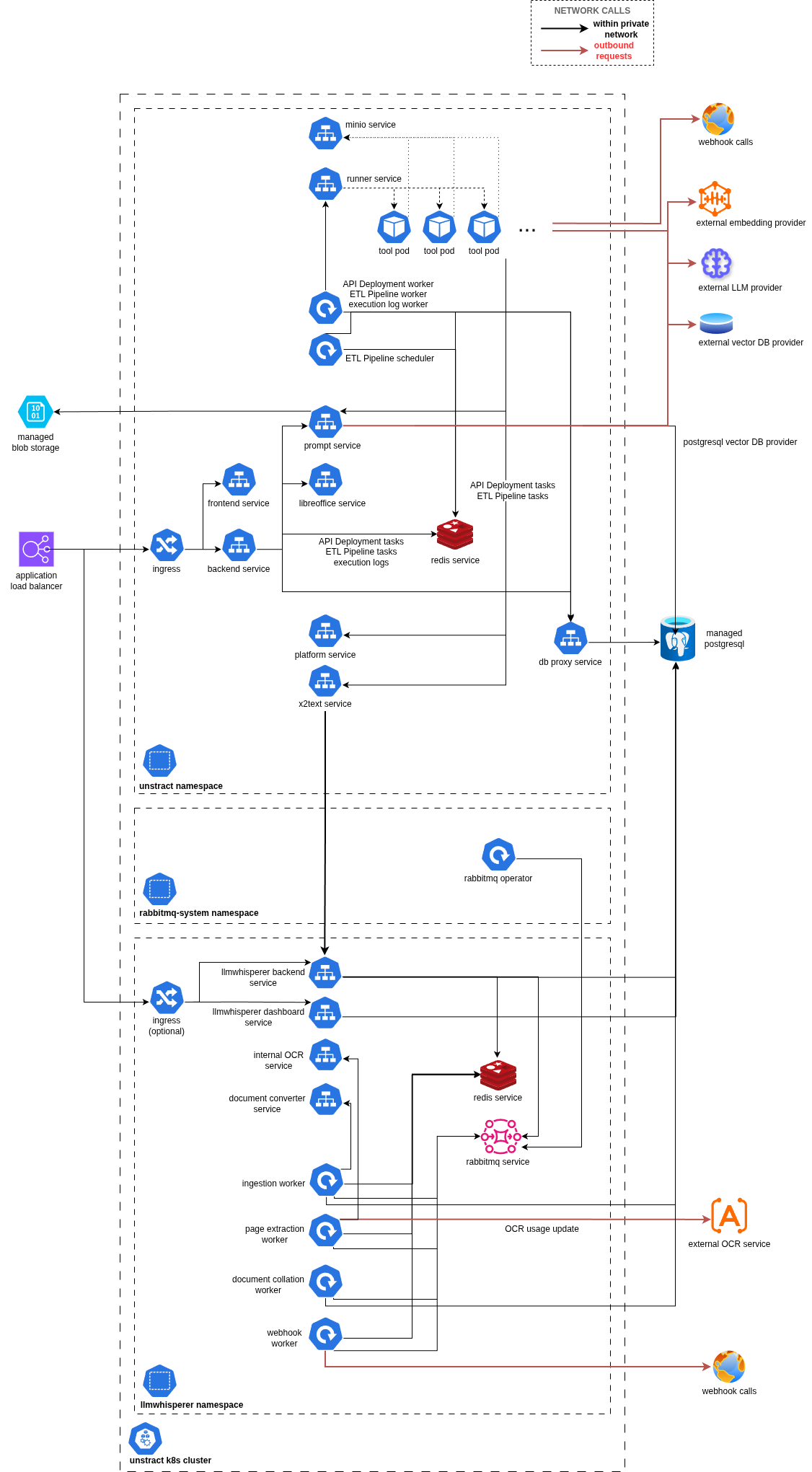
For an overview of all services and their interactions, see Appendix a: Service Diagram.
1. Configuration
Files Provided by Unstract Team
The following files will be provided by the Unstract team:
| File | Description |
|---|---|
artifact-key.json | GCP service account key for Helm chart registry login and container image pull |
sample.on-prem.values.yaml | Sample Helm chart values (non-sensitive configuration) |
sample.on-prem.secret.yaml | Sample Helm chart secrets (sensitive credentials) |
Required Configuration Values
These values must be provided by the customer or the Unstract team to deploy Unstract:
| Variable | Description | Source |
|---|---|---|
| Domain name | Domain to be used for the on-prem installation | Customer |
| Admin email | Email for the initial admin user invitation | Customer |
TOKEN_CLIENT_ID | M2M token client ID | Unstract Team |
TOKEN_CLIENT_SECRET | M2M token client secret | Unstract Team |
ZIPSTACK_ID_CLIENT_ID | OAuth application client ID | Unstract Team |
ZIPSTACK_ID_CLIENT_SECRET | OAuth application client secret | Unstract Team |
ZIPSTACK_ID_DOMAIN | Authentication platform domain | Unstract Team |
PERMANENT_REMOTE_STORAGE | Remote blob/object storage configuration | Customer (see Remote Storage Config) |
ENCRYPTION_KEY | Encryption key for sensitive data — must be backed up securely | Self-generated |
The ENCRYPTION_KEY is critical for decrypting sensitive credentials. Do not rotate, delete, or lose this key — doing so will render existing encrypted data inaccessible.
Configuring Helm Chart Values
- Rename
sample.on-prem.values.yaml→on-prem.values.yamlandsample.on-prem.secret.yaml→on-prem.secret.yaml on-prem.values.yamlcontains non-sensitive config;on-prem.secret.yamlcontains all sensitive credentials- Search for everything marked as
# <REQUIRED>and substitute with appropriate values in both files
2. Installation (One-Time)
Step 1: Create Namespace
kubectl create ns unstract
Step 2: Authenticate Helm Registry
cat artifact-key.json | helm registry login -u _json_key --password-stdin https://us-central1-docker.pkg.dev
Step 3: Create Image Pull Secret
kubectl create secret docker-registry gcr-artifact-secret \
  --namespace unstract \
  --docker-server=us-central1-docker.pkg.dev \
  --docker-username=_json_key \
  --docker-password="$(cat artifact-key.json)"
Step 4: Install Helm Chart
The release name must always be unstract-platform and should not be changed. Internal service communication between platform components depends on this name, and using a different release name will cause the deployment to fail.
helm install unstract-platform oci://us-central1-docker.pkg.dev/pandoras-tamer/charts/unstract-platform \
  --version <version> \
  -f /path/to/on-prem.values.yaml \
  -f /path/to/on-prem.secret.yaml \
  -n unstract
Replace <version> with the target release version (see On-Prem Release Notes).
3. Post-Deployment Validation
Health Checks
| Service | Port | Network Type | Endpoint |
|---|---|---|---|
unstract-backend | 8000 | HTTP | /health |
kubectl get pods -n unstract
All pods should be in Running state with zero restarts.
Admin Login
The first admin receives an invitation via email (from the Unstract team), which can be used to log into the Unstract platform. Once logged in, the admin can invite other team members who need access.
Adapter Configuration
Adapters must be configured before using the platform. Go to Settings → Adapters:
-
LLM → Provide your model endpoints (OpenAI, Claude, etc.). See supported LLMs for configuration details.
-
Embedding → Bring your own embedding model. See supported embeddings for configuration details.
-
VectorDB → Either bring your own or use the Unstract PostgreSQL instance with pgvector. See supported Vector DBs. To set up pgvector, see Appendix c.
-
Text Extractor → Unstract is usually bundled with LLMWhisperer, which is the recommended extractor. This requires that LLMWhisperer be deployed first.
-
Configure the LLMWhisperer backend URL:
http://whisperer-backend.<NAMESPACE>.svc.cluster.local:3006/Replace
<NAMESPACE>with the namespace where LLMWhisperer is deployed. Alternatively, use the load balancer URL if one has been created for the LLMWhisperer backend. -
For
Unstract Key, this has no effect in on-prem deployments. Enter any value (e.g.,DUMMY_KEY).
-
Backups
Securely back up:
ENCRYPTION_KEYfromsecret.yaml(critical for data recovery)- PostgreSQL data
- Object storage bucket/container data
4. High Availability (HA) Deployment (Optional)
For production environments requiring automatic failover and multi-replica redundancy, Unstract supports HA mode for Redis (Sentinel), RabbitMQ (quorum queues), and MinIO (Operator-managed). When the Kubernetes cluster spans multiple Availability Zones, the deployment will automatically be multi-AZ. See the HA Deployment Guide.
5. Upgrading
- Configure
on-prem.values.yamlandon-prem.secret.yamlas required for the target release version - Run the upgrade command:
helm upgrade unstract-platform oci://us-central1-docker.pkg.dev/pandoras-tamer/charts/unstract-platform \
  --version <new-version> \
  -f /path/to/on-prem.values.yaml \
  -f /path/to/on-prem.secret.yaml \
  -n unstract
6. Customer Teams Responsibilities (Execution Plan)
| Step | Team | Task | Description |
|---|---|---|---|
| 1 | Infra Team | Provision VPC, subnets, security groups | As per internal standards |
| 2 | Infra Team | Provision PostgreSQL instance | See Infrastructure Requirements |
| 3 | Infra Team | Provision object storage (S3 / Blob / GCS) | See Remote Storage Config |
| 4 | Infra Team | Provision Kubernetes cluster (EKS / AKS / GKE) | See Infrastructure Requirements |
| 5 | Network Team | Configure DNS, SSL certificate | For network ingress |
| 6 | Platform Team | Apply ingress Kubernetes resource | Confirm access with kubectl cluster-info |
| 7 | Platform Team | Get credentials from Unstract team | artifact-key.json, API keys, etc |
| 8 | DevOps Team | Populate Helm values YAML files | Fill all # <REQUIRED> placeholders |
| 9 | DevOps Team | Deploy Unstract Helm chart | See Section 2 |
| 10 | DevOps Team | Validate deployments | Check pods health, API availability |
| 11 | Admin Team | Complete onboarding via email invite (when Enterprise SSO is not enabled) | Access Unstract dashboard |
| 12 | Application Team | Configure adapters and setup flows | Refer documentation and ensure end-to-end sanity |
Appendix
a. Service Diagram
The diagram below shows the services and their interactions within an Unstract on-prem deployment.
b. Useful Commands
Kubernetes:
kubectl get pod -n <namespace>
kubectl describe pod <pod-name> -n <namespace>
kubectl logs <pod-name> -n <namespace>
Helm:
helm list -n <namespace>
helm show values oci://us-central1-docker.pkg.dev/pandoras-tamer/charts/unstract-platform --version <version>
helm rollback unstract-platform <revision-number> -n <namespace>
helm uninstall unstract-platform -n <namespace>
c. Setup PostgreSQL as Vector DB (Optional)
Prerequisite (Azure Only)
- Enable extensions in server parameters.
- Go to your PostgreSQL instance in Azure portal > Settings > Server Parameters > Search for
azure.extensions> SelectVECTORextension. This allows the extension in the instance.
Configure pgvector
-- Create a database within the instance for vector use case
CREATE DATABASE vector_db;
-- Select the created DB
\c vector_db;

-- OPTIONAL: Check the `vector` extension is available.
-- For AWS
SHOW rds.extensions;
-- For Azure
SHOW azure.extensions;

-- Enable vector extension
CREATE EXTENSION vector;

-- Verify if it got enabled. The output will show `vector` if enabled.
\dx

-- or
SELECT *
FROM pg_extension;
d. Data Migration (Docker to Kubernetes)
If Unstract has already been running on a Docker-based system and is now being moved to Kubernetes, a data migration is required. Before the Docker-based system is brought down, follow the steps below to migrate existing data to the remote storage configured above.
1. Create the migration compose file
Save one of the following as data-migration.yaml based on your storage provider.
Azure:
version: '3.8'
services:
  azure-sync:
    image: mcr.microsoft.com/azure-cli:latest
    container_name: azure-sync
    volumes:
      - unstract-cloud-platform_prompt_studio_data:/app/prompt_studio_data
    environment:
      - AZURE_STORAGE_CONTAINER=${AZURE_STORAGE_CONTAINER}
      - AZURE_STORAGE_CONNECTION_STRING=${AZURE_STORAGE_CONNECTION_STRING}
    entrypoint: ["/bin/sh", "-c"]
    command: >
      "az storage blob sync --connection-string '$AZURE_STORAGE_CONNECTION_STRING' -c $AZURE_STORAGE_CONTAINER -s /app/prompt_studio_data -d prompt-studio-data"

volumes:
  unstract-cloud-platform_prompt_studio_data:
    external: true
AWS:
version: '3.8'
services:
  aws-sync:
    image: amazon/aws-cli:latest
    container_name: aws-sync
    volumes:
      - unstract-cloud-platform_prompt_studio_data:/app/prompt_studio_data
    environment:
      - AWS_S3_BUCKET=${AWS_S3_BUCKET}
      - AWS_ACCESS_KEY_ID=${AWS_ACCESS_KEY_ID}
      - AWS_SECRET_ACCESS_KEY=${AWS_SECRET_ACCESS_KEY}
      - AWS_ENDPOINT_URL=${AWS_ENDPOINT_URL}
    entrypoint: ["/bin/sh", "-c"]
    command: >
      "aws --endpoint-url=$AWS_ENDPOINT_URL s3 sync /app/prompt_studio_data s3://$AWS_S3_BUCKET/prompt-studio-data"

volumes:
  unstract-cloud-platform_prompt_studio_data:
    external: true
2. Run the migration
Prepare a .env file with the environment variables listed in the compose file, then run:
docker compose --env-file .env -f data-migration.yaml up
Or pass them inline:
AWS_S3_BUCKET=<> AWS_ACCESS_KEY_ID=<> AWS_SECRET_ACCESS_KEY=<> AWS_ENDPOINT_URL=<> docker compose -f data-migration.yaml up