Highlighting and Confidence
Overview
Prompt Studio can highlight where each extracted value was found in the source document and show a confidence score for it. Two settings control this:
| Setting | What you get |
|---|---|
| Enable Highlighting | Highlights the source lines for each extracted value and shows line-level confidence |
| Enable Word-Level Confidence | Shows word-level confidence for the text extracted by the LLM. Requires Enable Highlighting |
If only Enable Highlighting is turned on, line-level confidence is shown along with the highlight. Turn on both settings to get word-level confidence.
Highlighting is available only for LLM profiles that use LLMWhisperer as the Text Extraction service.
Enabling Highlighting and Word-Level Confidence
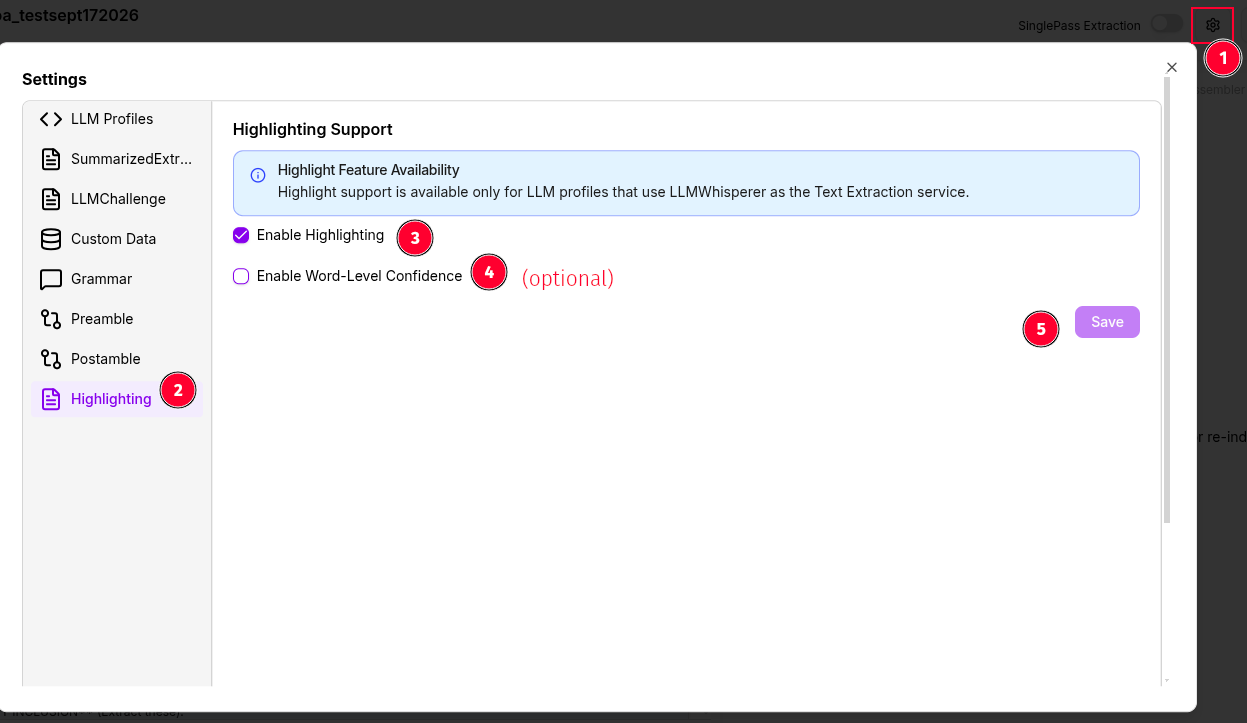
The numbers below match the markers in the screenshot.
- Access Settings: Click the gear icon (⚙️) in the top-right corner of your Prompt Studio project.
- Navigate to Highlighting: In the Settings sidebar on the left, select Highlighting.
- Enable Highlighting: Check Enable Highlighting to get highlights and line-level confidence.
- Enable Word-Level Confidence (optional): Check Enable Word-Level Confidence to also get word-level confidence. Leave it unchecked if line-level confidence is enough.
- Save: Click Save to apply your changes.
Re-index and Run After Enabling
Highlight and confidence data are generated when a document is indexed. After you enable either setting, you must:
- Re-index the document: Open Manage Documents and click the Reload button under
Actions. See Adding and indexing sample documents. - Run the prompts again: Run your prompts so that the output includes highlight and confidence data.
Documents that were indexed before the setting was enabled will not show highlights or confidence until they are re-indexed.
Prompt Studio Settings vs. Workflow Settings
The Highlighting settings in Prompt Studio apply only within Prompt Studio. They are not carried over when the project is exported or deployed.
For deployed workflows (API, ETL or Task pipelines), highlight and word confidence are controlled separately by the Enable highlight and Enable word confidence options in the workflow's tool settings. Deployments extract text from each document as it is processed, so no re-indexing is needed there. However, ETL and Task pipelines skip files that were already processed successfully, so to apply new settings to those files, clear their File History before running the pipeline again.
HITL confidence rules depend on confidence data. If Enable highlight is not turned on in the workflow's tool settings, no confidence data is produced and every field is treated as 100% confident. Low-confidence rules such as confidence <= 80 will then never send documents to review, while other comparisons (for example, confidence >= 80) still evaluate against that default score of 100.