Workflow Setup Guide
This guide walks you through the common process of creating and configuring workflows in Unstract. All workflow types follow the same foundational setup process, with specific differences highlighted in their respective deployment guides.
Prerequisites
Before creating a workflow, you must export a Prompt Studio project as a tool. This exported tool will be used to process your data within the workflow.
Workflow Setup Process
Workflows are configured through a streamlined 4-step wizard interface:
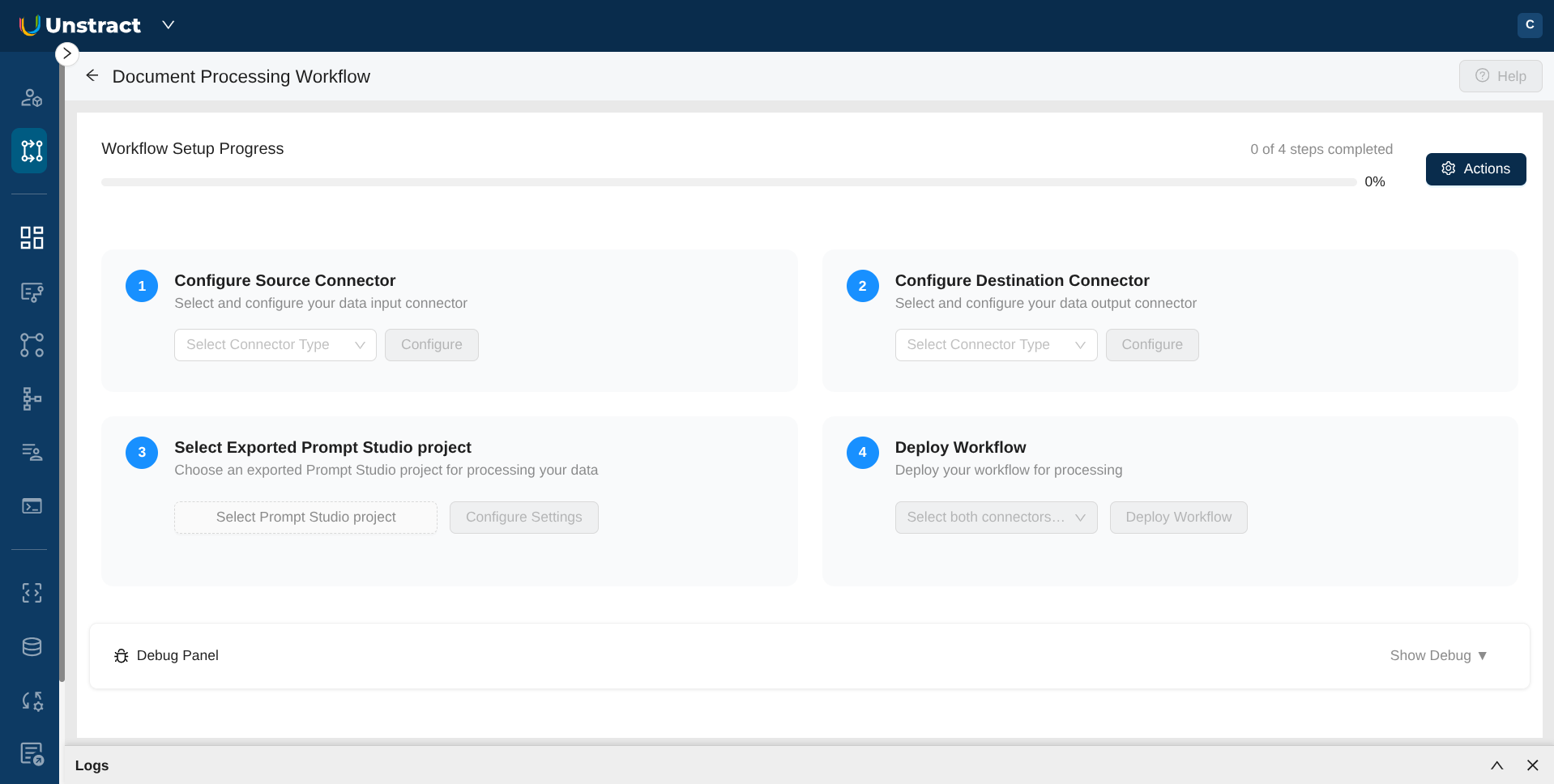
Step 1: Configure Source Connector
Select and configure where your input data comes from.
- Available Source Types:
- File System (for ETL and Task pipelines)
- API (for API deployments)
See Source Configuration for source specific settings
Step 2: Configure Destination Connector
Select and configure where your processed data will be stored.
- Available Destination Types:
- Database (for ETL and HITL workflows)
- File System (for Task pipelines)
- API (for API deployments - no configuration needed)
See Destination Configuration for destination specific settings
Refer Connectors for filesystem or database connector setup
Step 3: Select Exported Prompt Studio Project
Choose the tool that will process your data.
- Actions:
- Your previously exported Prompt Studio projects will be available for selection
- Use Change Prompt Studio project to select a different project
- Click Configure Settings to modify tool-specific settings
Tool Settings
Clicking Configure Settings opens the Tool Settings panel. These settings apply to every run of the workflow, whether it is deployed as an API, ETL or Task pipeline.
| Setting | Description |
|---|---|
| Challenger LLM | LLM to use for LLMChallenge |
| Enable LLMChallenge | Enables LLMChallenge |
| Enable highlight | Enables highlight data and line-level confidence for extracted values |
| Enable SummarizedExtraction | Enables SummarizedExtraction |
| Enable word confidence | (Optional) Enables word-level confidence for extracted values. Requires Enable highlight |
| Enable SinglePass Extraction | Enables SinglePass Extraction |
Enabling Highlight and Word Confidence
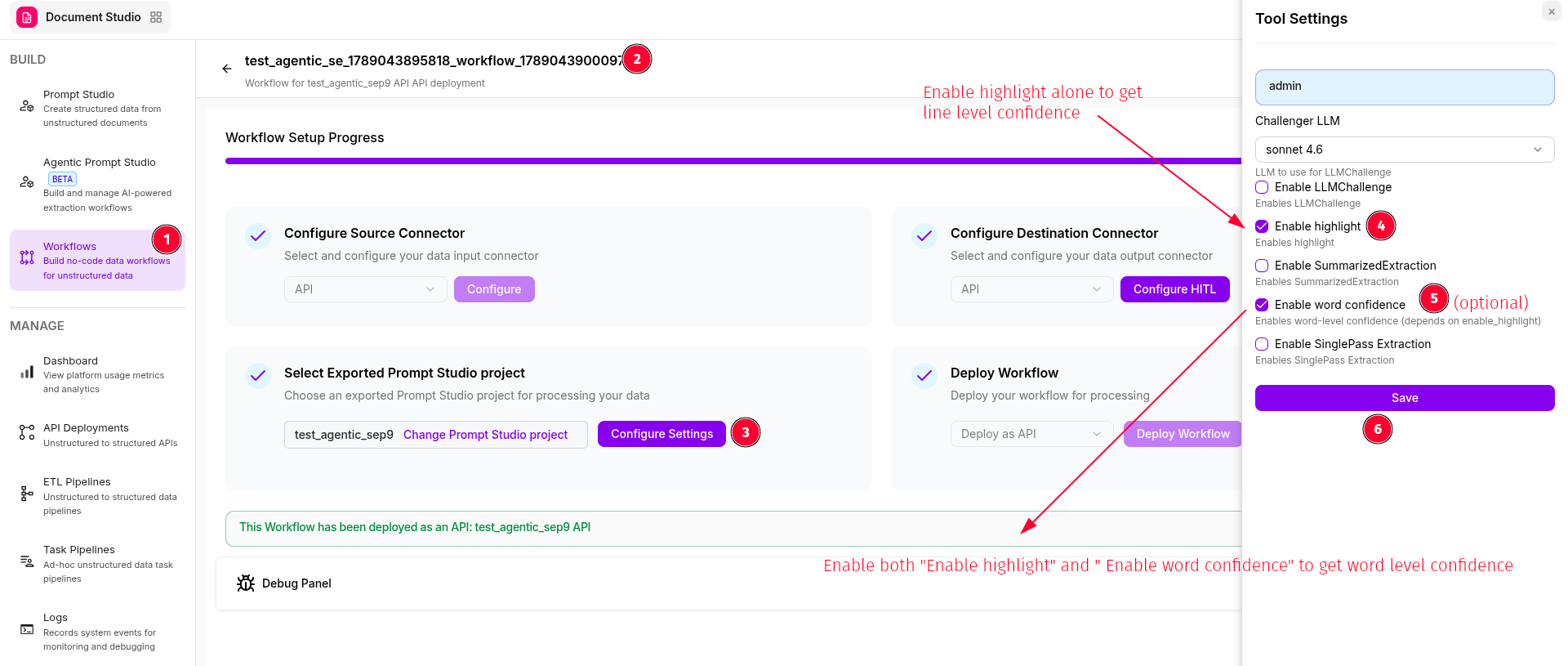
The numbers below match the markers in the screenshot.
- Navigate to Workflows in the side navigation.
- Open your workflow.
- In Select Exported Prompt Studio project, click Configure Settings.
- Check Enable highlight to get highlight data and line-level confidence.
- (Optional) Check Enable word confidence to also get word-level confidence. This requires Enable highlight. Leave it unchecked if line-level confidence is enough.
- Click Save to apply your changes.
| To get | Enable |
|---|---|
| Line-level confidence | Enable highlight |
| Word-level confidence | Enable highlight and Enable word confidence |
HITL confidence rules and the Highlight Data API depend on Enable highlight (and preferably Enable word confidence) being turned on here. Highlight data is collected only when the exported project's LLM profile uses LLMWhisperer as its Text Extraction service. Without these, no confidence data is produced and HITL treats every field as 100% confident, so low-confidence rules such as confidence <= 80 never send documents to review. Other comparisons (for example, confidence >= 80) still evaluate against that default score of 100.
The Highlighting settings in Prompt Studio apply only within Prompt Studio and are not used by deployed workflows.
At this point, you can run and test the workflow, select Actions -> Run Workflow to ensure it's working as expected. This is optional but recommended.
Step 4: Deploy Workflow
Deploy your workflow with the appropriate deployment type. After deployment, you'll see a confirmation message with your workflow identifier.
Deployment Types Overview
Different deployment types are optimized for specific use cases:
| Deployment Type | Source | Destination | Primary Use Case |
|---|---|---|---|
| ETL Pipeline | File System | Database | Automated data extraction and loading into databases |
| Task Pipeline | File System | File System | Automated data extraction and loading into filesystem |
| API Deployment | API | API | On-demand API-based processing |
| HITL (Human-in-the-Loop) | File System | Database | ETL with human review and approval workflow |
Monitoring and Debugging
- Check the Debug Panel at the bottom of the interface for a high level view of what's being executed.
- For more detailed logs, check the Logs side navigation menu -> Workflow Sessions -> select your desired workflow session.