Introduction to Look-Ups
This feature is available in Unstract Cloud Edition and Unstract On-Premise Edition.
Why Look-Ups exist
Prompt Studio extracts values as they appear in the document. A vendor name might come out as ACME Corp, Acme Corporation, or acme inc. depending on the invoice. A country might be USA, United States, or U.S.A.. A diagnosis might be free-text from a clinical note rather than an ICD-10 code.
Real downstream systems (your ERP, your data warehouse, your accounting software) expect canonical, standardized values. Bridging that gap traditionally meant writing post-processing code, maintaining mapping tables in your application layer, or paying staff to clean up extracted output by hand.
Look-Ups solve this inside Prompt Studio. After extraction, a Look-Up takes the raw value, runs a second focused LLM call against reference data (or against the LLM's own world knowledge), and replaces the value with its canonical form. All without leaving the project.
What is a Look-Up
A Look-Up is a small, reusable enrichment unit attached to a prompt. It has three parts you actively configure and one that wires up at link time.
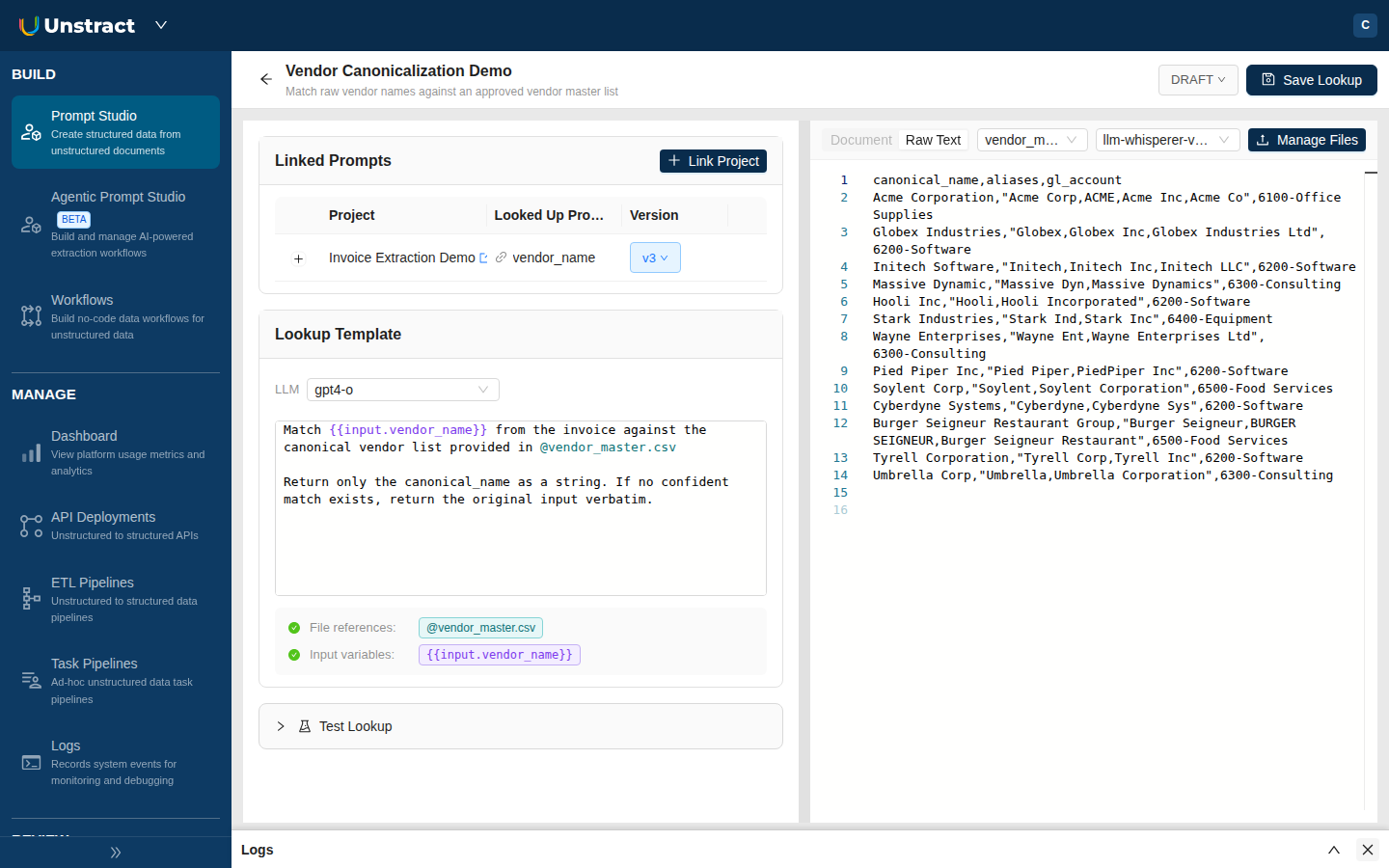
A template. The instruction the LLM follows when running the enrichment, written in plain English. Templates can reference uploaded reference files using @filename and pull values from other prompts using {{input.variable_name}} placeholders.
Reference files (optional). Documents you upload that the Look-Up can read from. Typical examples are a vendor master CSV, a chart of accounts, a tariff code list, or an internal policy document. Reference files are extracted using the same text-extraction adapter your project uses for input documents. A Look-Up can have zero reference files (some normalizations only need the LLM's world knowledge) or as many as the limits below allow.
An LLM adapter. The model that runs the enrichment call. It can be different from the model used for extraction.
Once a Look-Up is linked to a prompt, the prompt's output card shows two tabs: Raw (the original extraction) and Enriched (the Look-Up result). Both values are persisted, so you can always see what changed.
When to use a Look-Up vs. a regular prompt
Reach for a Look-Up when:
- You want the same value in two forms: the raw text as written in the document (for audit and traceability) and a canonical form (for downstream systems).
- The mapping is stable across documents. Vendors, account codes, country codes, and controlled vocabularies usually live in reference data you control.
- You want to keep extraction prompts simple and document-focused, and handle normalization as a separate, swappable step.
A regular prompt is still the right tool when the value you need is fully self-contained in the document and doesn't need to be reconciled against external data.
Constraints and Caveats
A few constraints are easier to plan around than discover later. These are the ones that affect how you scope and design a Look-Up:
Reference file limits
You can upload up to 10 reference files per Look-Up, and each file can be up to 10 MB. If your reference data is larger, scope it to what's actually relevant for this Look-Up. A focused 1 MB chart of accounts produces better, cheaper matches than a sprawling 50 MB ledger dump.
Reference files use the project's configured text extractor. Supported file types are the same set listed under Supported File Types.
Supported prompt types
Look-Ups can be attached to prompts whose Enforce Type is Text, Number, Email, Date, Boolean, or JSON.
They are not supported on prompts whose Enforce Type is Line-Item or Table. The "Configure Look-Up" option won't appear on those prompt cards. Complex structured outputs need different enrichment patterns; for now, run a regular prompt downstream against the table's JSON output, or post-process via the Post-Processing Webhook.
Multi-variable Look-Ups need Single Pass
A Look-Up template can reference values from other prompts via {{input.variable_name}}. If a template uses more than one distinct {{input.X}} placeholder, it's a multi-variable Look-Up.
Multi-variable Look-Ups only run when Single Pass extraction is enabled on the project. Single-variable Look-Ups work in both standard and Single Pass modes.
If you link a multi-variable Look-Up to a project that doesn't have Single Pass enabled, the prompt card flags it, runs are blocked, and Export / Deploy are blocked at the validation gate.
This is because multi-variable enrichment relies on Single Pass's combined LLM call, which has every prompt's extracted value available together. To resolve, enable Single Pass in the project's settings, or split the template into single-variable Look-Ups.