Azure AI Foundry
Azure AI Foundry is Microsoft's unified platform for building, deploying, and managing AI models. It provides access to a wide catalog of models from various providers — including OpenAI, Anthropic, Mistral, DeepSeek, Meta, and more — all deployable as managed endpoints within your Azure subscription.
Getting started with Azure AI Foundry
Prerequisites
- An active Azure subscription.
- An Azure AI Foundry project. If you don't have one, create a project from the Azure AI Foundry portal.
Deploying a model
-
Navigate to the Azure AI Foundry portal and open your project.
-
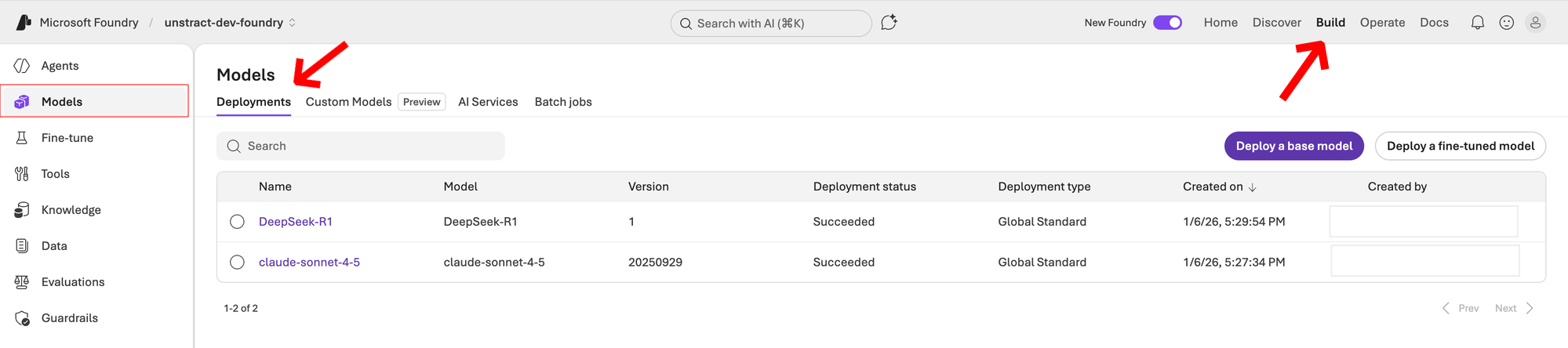
Click on the Build tab in the top navigation. From the left sidebar, click on Models. You will see the Deployments tab listing your existing model deployments.
-
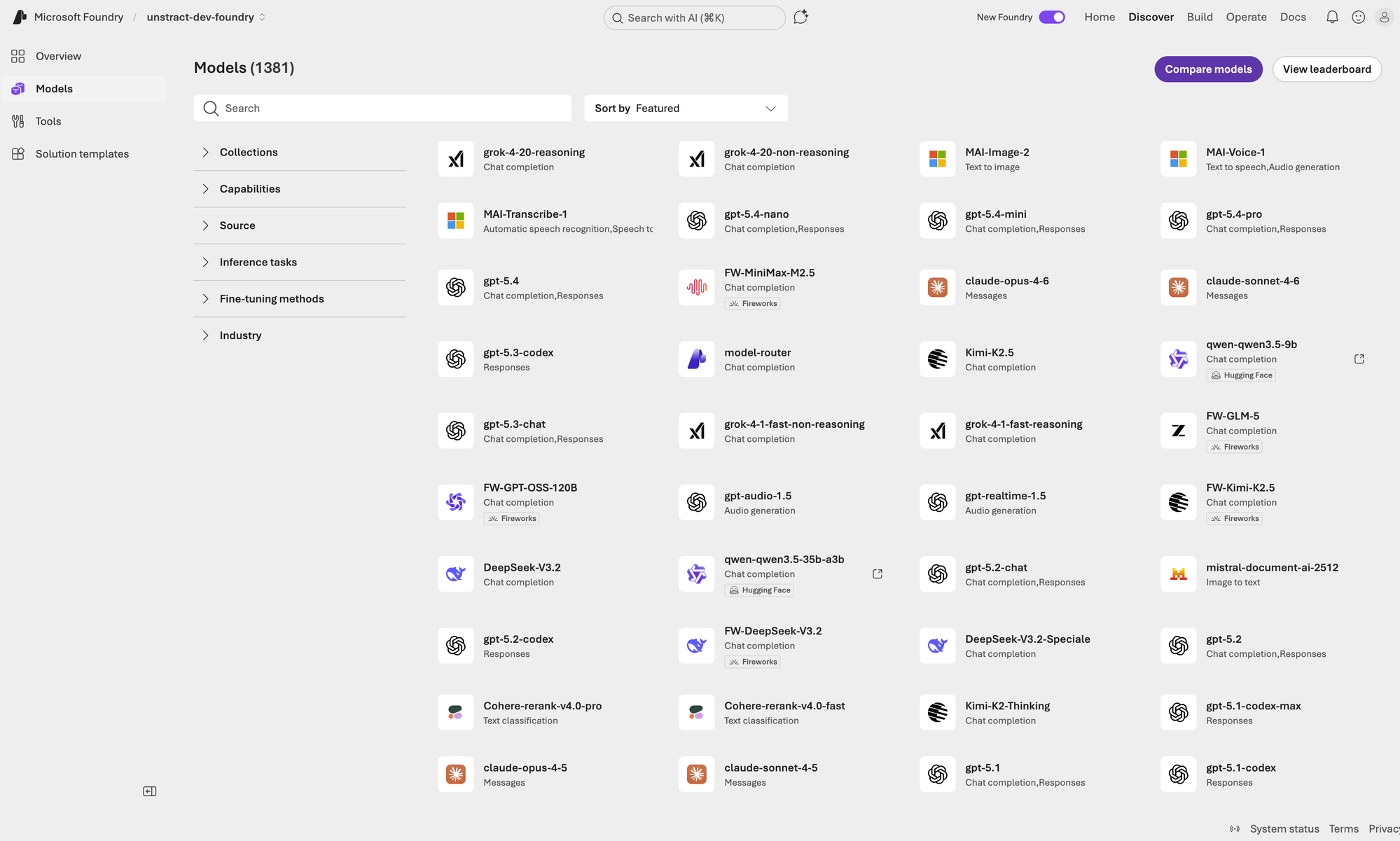
To deploy a new model, switch to the model catalog by clicking Discover in the top navigation. Browse or search for the model you want to deploy.
-
Select the model you want to deploy (e.g.,
claude-sonnet-4-6). On the model details page, click the Deploy button.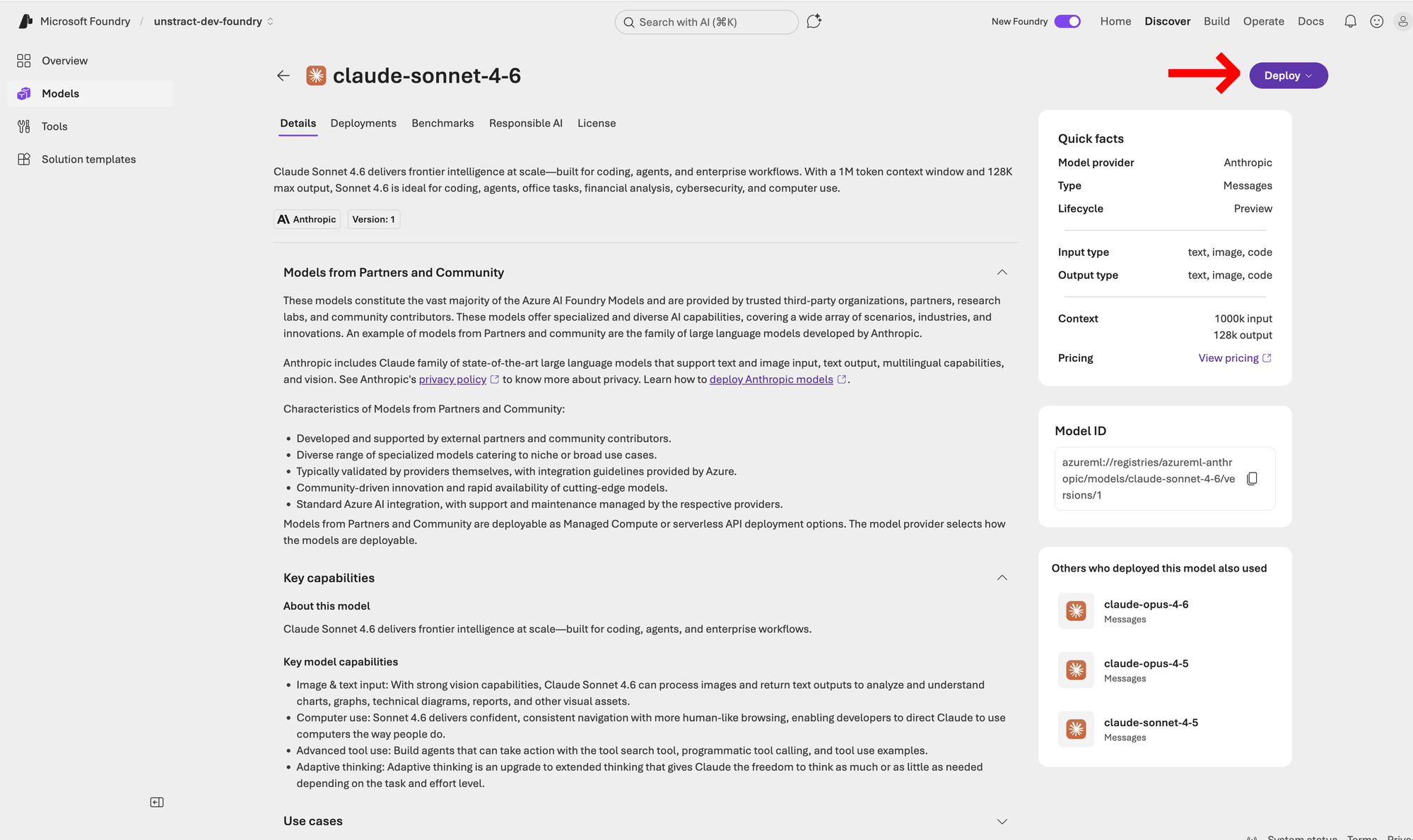
-
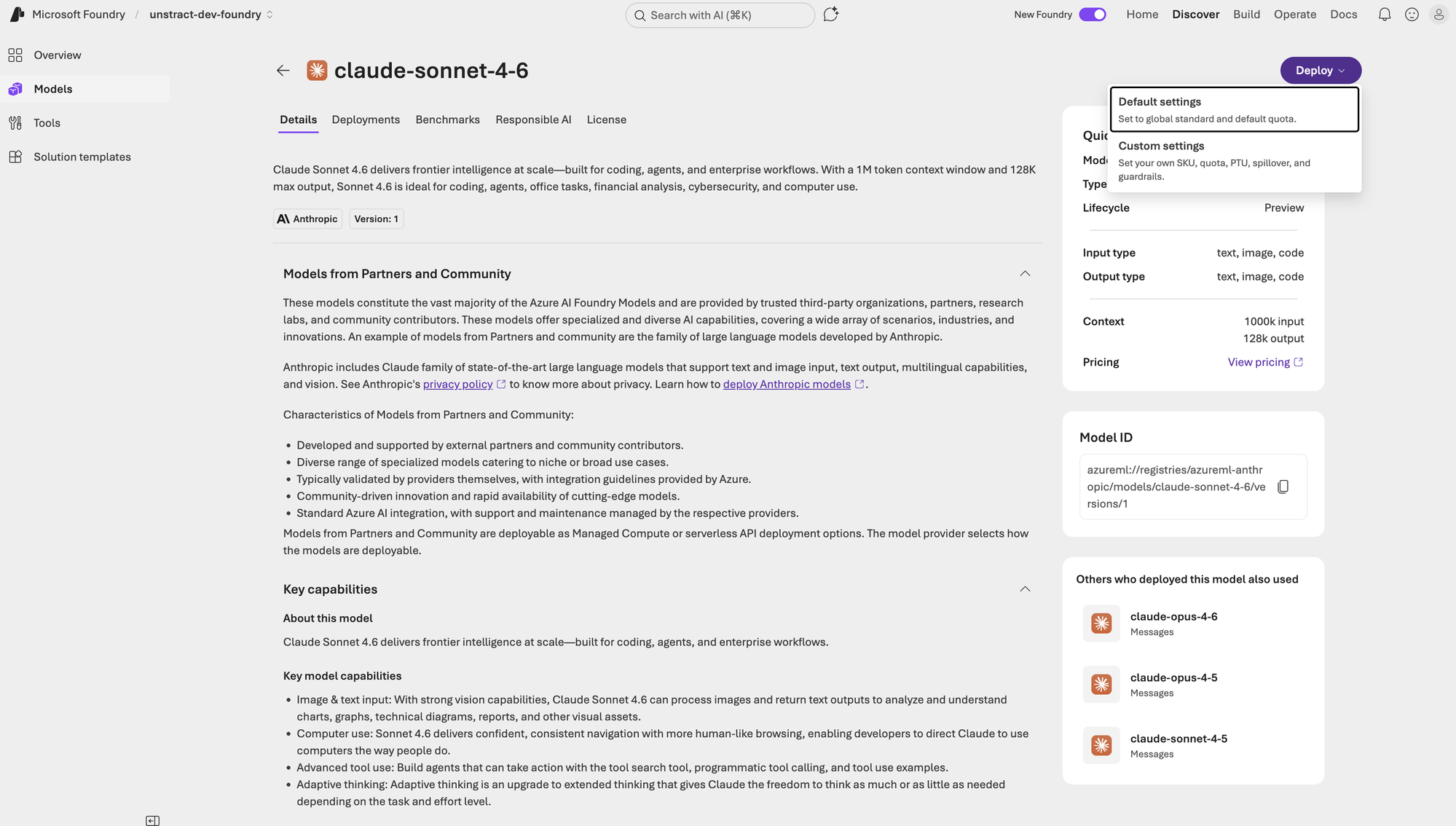
A dropdown will appear with deployment options. Choose the appropriate deployment type (e.g., Default settings, Custom settings, etc.).
-
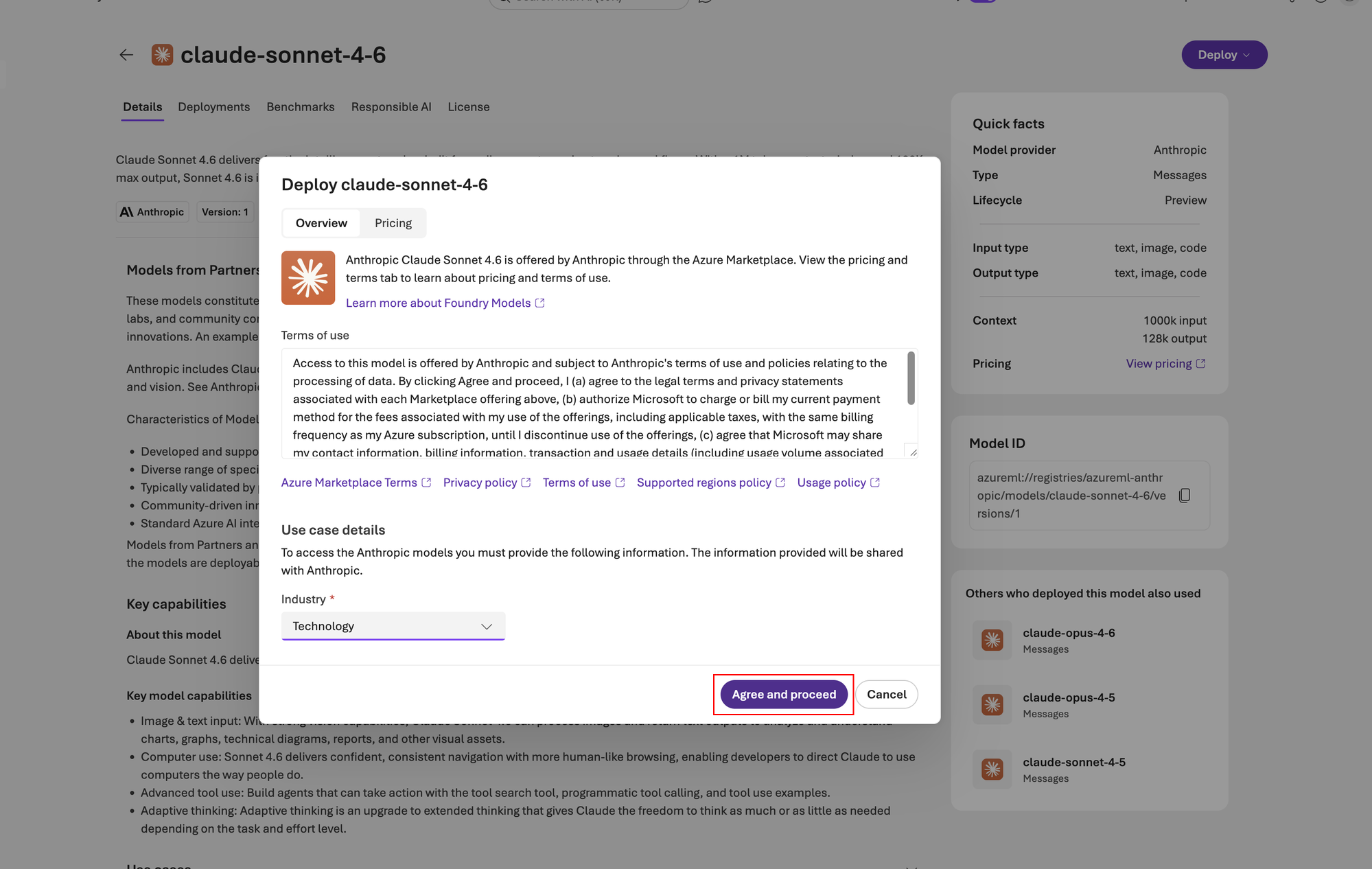
Review the terms of use and pricing information in the deployment dialog. Select your preferred options and click Agree and proceed.
-
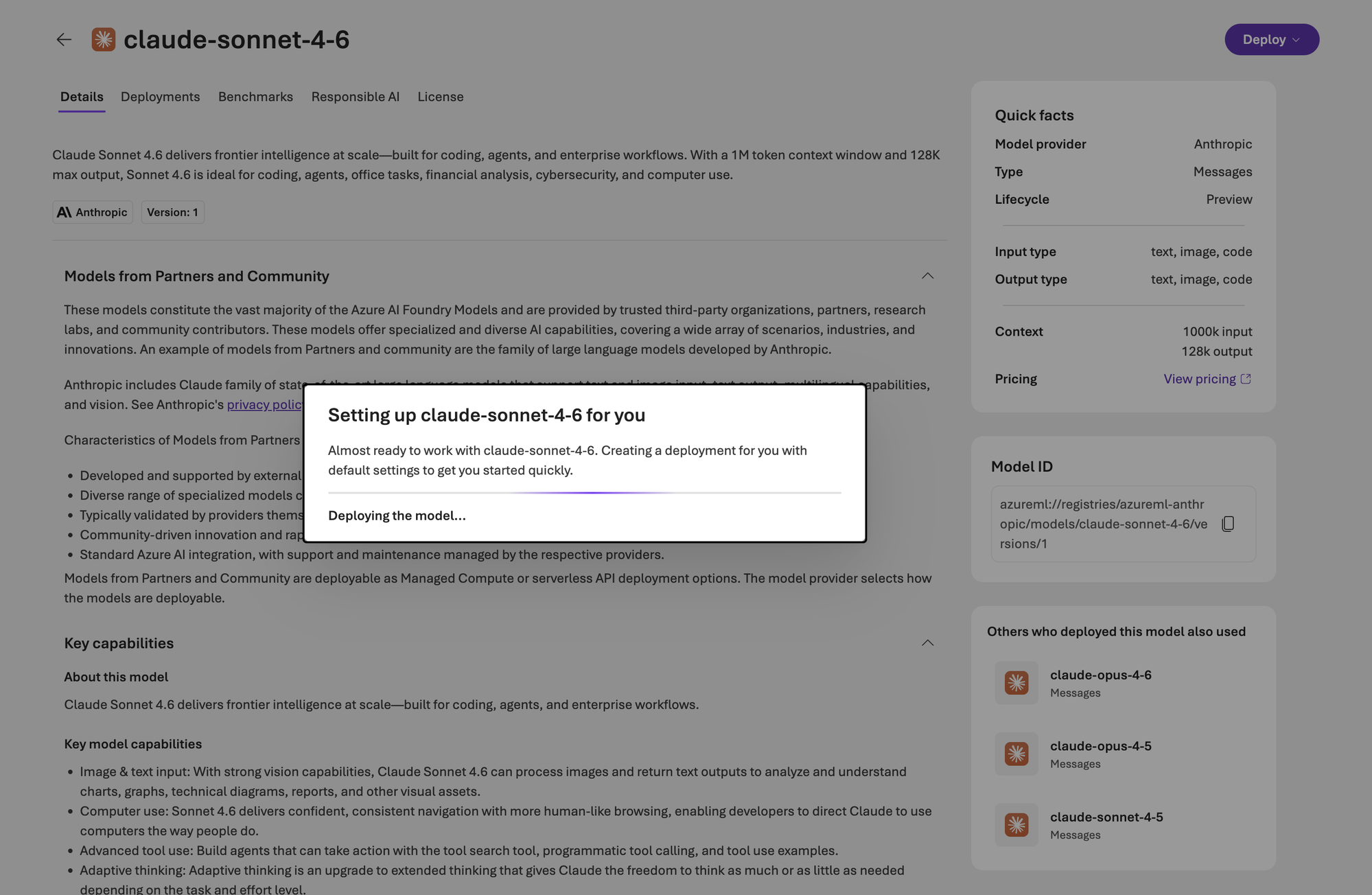
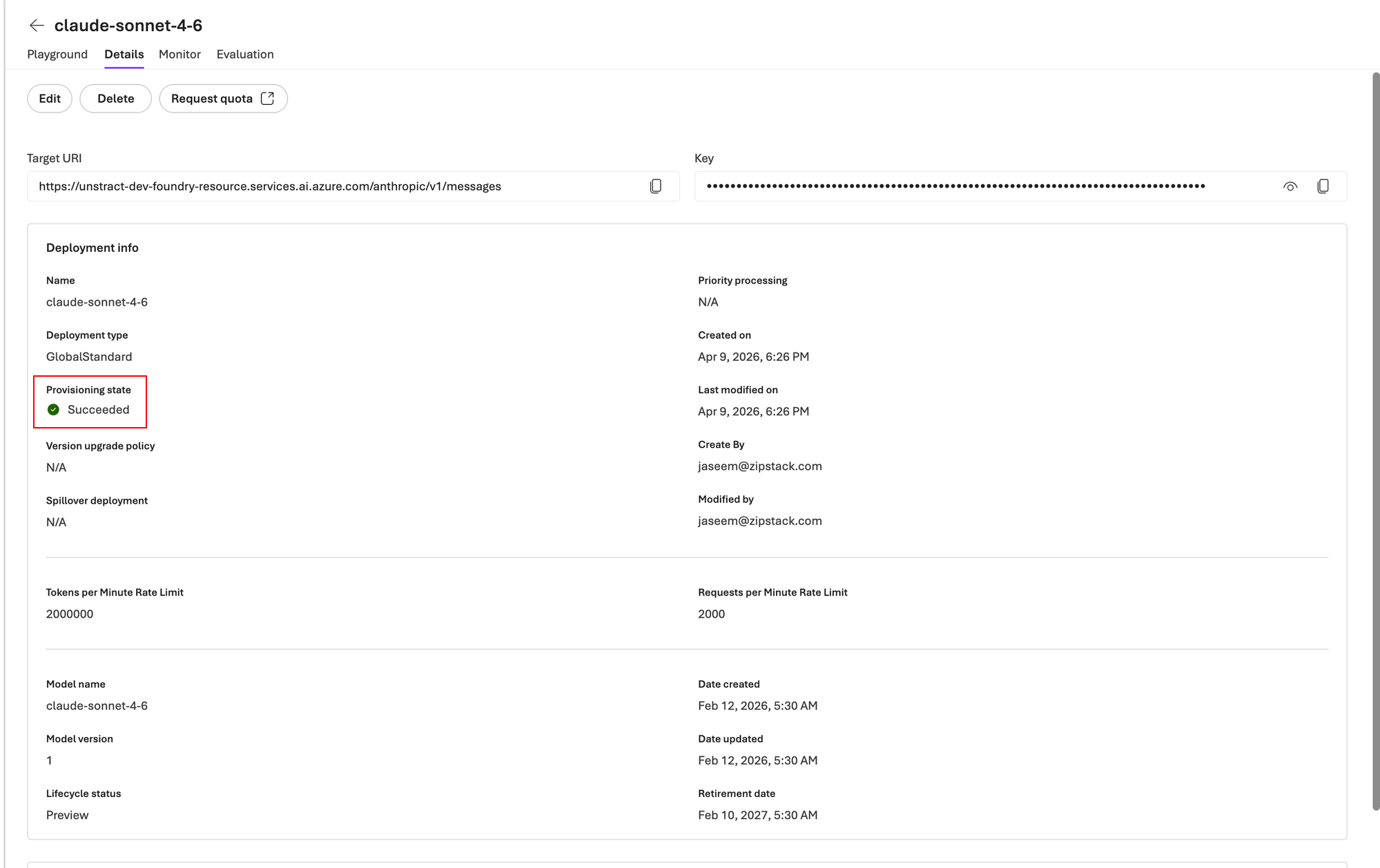
The model will begin deploying. Wait for the provisioning state to change from Creating to Succeeded.
-
Once the deployment succeeds, navigate to the deployment Details tab. Note down the Target URI and the Key — you will need these to configure the LLM in Unstract.
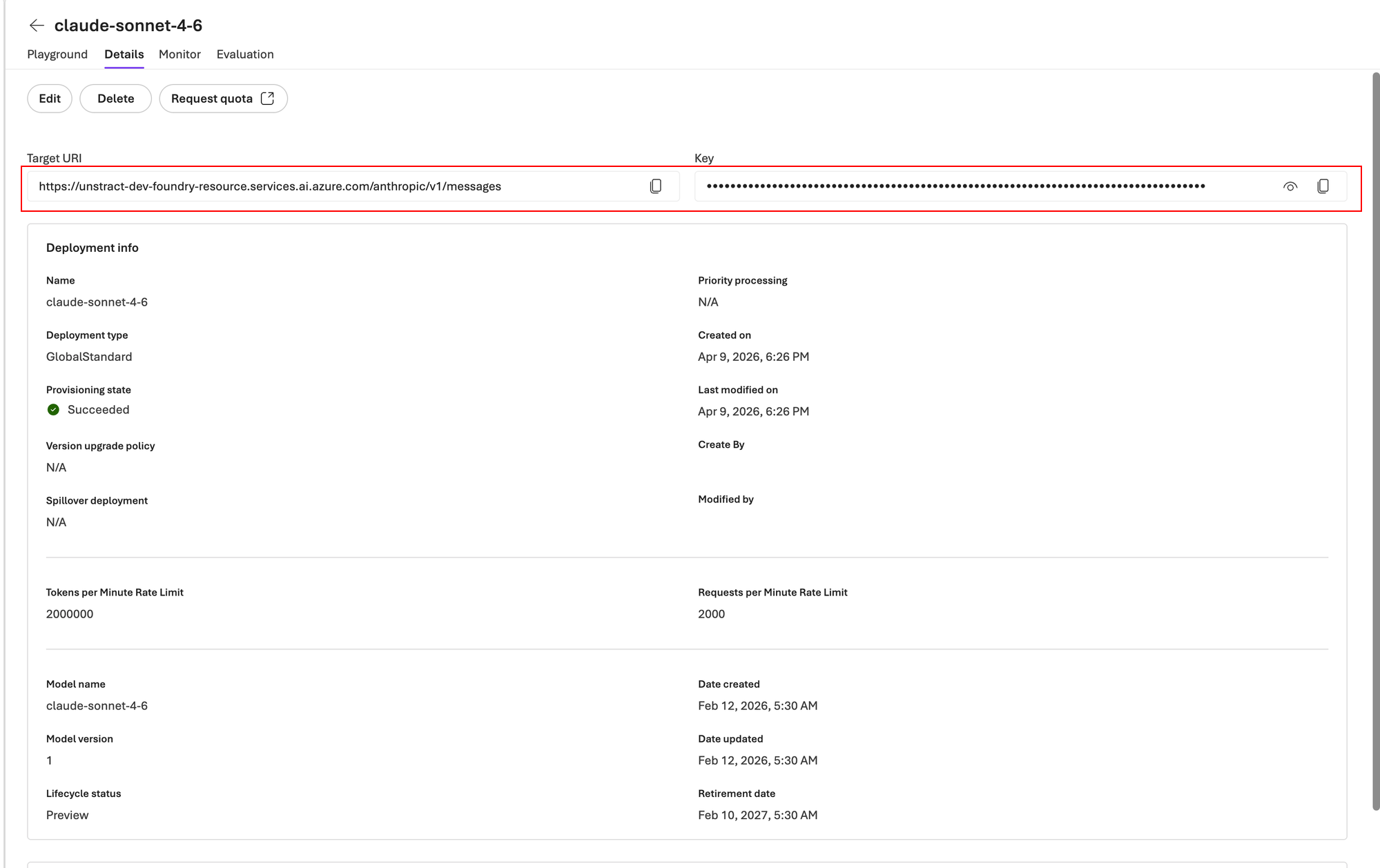
The Target URI displayed on the deployment details page is the full endpoint URL (e.g., https://<resource-name>.services.ai.azure.com/anthropic/v1/messages). For the Unstract configuration, you only need the base URL up to and including the resource domain — for example: https://<resource-name>.services.ai.azure.com/.
Alternatively, you can use the inference endpoint format: https://<resource-name>-<deployment-name>-serverless.<region>.inference.ai.azure.com/ or https://<region>.inference.ai.azure.com/.
Setting up Azure AI Foundry LLM in Unstract
Now that we have the endpoint URL and API key from Azure AI Foundry, we can use them to set up an LLM profile on the Unstract platform. For this:
-
Sign in to the Unstract Platform.
-
From the side navigation menu, choose
Settings🞂LLMs. -
Click on the
New LLM Profilebutton. -
From the list of LLMs, choose
Azure AI Foundry. You should see a dialog box where you enter details.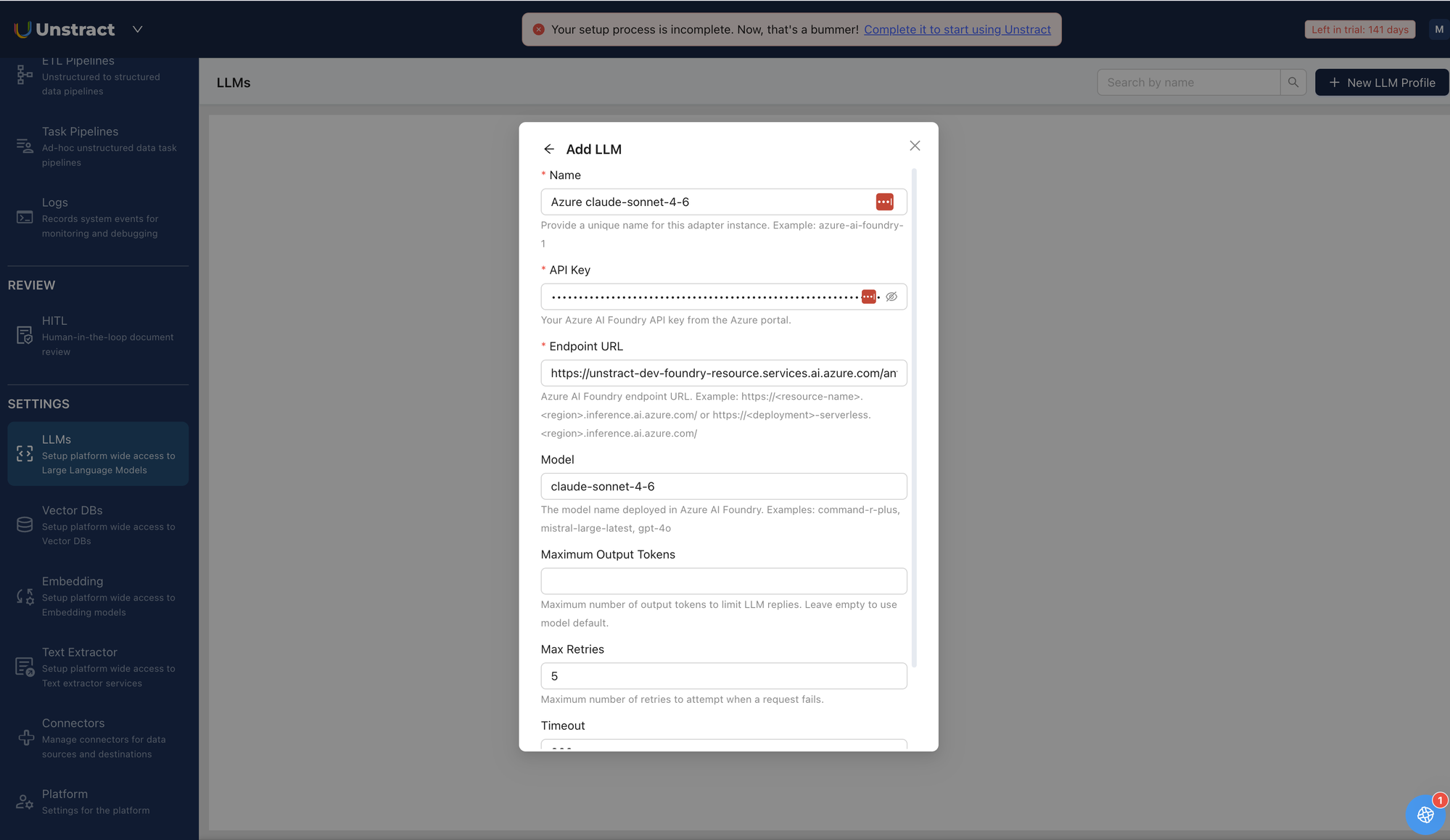
-
For
Name, enter a unique name for this adapter instance. Example:azure-ai-foundry-1. -
In the
API Keyfield, paste the key copied from the Azure AI Foundry deployment details page (refer step 8). -
For
Endpoint URL, enter the Azure AI Foundry endpoint URL. Example:https://unstract-dev-foundry-resource.services.ai.azure.com/. Refer to the info box above for URL format details. -
In the
Modelfield, enter the model name deployed in Azure AI Foundry. Examples:claude-sonnet-4-6,command-r-plus,mistral-large-latest,gpt-4o. -
Leave
Maximum Output Tokensempty to use the model default, or set a value to limit LLM reply length. -
Leave
Max RetriesandTimeoutfields to their default values. -
Click on
Test Connectionand ensure it succeeds. You can finally click onSubmitand that should create a new LLM Profile for use in your Unstract projects.