Ollama in Unstract Open source
Ollama is a user-friendly platform that lets you run powerful large language models (LLMs) directly on your own computer, even utilizing your graphics card for faster processing.
Getting started with Ollama
You can use Ollama in the Unstract open-source software through the following methods:
- Running it on your local system.
- Using a Docker image.
Local System.
Installation:
- Download the installer for your operating system (Windows, macOS, or Linux) from the Official Ollama website or GitHub repository.
- Follow the installation instructions. Ollama will automatically detect available GPUs on your system.
Download and install the LLM Model:
- Ollama doesn't come with pre-installed models. Choose one from the Ollama model library that's compatible with your system.
- Use the ollama run command followed by the model name (e.g., ollama run llama3). Ollama will download the model if necessary.
Docker Container.
Ollama is available as an official Docker image. Refer the Ollama official documentation for the steps.
Setting up the Ollama LLM model in Unstract
Now that we have a URL of instance in which ollama is running, we can use it to set up an LLM profile on the Unstract platform. For this:
-
Sign in to the Unstract Platform
-
From the side navigation menu, choose
Settings🞂LLMs -
Click on the
New LLM Profilebutton. -
From the list of LLMs, choose
Ollama. You should see a dialog box where you enter details.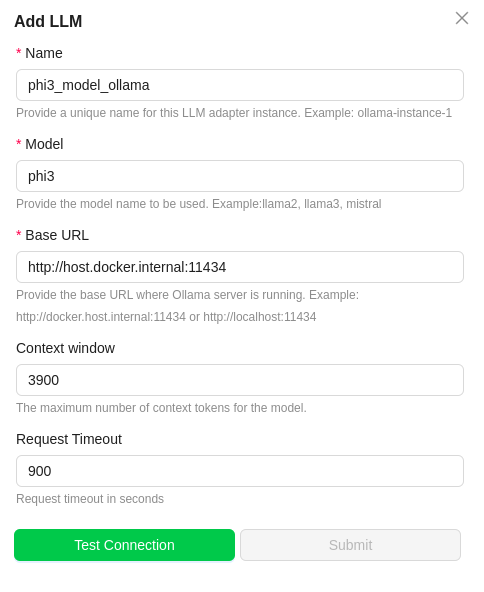
-
For
Name, enter a name for this connector. -
In the
Model Nameenter the Ollama LLM model. To get the Ollama model names, refer Ollama Models Section -
In the
URLfield, enter the URL in which the ollama is running.- Try http://host.docker.internal:11434 or http://localhost:11434
- 11434 is default port of ollama. Change the port accordingly, if its running in different one.
-
In the
Context Windowfield,enter the maximum number of context tokens for the model. Check for the Model context size by choosing any Ollama Model. -
Leave the
Timeoutfields to its default value. -
Click on
Test Connectionand ensure it succeeds. You can finally click onSubmitand that should create a new LLM Profile for use in your Unstract projects.