Gemini (Google AI Studio)
Gemini is Google's family of multimodal large language models, accessible through Google AI Studio. It can generate text, analyze documents, reason over complex inputs, and handle a wide range of tasks across text, code, and images.
This adapter uses a Google AI Studio API key — the simplest way to use Gemini. If you need GCP-managed access with service account credentials, use the Google / VertexAI Gemini Pro adapter instead.
Getting started with Gemini
-
Sign in to Google AI Studio using your Google account. Google AI Studio provides a free tier that's sufficient for evaluation — you can start without enabling billing.
-
From the left side navigation, choose
API keys. -
Click on
Create API keyin the top right corner.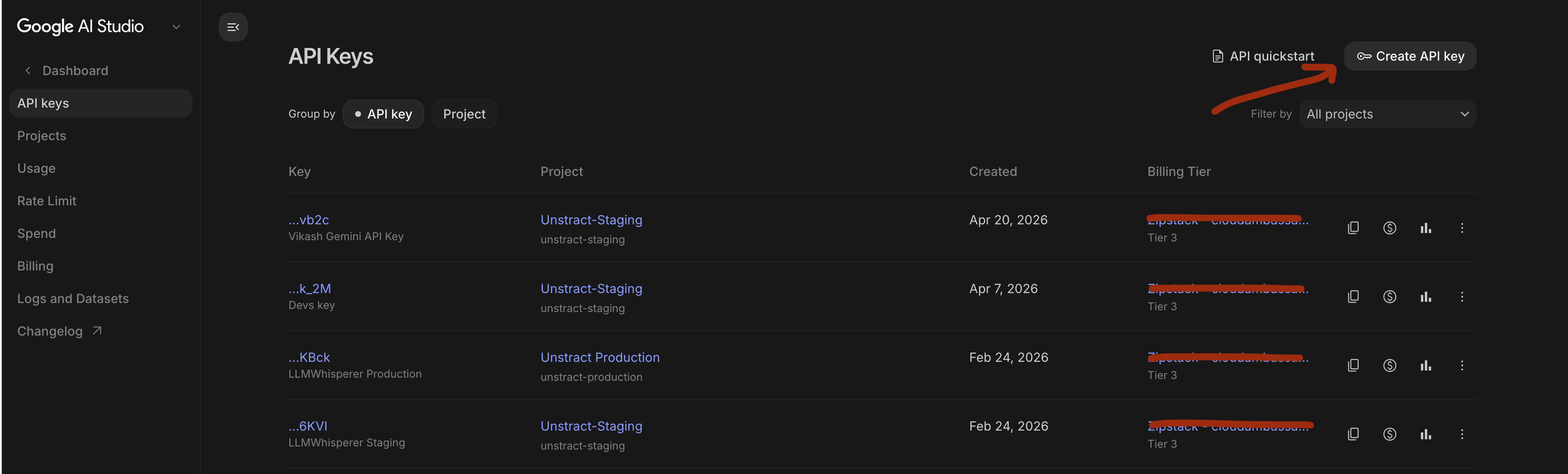
-
Select or create a Google Cloud project for the key, then copy the generated API key and keep it safe.
Setting up the Gemini LLM model in Unstract
Now that we have an API key from Google AI Studio, we can use it to set up an LLM profile on the Unstract platform. For this:
-
Sign in to the Unstract Platform
-
From the side navigation menu, choose
Settings🞂LLMs -
Click on the
New LLM Profilebutton. -
From the list of LLMs, choose
Gemini. You should see a dialog box where you enter details.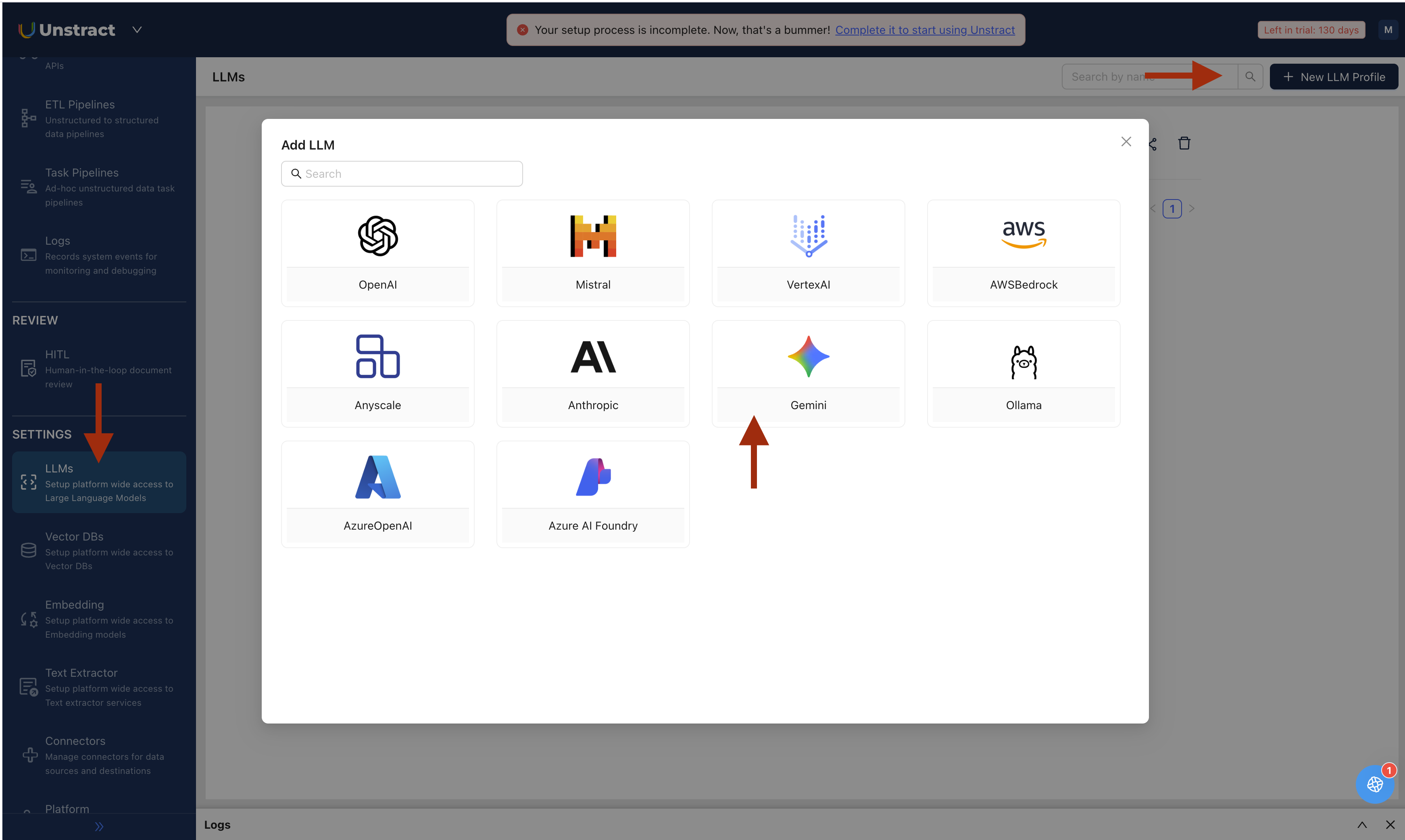
-
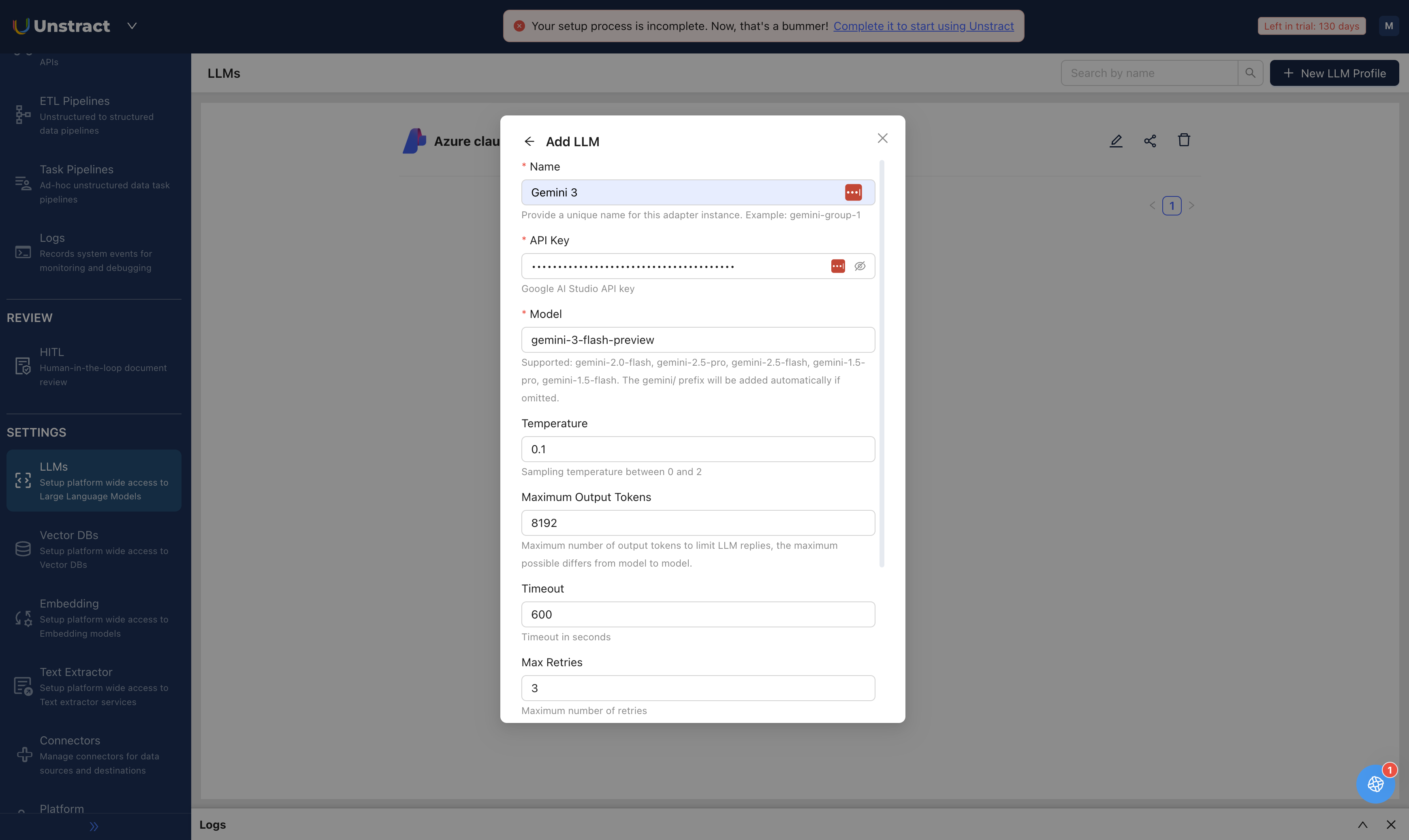
For
Name, enter a unique name for this adapter instance. Example:gemini-group-1. -
In the
API Keyfield, paste the API key copied from Google AI Studio. -
In the
Modelfield, enter the Gemini model name. Supported models:gemini-2.0-flash,gemini-2.5-pro,gemini-2.5-flash,gemini-1.5-pro,gemini-1.5-flash. Thegemini/prefix will be added automatically if omitted. Refer to Gemini Models for the full list. -
For
Temperature, set a sampling temperature between 0 and 2. Default is0.1. -
For
Maximum Output Tokens, set the maximum number of output tokens. Default is8192. The maximum possible value differs from model to model. -
Leave
Timeout(in seconds) andMax Retriesat their default values unless you have specific requirements. -
Click on
Test Connectionand ensure it succeeds. You can finally click onSubmitand that should create a new LLM Profile for use in your Unstract projects.