HITL Change Tracking & Audit Logs
This feature is available in Unstract Cloud Edition and Unstract On-Premise Edition.
Change tracking records every edit a reviewer makes during Human in the Loop (HITL) review. It gives you a complete, immutable audit trail of who changed what, when, and how — along with aggregated statistics that show which extracted fields most often need correction.
This is useful for:
- Audit & compliance — a tamper-proof record of every manual change made to extracted data
- Quality insights — spot the fields, tools, or prompts that reviewers correct most often so you can improve your Prompt Studio project
- Accountability — see exactly which reviewer made each change and when
Overview
There are two surfaces for change tracking:
- Change History drawer — available to reviewers and approvers inside the review screen. Shows the change history for the document currently open.
- Audit & Change Tracking management — available to administrators. Provides organization-wide Audit Logs, a Field Statistics dashboard, and per-project Configuration (enable/disable, retention, and alert thresholds).
Audit records cannot be edited or deleted manually. The only way records leave the system is through the retention policy you configure (see Configuration).
Change History Drawer
While reviewing or approving a document, open the History button in the review header. A badge on the button shows how many edits have been made to the current document.
The drawer lists every field that was changed, and for each field shows:
- The field name and a badge with the number of times it was edited
- Who made the last edit and when
- A Before / After comparison for each change
For nested JSON fields (objects and arrays), the drawer shows a per-leaf diff — only the specific paths that actually changed are listed, rather than the entire object. Added rows, deleted rows, and removed keys are called out explicitly, and null values are shown distinctly so you can tell a cleared value apart from a missing one.
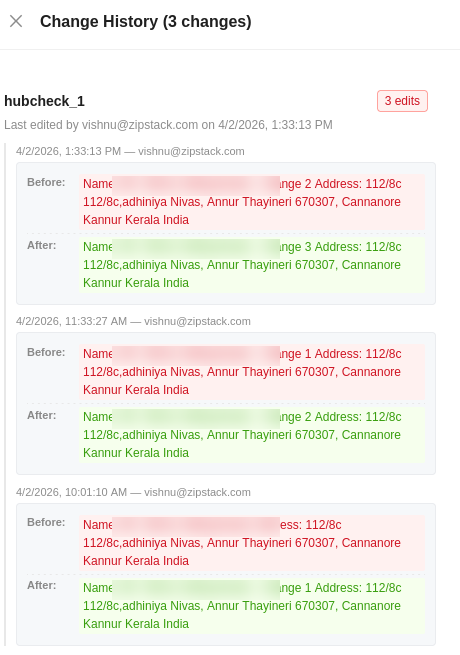
If a document has no recorded edits, the drawer shows "No changes recorded for this document."
Audit Logs
Administrators can open the Audit & Change Tracking section from the Manual Review Management page (click the Settings ⚙️ icon in the review header).
The Audit Logs tab lists every field-level change made during HITL reviews across your organization.
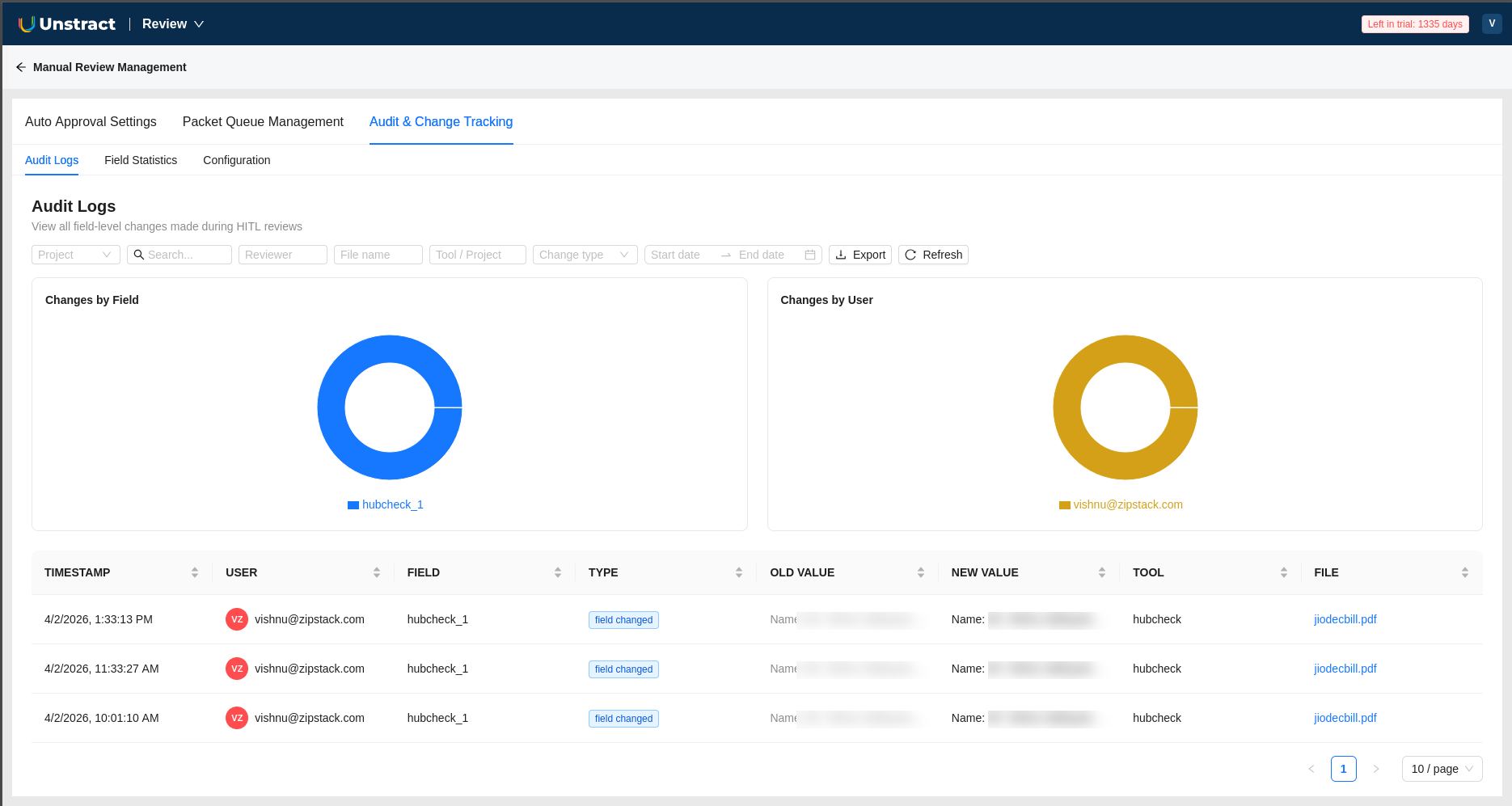
Filtering and search
You can narrow the log using:
- Project — dropdown to scope the log to a specific project (workflow / document class)
- Search — full-text search across field, tool, prompt, document name, and user
- Reviewer — filter by the reviewer's name or email
- File name — filter by document file name
- Tool / Project — text filter that matches the tool or project name shown in the log rows
- Change type — one of:
- Field Changed — a field value was edited
- Field Deleted — a field was removed
- Row Added — a row was added to a table/list field
- Row Deleted — a row was removed from a table/list field
- Date range — restrict to a start/end date
Columns
| Column | Description |
|---|---|
| Timestamp | When the change was made |
| User | The reviewer who made the change |
| Field | The field that changed |
| Type | Change type (Field Changed, Field Deleted, Row Added, Row Deleted) |
| Old Value | The previous value (long values are truncated) |
| New Value | The new value (long values are truncated) |
| Tool | The tool/project the field belongs to |
| File | The document file name |
When data is present, the tab also shows Changes by Field and Changes by User charts for a quick visual breakdown.
Exporting
Use the Export menu to download the full filtered result set:
- Export as CSV — saves an
audit-logs-<date>.csvfile - Print / Save as PDF — opens a formatted, print-ready view
Field Statistics
The Field Statistics tab aggregates change activity so you can see which parts of your extraction need the most manual correction.
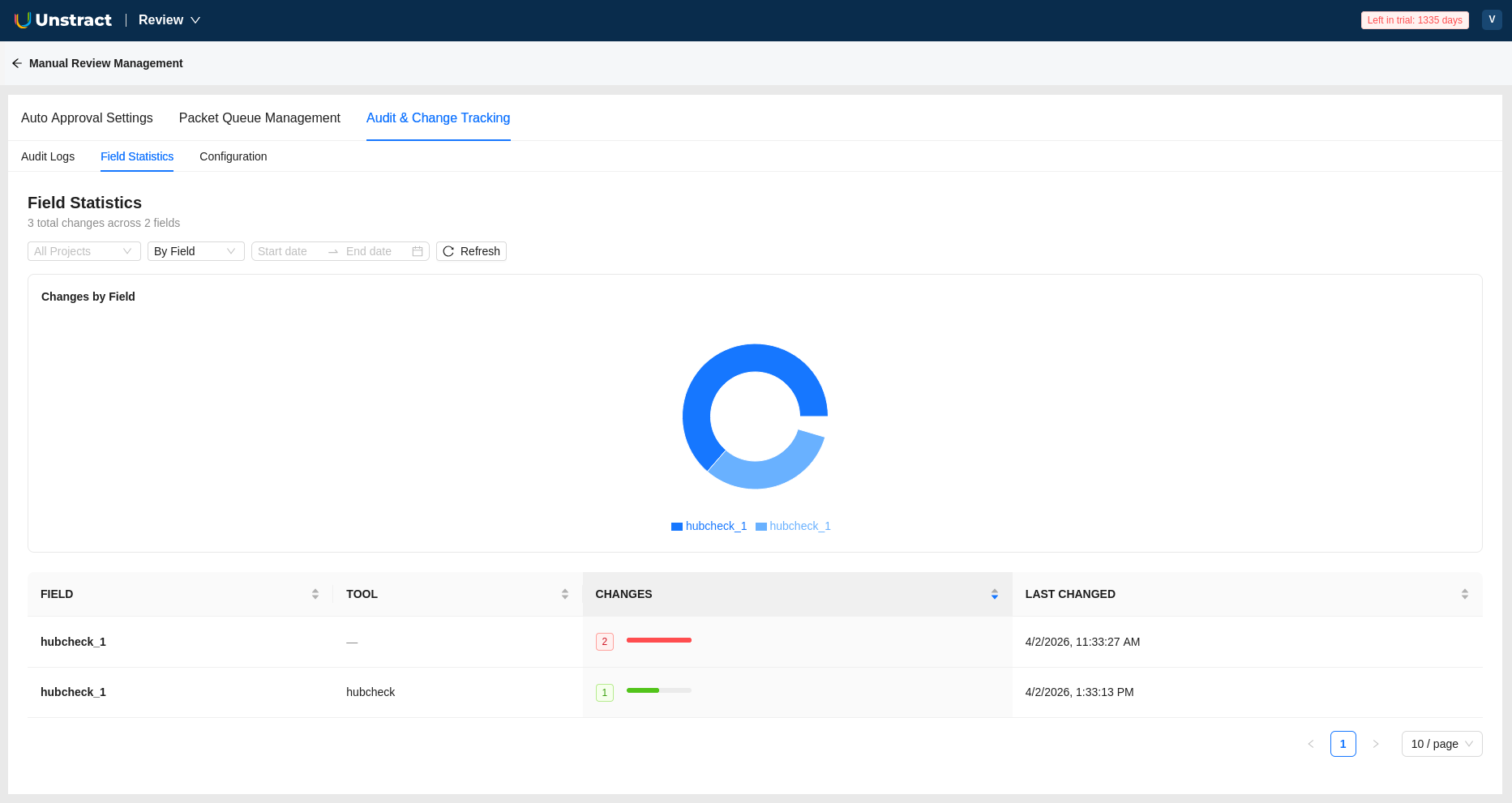
Controls:
- Project — filter to a workflow, or view All Projects
- Aggregation level — group results By Field, By Tool, or By Prompt
- Date range — restrict the period analyzed
It displays a Changes by Field chart (top fields by change count) and a sortable table with:
| Column | Description |
|---|---|
| Field | The field name |
| Tool | The tool/project the field belongs to |
| Changes | Number of changes, with a color-coded bar (green → orange → red as frequency rises) |
| Last Changed | When the field was most recently changed |
A field with a consistently high change rate is a signal that its prompt or extraction logic can be improved in Prompt Studio. Fixing it upstream reduces manual review effort over time.
Configuration
The Configuration tab lets administrators tune change tracking per project. Select a project, adjust the settings, and click Save Configuration.
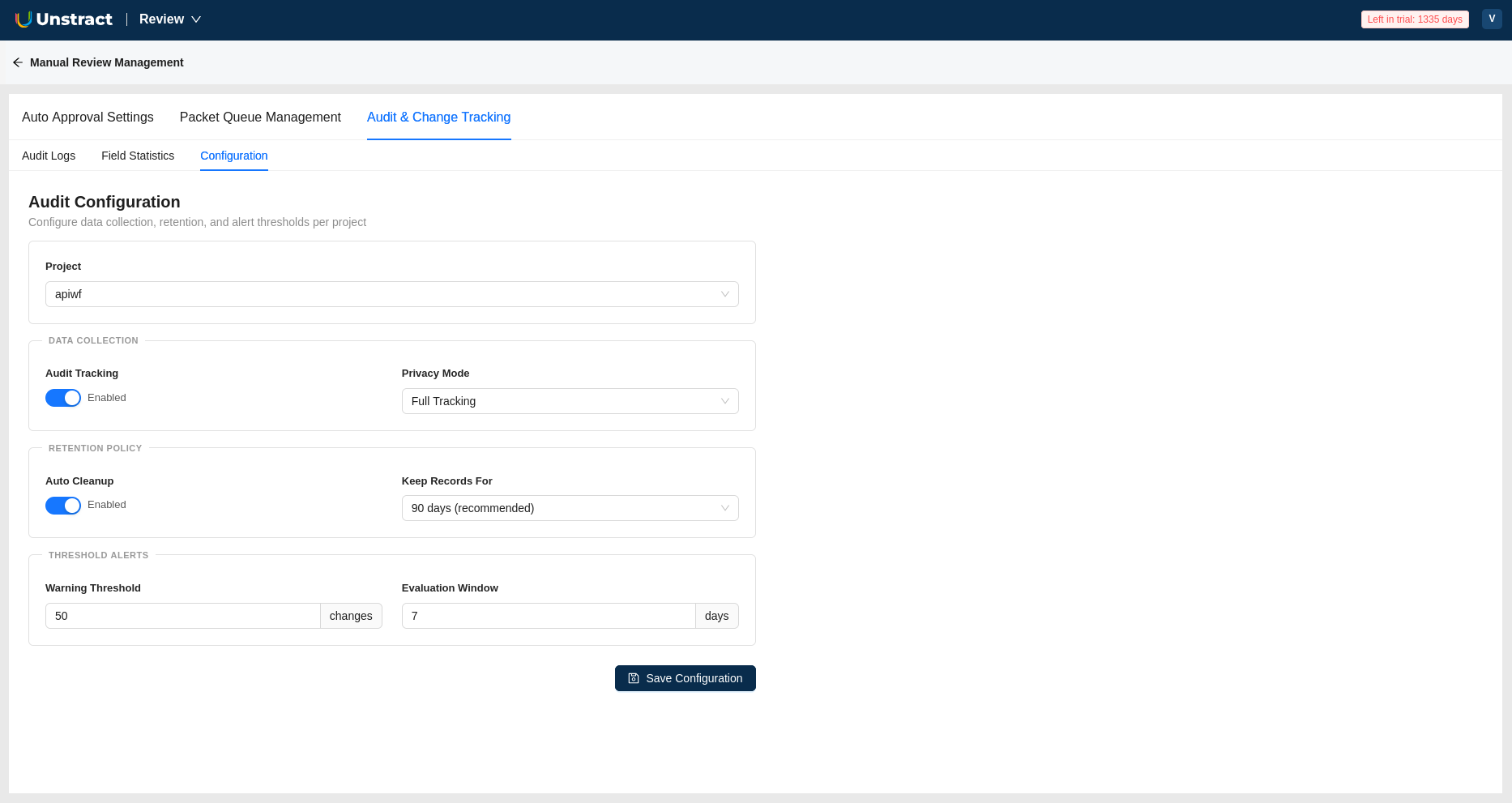
Data Collection
- Audit Tracking — enable or disable audit logging for the selected project
- Privacy Mode:
- Full Tracking — records the actual old and new field values
- Anonymized — redacts the old and new values in the audit log (useful when field contents are sensitive)
Retention Policy
- Auto Cleanup — automatically purge old audit records
- Keep Records For — retention window: 30 days, 60 days, 90 days (recommended), or 1 year. Records older than this are removed by the scheduled cleanup job.
Aggregated Field Statistics are pre-computed and are not removed by the retention cleanup. Only the detailed, per-change audit log entries are subject to the retention window.
Threshold Alerts
- Warning Threshold — number of changes that should trigger a warning
- Evaluation Window — the number of days over which the threshold is evaluated
These let you flag projects whose change volume spikes beyond an expected level within a given time window.